Global and Dataset Roles

Soda Cloud uses Global Roles and Dataset Roles to manage access and permissions. These roles ensure users and user groups have the right level of access based on their responsibilities.

Global Roles

circle-exclamation

Global roles define permissions across the entire organization in Soda Cloud.

By default, Soda Cloud provides to Global Roles: Admin and Users. You can create custom roles with a subset of the permissions

Permission Group
Descriptions
Admin
User

Manage data sources and agents

  • Allow to deploy a new Soda Agent as well as configure data source connections in Soda Cloud.

Create new datasets and data sources with Soda Core library

Manage attributes

  • Allow to define which datasets and check attributes are available to use in the organization.

Manage notification rules

  • Allow to manage how notifications are sent.

Manage organization settings

  • Manage organization settings

  • Deactivate users

  • Create, edit, or delete user groups

  • Create, edit, or delete dataset roles

  • Create, edit, or delete global roles

  • Assign global roles to users or user groups

  • Add, edit, or delete integrations

  • Access and download the audit trail

Manage scan definitions

  • Update scan definition

  • Run scan definition manually

Create Custom Global Roles

You can create custom global roles to match your organization’s needs.

To create a global role:

  1. Go to the Global Roles section in Settings.

  2. Click Add Global Role to create a new role.

  1. Enter a name for the role.

  2. Select the permissions the role should have.

  1. Click Save.

Edit Custom Global Roles

You can edit global roles at any time to adjust permissions as your organization’s needs evolve.

To edit a global role:

  1. Go to the Global Roles section in Settings.

  2. Find the global role you want to modify.

  3. Click the context menu next to the role and select Edit Global Role.

  1. Adjust the role’s name and permissions as needed.

  2. Click Save to apply your changes.

Assign Members to Global Roles

You can assign roles to individual users or user groups to grant them the associated permissions.

To assign a global role:

  1. Go to the Global Roles section in Settings.

  2. Find the global role you want to assign.

  3. Click the context menu next to the role and select Assign Members

  4. Select the users or user groups that should have the global roles

  1. Click Save to apply your changes.

You can also assign roles on the Users and User groups tabs:

Dataset roles

Dataset roles define permissions for specific datasets.

circle-exclamation

By default, Soda Cloud provides to Dataset Roles: Manager, Editor, and User. You can create custom roles with a subset of the permissions

Permission Group
Description
Manager
Editor
Viewer

View dataset

Access the dataset and view checks

Access dataset profiling and samples

Allow users to see insights about the data

Access failed row samples for checks

Allow users to see samples of rows that are considered invalid

Configure dataset

Allow users to define dataset attributes and owner, change settings, and add/enable/configure metric monitors at a dataset level

Manage dataset responsibilities

Allow users to grant and remove permissions through responsibilities.

Manage Contracts

Allow users to modify as well as verifying the Data contract

Propose checks

Allow users to propose changes in the Data Contract

Manage incidents

Allow users to edit and close incidents.

Delete dataset

Allow users to remove a dataset and its checks.

Create Custom Dataset Roles

You can create custom dataset roles to match your organization’s needs.

To create a dataset role:

  1. Go to the Dataset Roles section in Settings.

  2. Click Add Dataset Role to create a new role.

  1. Enter a name for the role.

  2. Select the permissions the role should have.

  • Click Save to apply your changes.

Edit Dataset Roles

You can edit dataset roles at any time to adjust permissions as your organization’s needs evolve.

To edit a dataset role:

  1. Go to the Dataset Roles section in Settings.

  2. Find the dataset role you want to modify.

  3. Click the context menu next to the role and select Edit Dataset Role.

  1. Adjust the role’s name and permissions as needed.

  2. Click Save to apply your changes.

Assign dataset responsibilities

Responsibilities in Soda Cloud define who has access to a dataset and what they are allowed to do. They are assigned by mapping users or user groups to a dataset role.

This ensures that the right people have the appropriate permissions for each dataset, such as the ability to manage checks, propose new rules, or view profiling information.

For example:

  • Assign a Manager role to a dataset owner who needs full control.

  • Assign a Viewer role to a business user who only needs to monitor data quality results.

By assigning responsibilities, you ensure clear access control, accountability, and governance across your datasets.

Learn about how to set up responsibilities on a dataset: Dataset Attributes & Responsibilities

Define default responsibilities

For the dataset owner

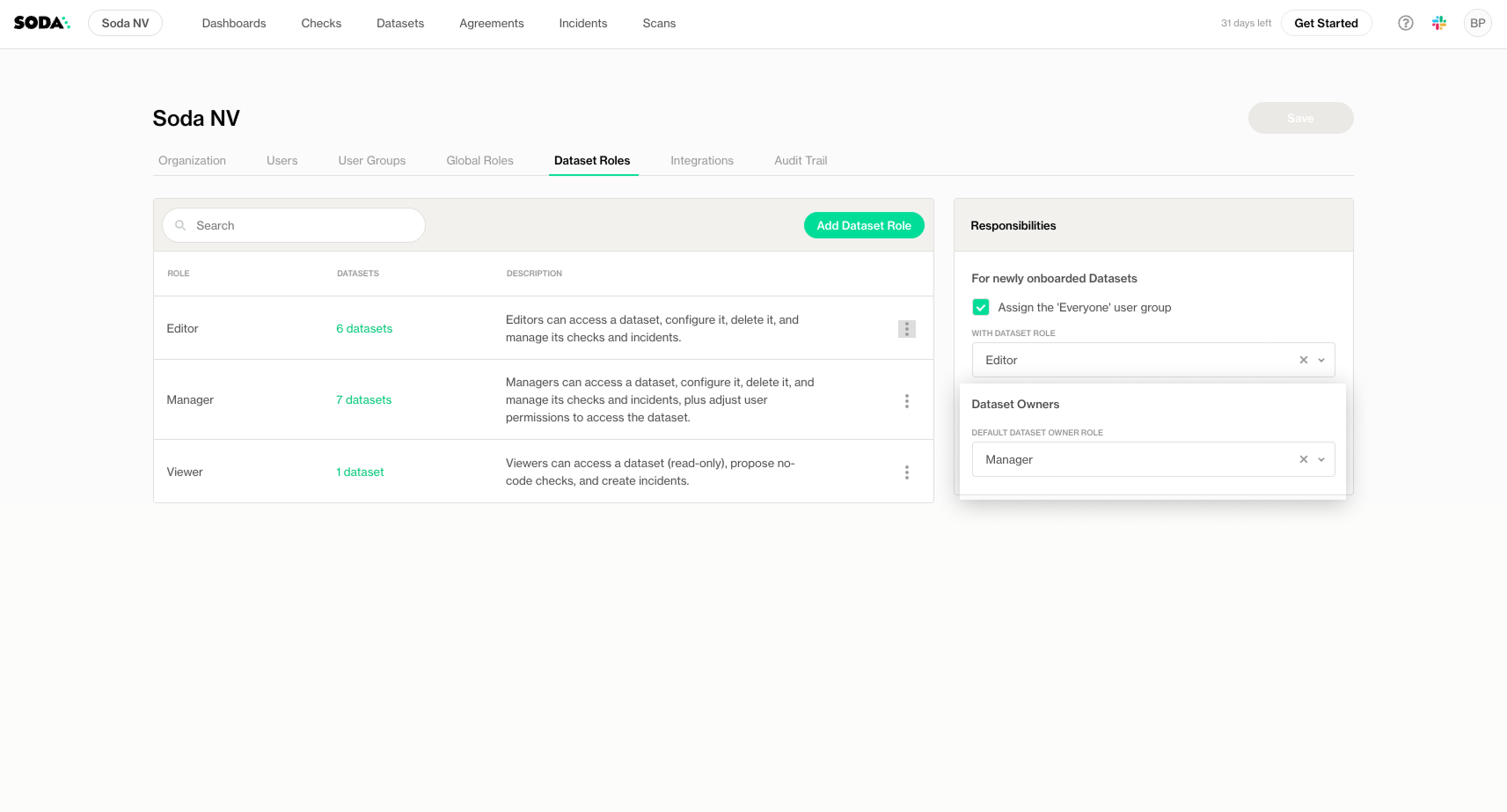
Soda Cloud allows you to define default responsibilities for the dataset owner, which will automatically be granted for all dataset owners. This ensures that all users have a consistent baseline level of access unless you choose to customize it.

By default, all dataset owners have the "Manager" role.

How to Configure Default Responsibilities

  1. Go to the Organization Settings page in Soda Cloud.

  2. Locate the Datasets Roles section.

  3. Select the dataset role to assign to the Dataset Owners

  1. Click save on the top right of the page to apply changes

For everyone

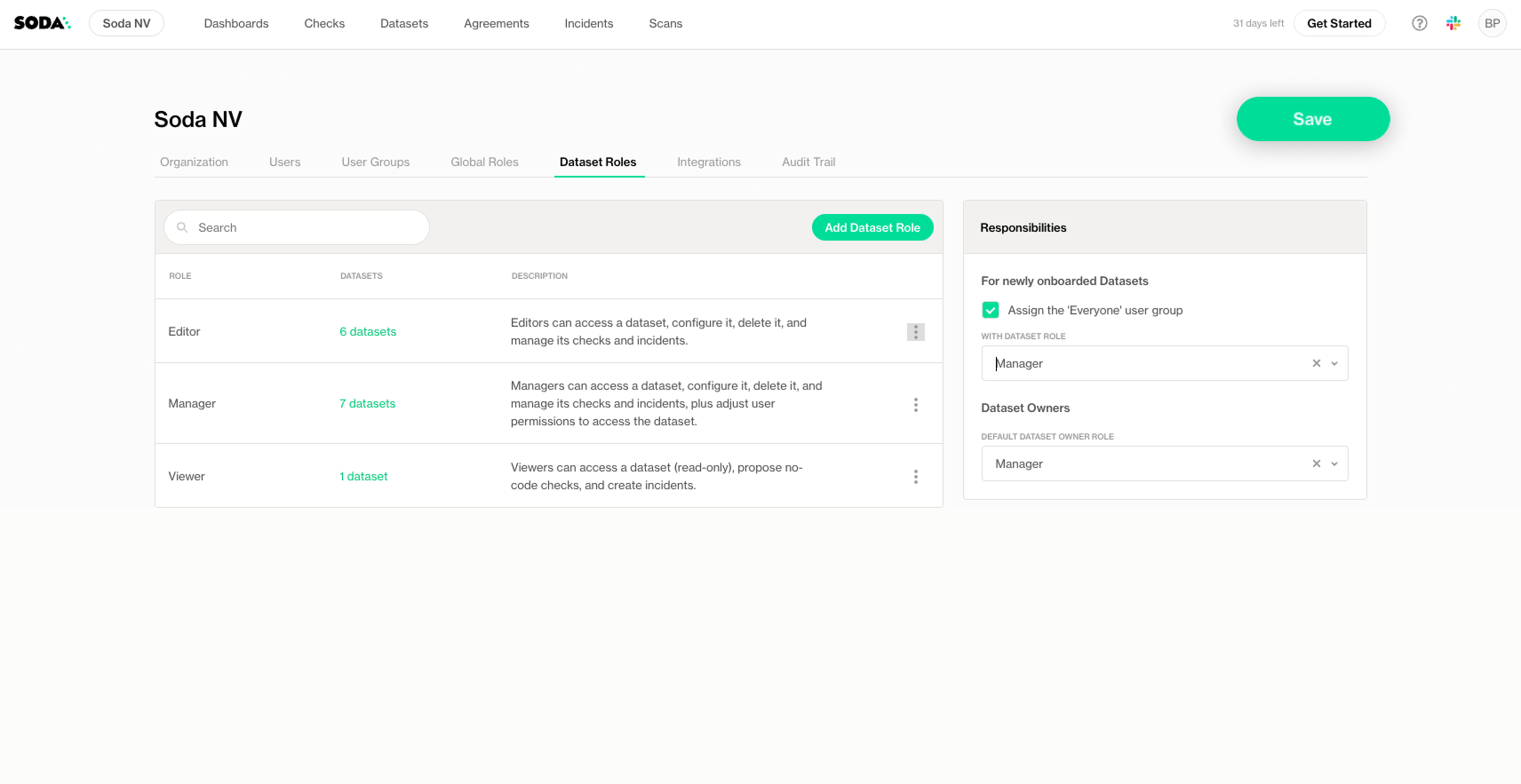
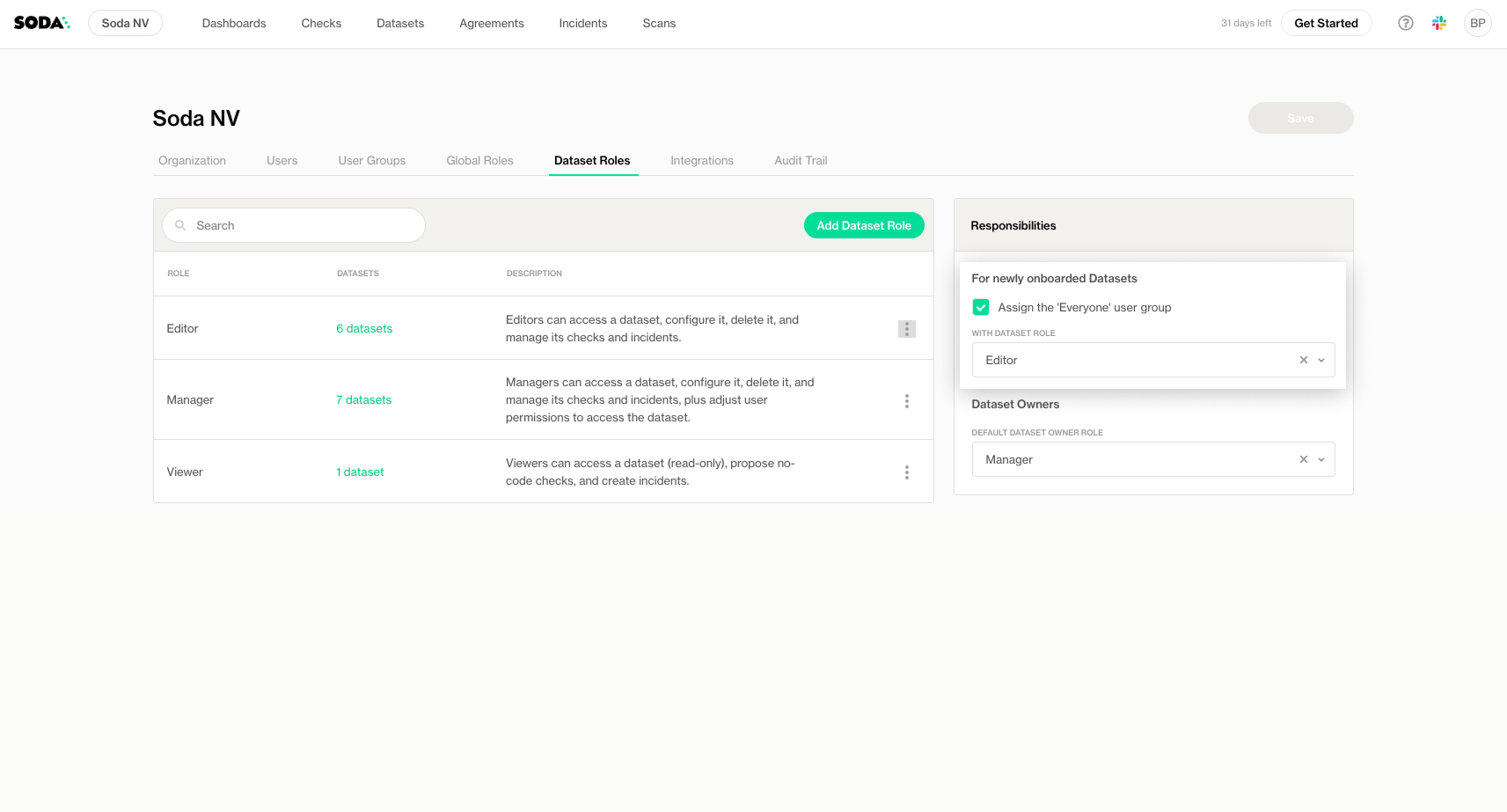
Soda Cloud allows you to define default responsibilities for the Everyone group, which will automatically apply to all newly onboarded datasets. This ensures that all users have a consistent baseline level of access unless you choose to customize it.

By default:

  • The Everyone group is assigned as a "Viewer" for all new datasets.

  • This setting applies to all users in your organization unless disabled.

You can either customize the default role or disable the default responsibilities if you do not want the Everyone group to receive any automatic access to new datasets.

How to Configure Default Responsibilities

  1. Go to the Organization Settings page in Soda Cloud.

  2. Locate the Datasets Roles section.

  3. Select the dataset role to assign to the Everyone group for new datasets.

  4. To disable default responsibilities, toggle the feature off.

  1. Click save on the top right of the page to apply changes


Role-Based Access Control (RBAC)

Role-Based Access Control (RBAC) in Soda Cloud ensures that users can only access and interact with data according to their assigned roles; roles and permissions are fully customizable to adapt to your organization's needs.

RBAC is designed to:

  • Enforce least-privilege access

  • Prevent direct user-to-permission grants

  • Scope access by organization and role

  • Ensure that all access is authenticated and authorized

Here’s how these features can benefit your organization on the journey to governed data democratization:

Customizable roles and permissions

With Soda, you can tailor access to data to align with your specific needs. For instance, you can create a role for Product Marketing that allows the team to view sample data and propose data quality checks on particular datasets, while restricting editing capabilities on others.

If a default role is not quite what you're looking for, you can easily edit its permissions to add new capabilities.

Streamlined user management

You can enable user group synchronization from your Identity Provider (IdP) to Soda Cloud, reducing the administrative burden of ensuring consistent permissions. This saves time during onboarding and offboarding while minimizing human error.

Bulk editing for enhanced efficiency

You can assign roles and permissions to multiple datasets in one go through Soda Cloud UI or via API.

Architecture

Strong identity as the security perimeter

Access to critical systems is federated via an Identity Provider (IdP) with:

  • Multi-factor authentication (MFA) enforcement

  • Role-based access control (RBAC)

  • Unique user identification

  • Least-privilege, role-scoped permissions

Roles are:

  • Managed centrally in the IdP

  • Mapped to system permissions

User group synchronization from the IdP to Soda Cloud is supported to streamline onboarding and offboarding while minimizing human error.

Authentication and enforcement

Every request to Soda Cloud:

  1. Is authenticated

  2. Is scoped to the user’s organization

  3. Passes through RBAC enforcement

circle-info

Soda Cloud does not provide a capability to publish content or files that can be accessed by users who are not authenticated members of the organization. Public link sharing and anonymous access capabilities are not allowed to prevent exposure of Soda Cloud content outside the authenticated organization.

How access control helps data democratization

Access control empowers data owners to efficiently manage data requests while ensuring that data is accessible.

  • Accelerates value creation by enabling quick access to a wide range of dataset

  • Improves decision making by ensuring users can easily identify and use the most relevant data


circle-info

You are not logged in to Soda and are viewing the default public documentation. Learn more about Documentation access & licensing.

Last updated

Was this helpful?