Onboard data sources & datasets on Soda Cloud
Onboard a new data source
Before you can define contracts, you need to connect Soda Cloud to your data source. This allows Soda to access your datasets for profiling, metric monitoring, and contract verification.
1. Navigate to the Data Sources page
From the top navigation bar in Soda Cloud, click Data Sources.
On this page, you’ll see a list of connected sources and a New Data Source button.

You need the "Manage data sources" global permission to add a new data source.
Learn more about Global and Dataset Roles
2. Add a new Data Source
Click on New Data Source and select your data source from the list of supported data source types.

After selecting a source, you’ll be presented with a configuration form.

2.1. Data source label
Enter a friendly, unique label. A unique name will be automatically generated from this label. This becomes the immutable ID of the data source and can also be used to reference the same connection in Soda Core.
2.2. Choose your agent
You’ll be asked to select an agent. This is the component that connects to your data source and runs scans.
You can choose from:
Soda-hosted agent – Quickest option, fully managed by Soda (recommended for getting started)
Self-hosted agent – For custom or secure deployments where you manage the agent yourself
Learn more about deployment options: Deployment options
2.3. Secure your credentials with secrets
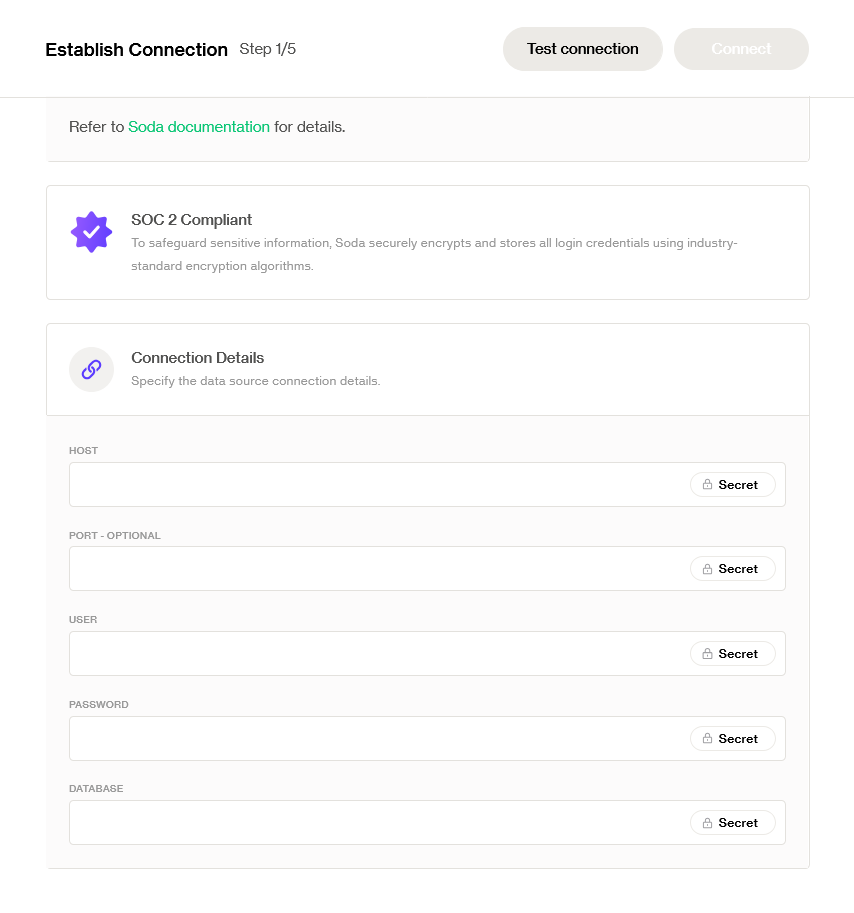
You’ll need to fill in the connection details. Soda uses the official Python packages for each supported data source, which means you can define any properties required by those libraries, flexibly and reliably.
This includes common fields like host, port, database name, username, and more, depending on the data source.
2.4 Using secrets for sensitive credentials
For sensitive values such as passwords, tokens, or keys, you should use Soda Secrets instead of entering them directly in the configuration.
Secrets are encrypted and securely stored in Soda Cloud.
They can be safely referenced in your data source configuration without exposing them in plain text.
To add secrets:
Navigate to the Data Sources tab in the top navigation.
Click the Secrets tab.
Define key-value pairs for your sensitive credentials.
You can then reference a secret in your data source configuration using this syntax:
This ensures your sensitive values stay secure while still being accessible to the agent at runtime.

2.5 Test and Connect
Once the form is complete:
Click Test Connection to validate that Soda can successfully connect to your data source.
If the test passes, click Connect to finalize the setup.

Onboard datasets from a new data source
After connecting, Soda will perform an automated dataset discovery. Soda triggers a scan that analyzes the datasets and retrieves their metadata, including columns and column data types. This reduces manual setup efforts, ensures data coverage in your environment and keeps Soda's dataset inventory aligned with your data sources. This feature allows other Soda features to work seamlessly:
Contract generation
Automated discovery of time partition column
Automated discovery of Primary Keys for Diagnostics Warehouse
1. Choose a dataset selection strategy
Dataset selection can be manual or rules-based.
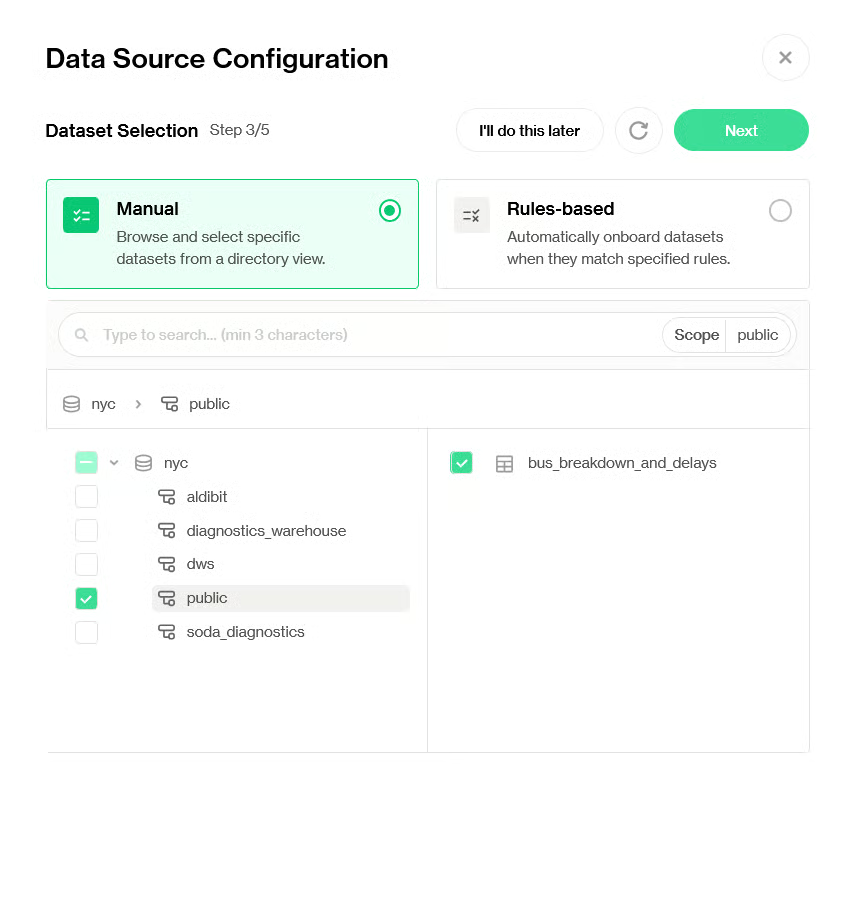
Manual dataset selection
Manual selection allows you to browse a directory view of all the datasets in your data source.


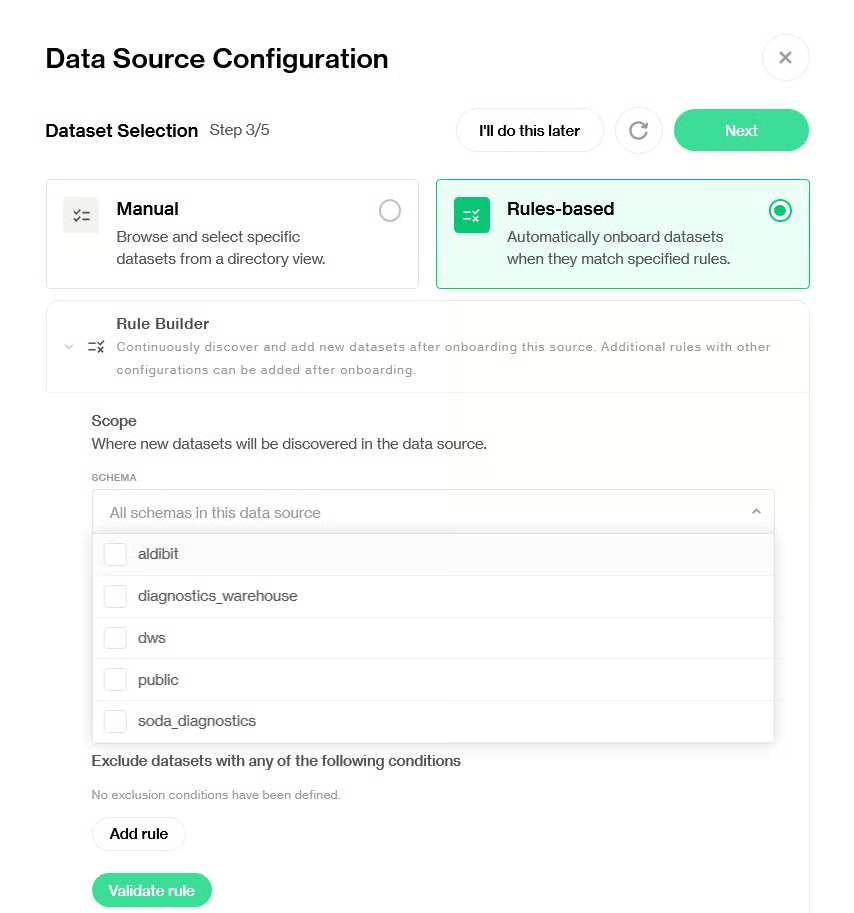
The Scope can range from the entire data source to a specific schema. Any element selected on the left panel becomes the scope of the dataset search.
The manual selection is made for scale; it can easily handle thousands of schemas and hundreds of thousands of datasets.
Datasets that have already been onboarded will not be visible in the manual dataset selection.
Rules-based dataset selection
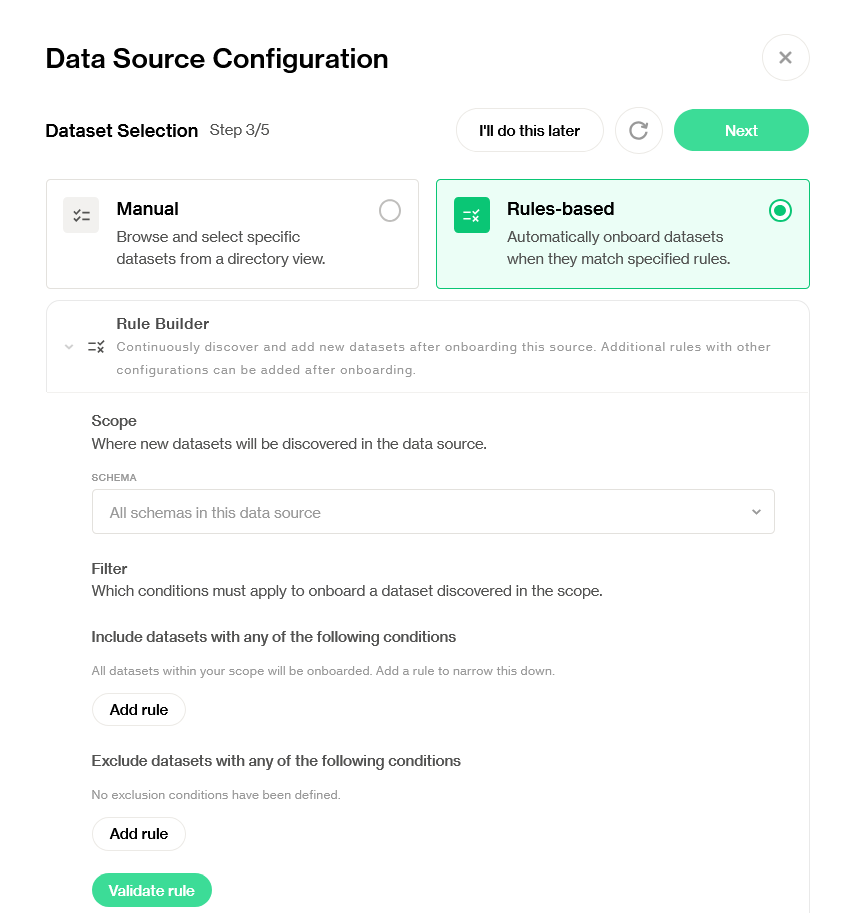
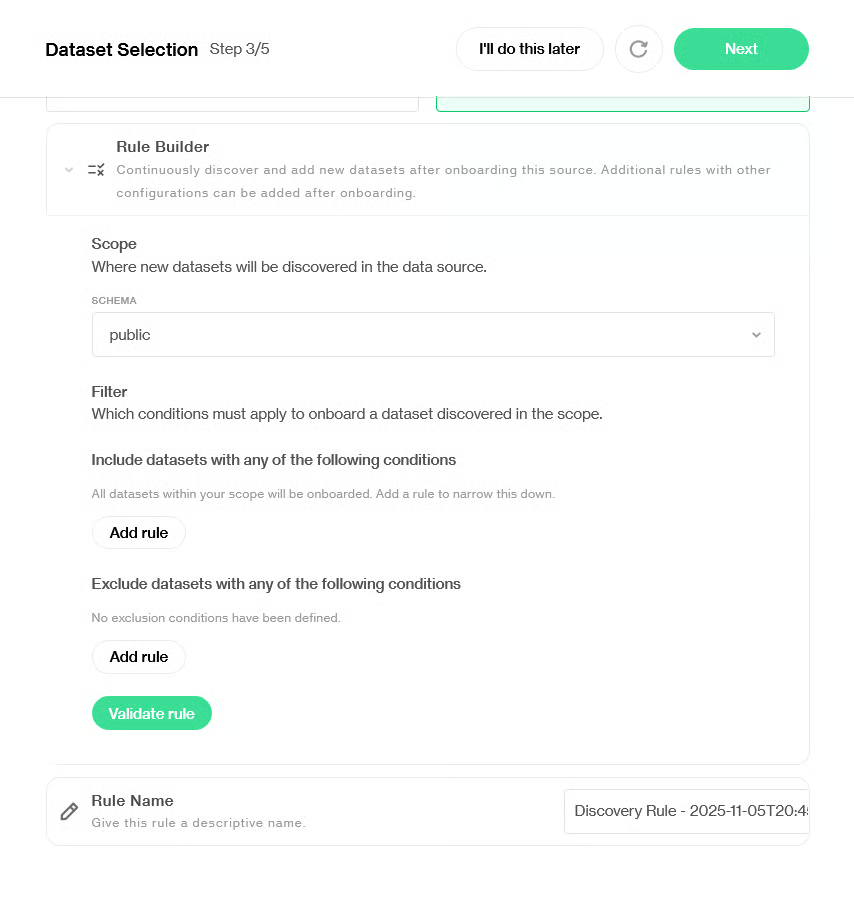
Rules-based selection allows you to automate the dataset onboarding process, only selecting those which match specified rules.
Rules-based selection includes existing and future datasets that match the conditions.
Soda will run hourly discovery scans on the data source. When Soda discovers a new dataset that matches the conditions set in the rules, it will automatically onboard it.


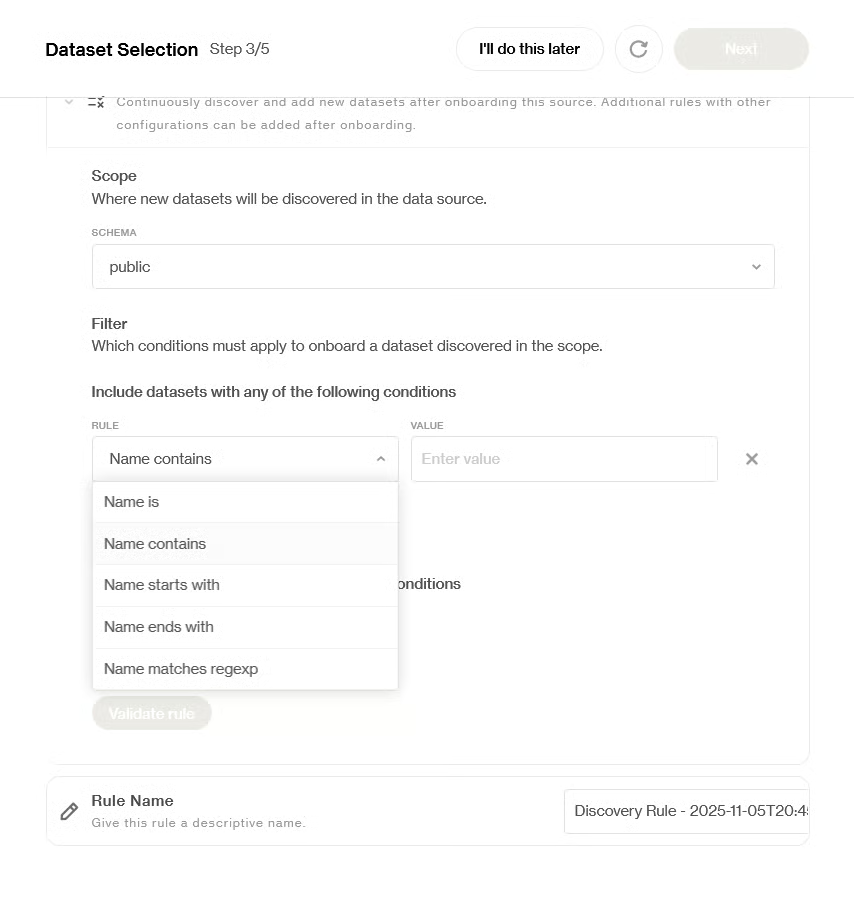
You can add rules to include or exclude datasets that match certain conditions, such as "name contains" or "name starts with", or provide your own regex pattern.


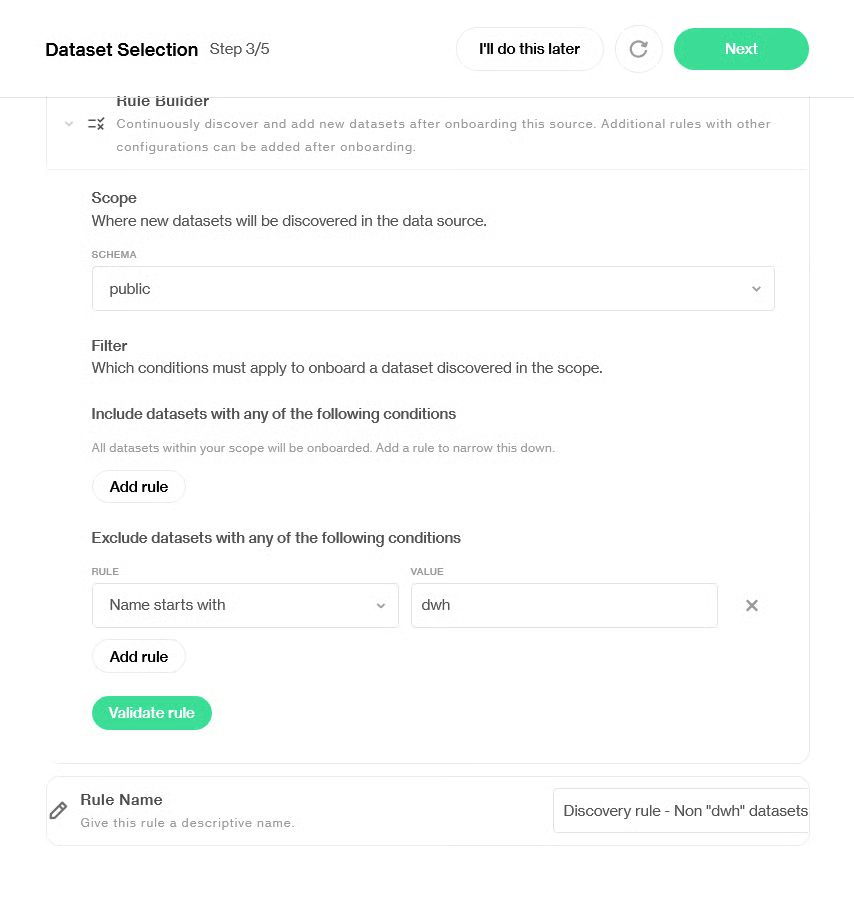
In the example below, only datasets whose name does not start with "dwh" from the public schema will be onboarded.

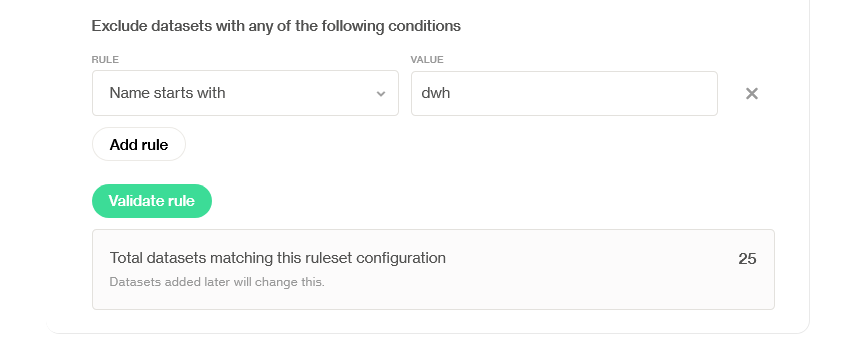
Once you click on Validate rule, Soda will calculate how many datasets currently match the defined conditions:

Onboarding rules review
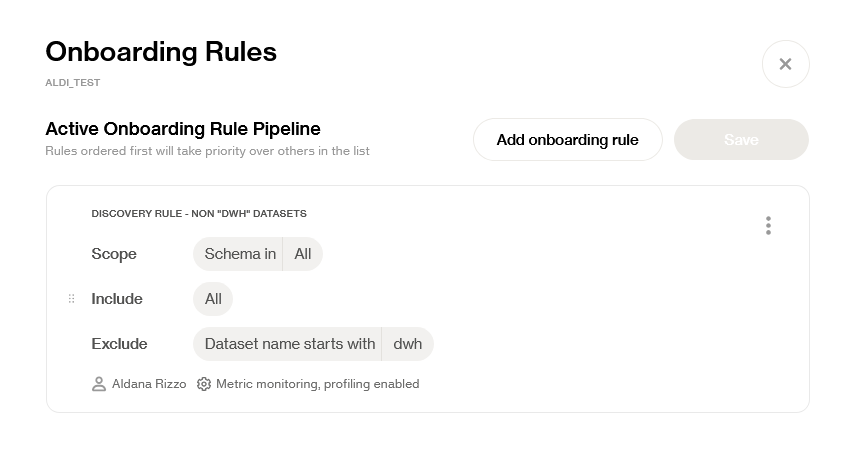
Once the onboarding process is finished (after Enabling Metric Monitoring), an overview of the Onboarding Rules will be provided. From this view, rules can be edited or deleted:

Rules will be executed in order of appearance on this view.
The order of the rules can be changed. As soon as a dataset matches a rule, it will be onboarded automatically; datasets can only be onboarded once.
2. Confirm onboarding
Click on Next to finish the process.
Once onboarded, datasets will appear in your Soda Cloud UI and become available for contract creation or metric monitoring.
Refresh dataset discovery: Soda runs discovery scans hourly to get the latest view of tables and schemas within a data source. By pressing on the icon on the top right of the page, you can run the scan on demand.
3. Enable Metric Monitoring & Profiling (optional)
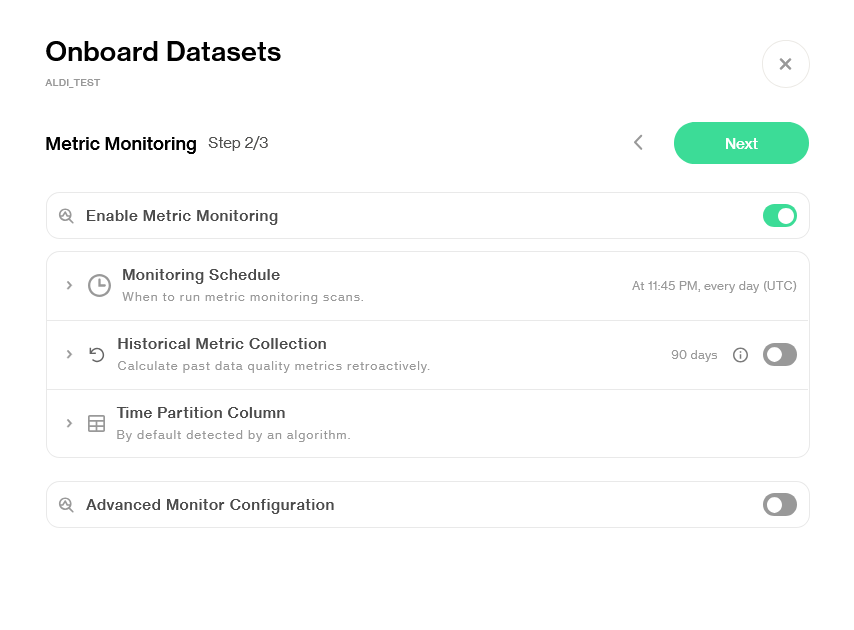
Through Metric Monitoring, you can enable built-in monitors to automatically track row counts, schema changes, freshness, and more across your datasets. This step is optional but recommended. This can be enabled in bulk when onboarding data sources and datasets.
Learn more about Metric Monitoring: Metric Monitoring dashboard
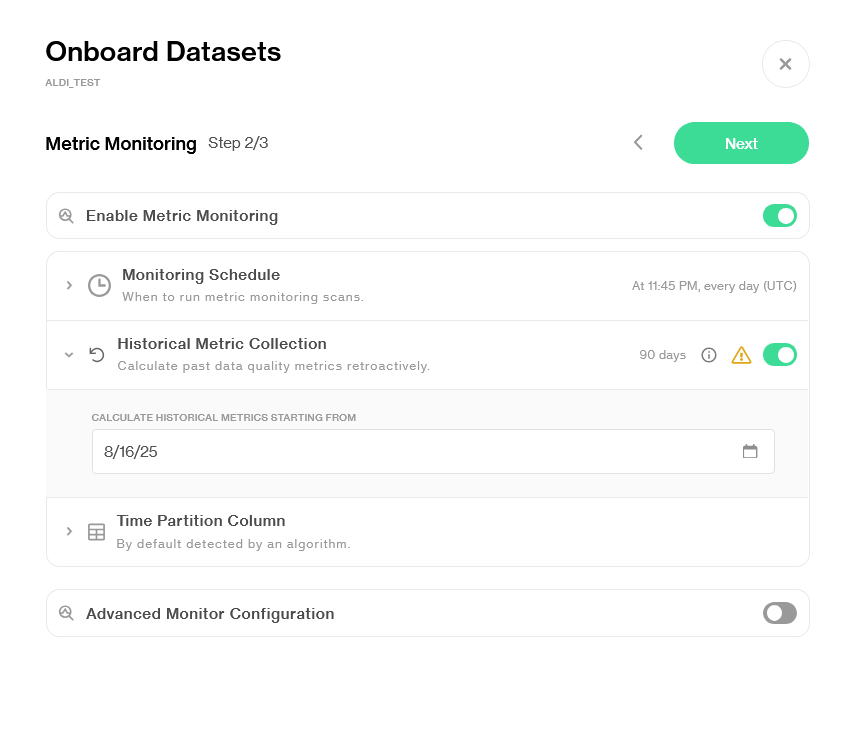
3.1. Toggle on Metric Monitoring

When metric monitoring is enabled it's possible to later add column monitors on dataset level or overwrite any of the settings.
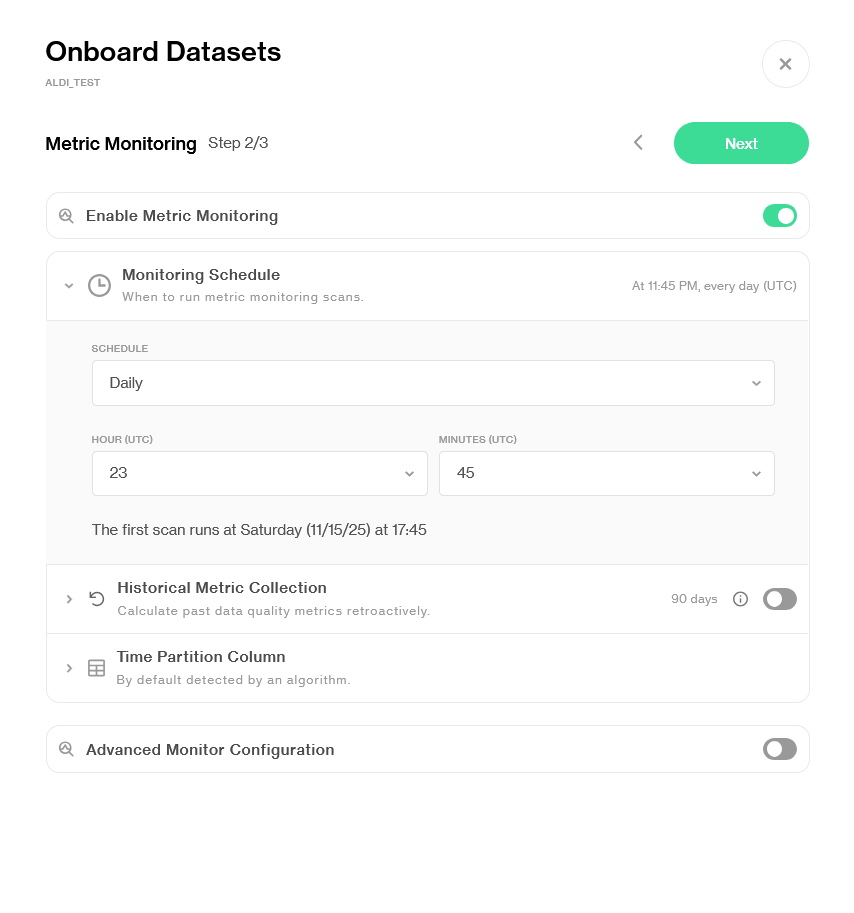
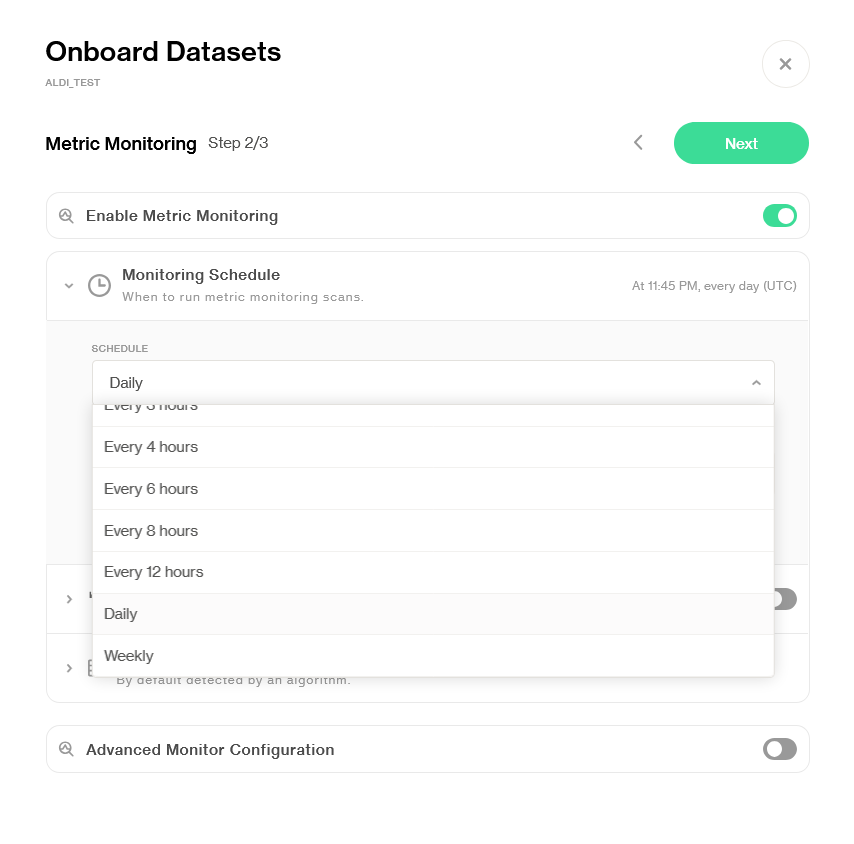
3.2. Set a Monitoring Schedule
The monitoring schedule defines when Soda scans a dataset to capture and evaluate metrics. While scans may run slightly later due to system delays, Soda uses the actual execution time, not the scheduled time, when visualizing time-sensitive metadata metrics like insert lag or row count deltas. This ensures accuracy.
Data-based metrics like averages or null rates are not affected by small delays, as Soda only scans complete partitions, keeping these metrics stable and reliable.

Scans can be scheduled to occur from hourly to weekly, depending on your needs.
Learn more about how to pick a scan time.

3.3. Toggle on/off Historical Metric Collection

When Historical Metric Collection is enabled, Soda automatically calculates past data quality metrics through backfilling and applies the anomaly detection algorithm to that historical data through backtesting. This gives you immediate visibility into past data quality issues, even before monitoring was activated. The historical data also helps train the anomaly detection algorithm, improving its accuracy from day one. You can specify a start date to control how far back the backfilling process should begin.
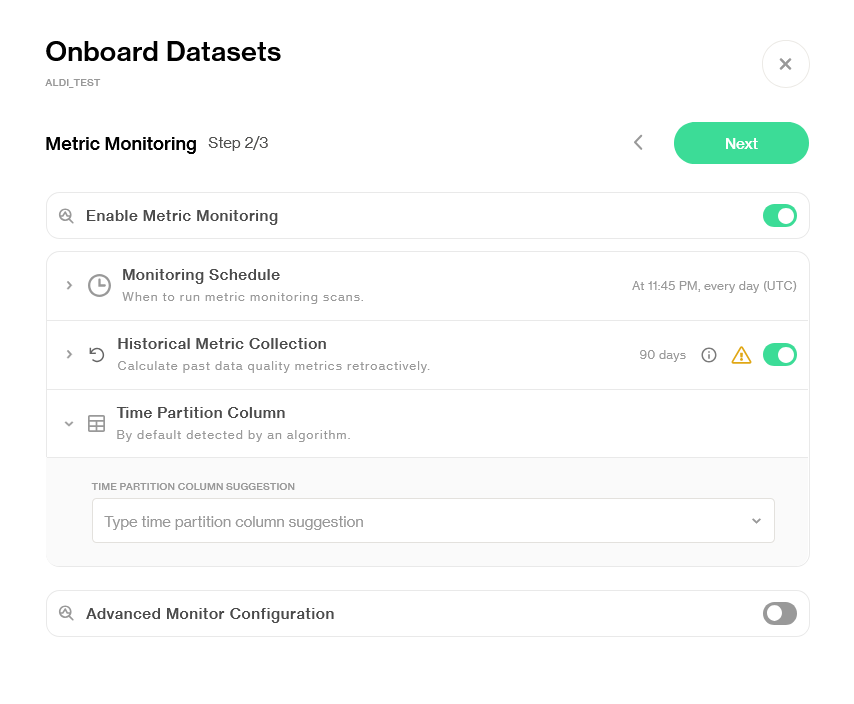
3.4. Suggest a Time Partition Column

Metrics that are not based on metadata require a time partition column to group data into daily intervals or 24-hour buckets, depending on the monitoring schedule. This column must be a timestamp field, ideally something like a created_at or last_updated column. It's important that this timestamp reflects when the data arrives in the database, rather than when the record was originally created.
Soda uses a list of suggested time partition columns to determine which column to apply. If multiple columns are suggested, Soda checks them in the order they are listed, starting with the first. It will try to match one by validating that the column is a proper timestamp and suitable for partitioning.
If none of the suggested columns match, Soda falls back to a heuristic approach. This heuristic looks at metadata, typical naming conventions, and column content to infer the most likely time partition column.
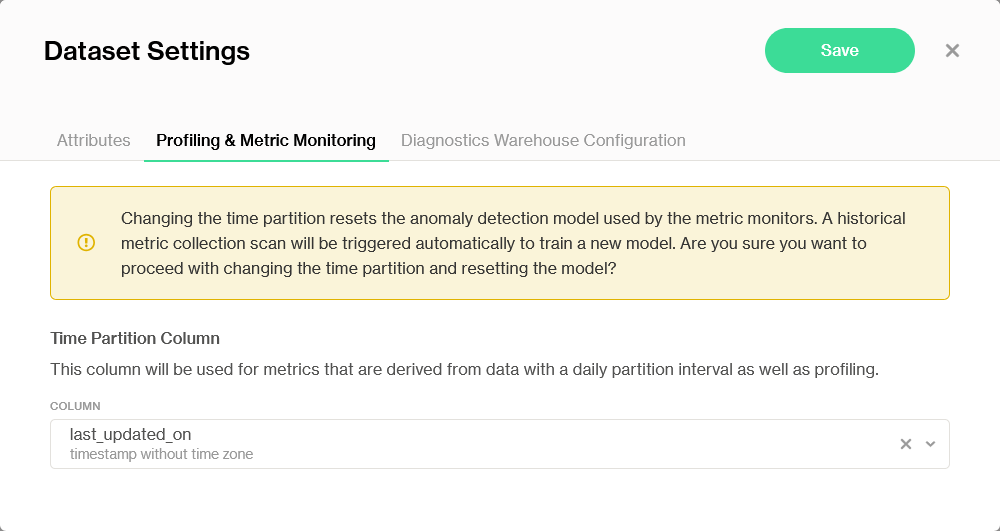
If the heuristic fails to find a suitable column or selects the wrong one, the time partition column can be manually configured after onboarding under dataset settings.

Click on Next.
3.5. [Optional] Enable Profiling
Learn more about Profiling.
From this onboarding view, you can also enable Failed row collection if Diagnostics Warehouse is enabled for this data source.

Click on Finish. If you used Rules-based selection to onboard datasets, an Active Onboarding Rule Pipeline view will appear now to confirm the conditions.
4. Access the datasets
Once onboarding is completed, your data source will appear in the Data Sources list. You can click the Onboarded Datasets link to access the connected datasets.

🎉 Congrats! You’ve successfully onboarded your data source and datasets. You’re now ready to create data contracts and start monitoring the quality of your data.
Onboard datasets from an existing data source
Note that you can repeat the datasets onboarding process at any time to add more datasets from the same data source. Datasets that previously have been onboarded will not re-appear in the data selection step.
Simply return to the data source page and click Onboard Datasets to update your selection. You will be prompted to follow the dataset onboarding steps.

You need the Manage data sources global permission to add a new data source. Learn about Global and Dataset Roles
Connect a data source onboarded with Soda Core to an Agent
When you create or push a new data source from Soda Core, it becomes available in Soda Cloud, but it is not automatically connected to a Soda Agent.
Connecting the data source to an Agent enables Soda Cloud features that require an Agent runtime, such as:
Metric Monitoring
Profiling
Running Data Contracts on the Soda Agent (via scheduling and the Soda Cloud interface)
1. Locate the partially onboarded data source in Soda Cloud
Navigate to Data Sources. Find the data source that was created or pushed from Soda Core.
Click on "⋮" > Edit connection.

2. Edit the connection and select an Agent
Fill in the connection form:
Select the Agent you want to use (Soda-hosted or self-hosted)
Provide the required connection details and credentials (use Soda Secrets for sensitive values)
Click Test Connection.
Click Connect to save the configuration.
3. Enable Agent-powered features on your datasets
Once the data source is connected to an Agent, you can enable Agent-powered features on your datasets, including:
Metric Monitoring
Profiling
Running Contracts on the Agent
You are not logged in to Soda and are viewing the default public documentation. Learn more about Documentation access & licensing.
Last updated
Was this helpful?