> For the complete documentation index, see [llms.txt](https://docs.soda.io/llms.txt). Markdown versions of documentation pages are available by appending `.md` to page URLs; this page is available as [Markdown](https://docs.soda.io/soda-documentation/data-observability/profiling.md).
# Profiling
Profiling provides a quick and comprehensive overview of a dataset’s structure and key statistics.
Profiling helps you understand the shape, quality, and uniqueness of your data before creating checks or metric monitors.
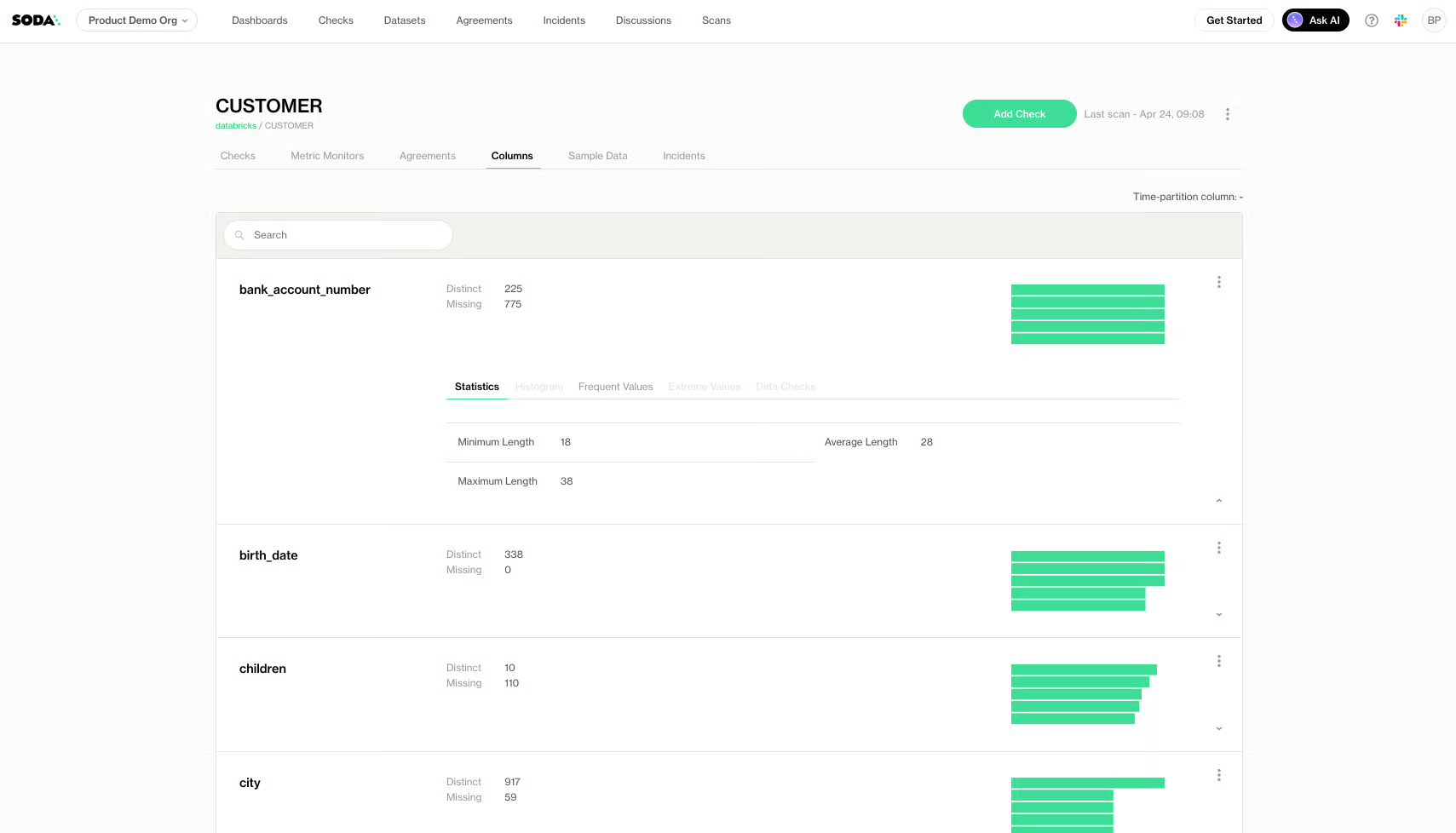
With profiling, you can explore metadata about your dataset, such as **column names, data types, distinct counts, null counts, and summary statistics**. You can also quickly search for specific columns to focus on the attributes that matter most to your analysis.
Profiling is useful for:
* **Business teams**: Gain a fast understanding of what’s inside a dataset, its completeness, and potential anomalies.
* **Data teams**: Validate schema, data types, and distributions before writing quality tests or transformations.
* **Data owners**: Quickly identify unexpected values, nulls, or structural changes in a dataset.
### Key features
* **Dataset overview**: Displays a structured view of all columns, their types, and counts.
* **Interactive navigation**: Scroll through the dataset structure or jump directly to a column of interest.
* **Search and filter**: Quickly locate a column by name to review its profiling details.
* **Column-level insights**:
* **Statistics**
* Column name
* Column data type
* Number of distinct values
* Number of missing (null) values
* Minimum, maximum, mean (for numeric columns)
* Length, patterns, or categories (for text columns)
* **Histogram** for numeric columns
* **Frequent values**
* **Extreme values**, for numeric columns
* **Data checks** that exist for this column
***
## Enable & configure Profiling
### 1. Enable Profiling
You can enable Profiling during [dataset onboarding](/soda-documentation/onboard-data-sources-and-datasets/onboard-datasets-on-soda-cloud.md).
If you want to enable Profiling on an existing dataset, follow the next steps:
1. Click on **Datasets** > The dataset of your choosing
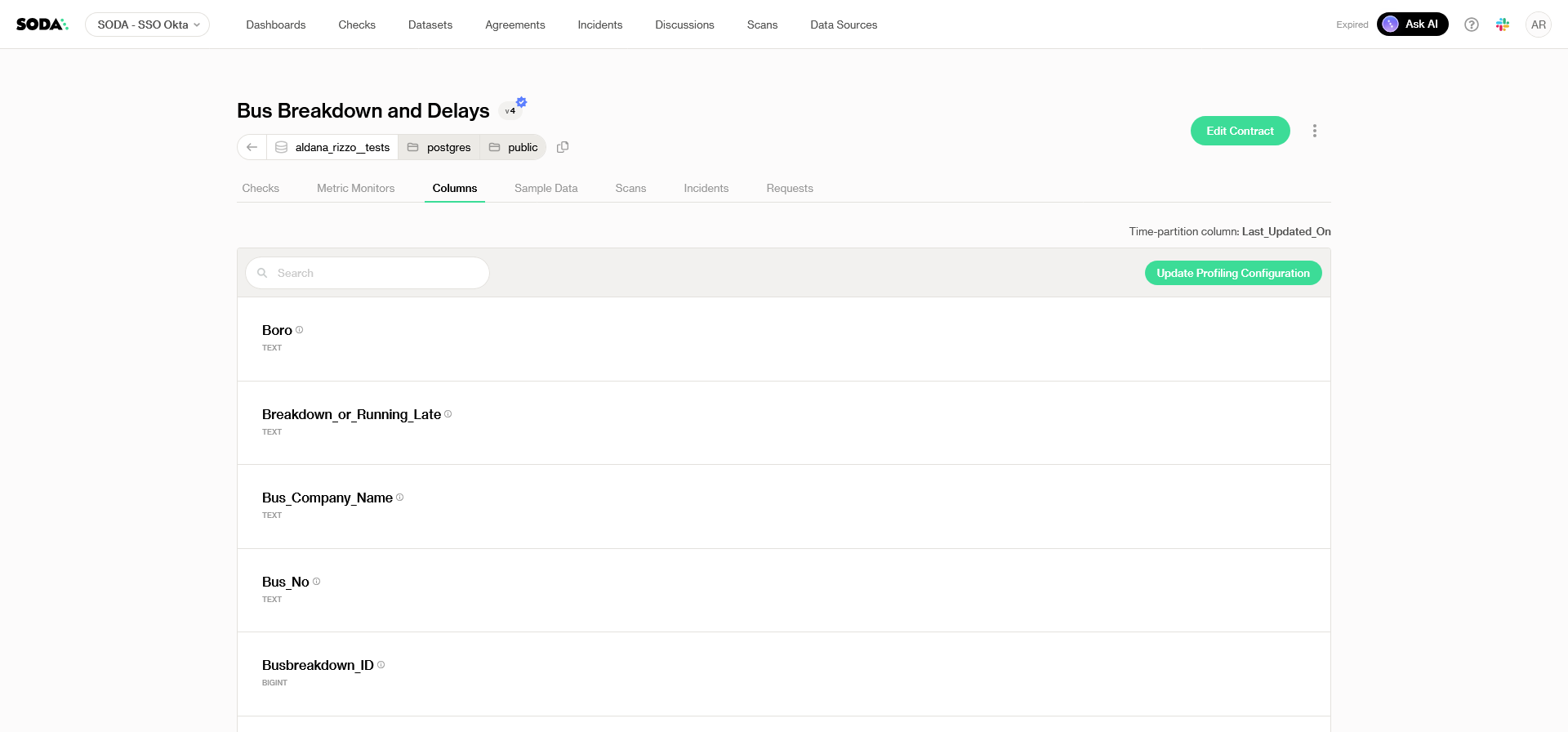
2. Navigate to the **Columns** tab in the dataset view
3. Click on **Update Profiling Configuration**
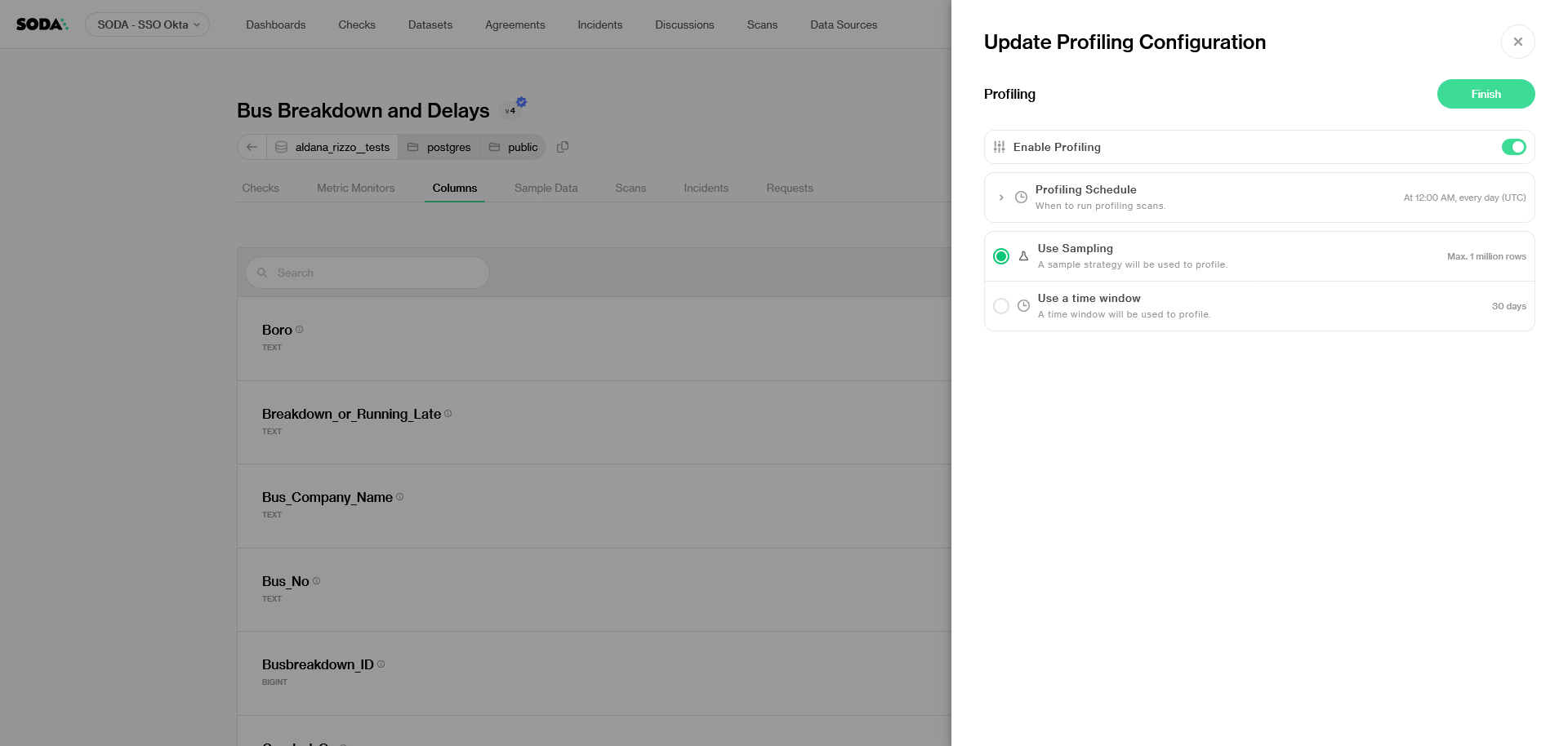
4. Toggle on **Enable Profiling**
{% hint style="info" %}
When Profiling is enabled **during** [**onboarding**](/soda-documentation/onboard-data-sources-and-datasets/onboard-datasets-on-soda-cloud.md), an automatic scan for Profiling will be executed **regardless of manual or scheduled execution**.
{% endhint %}
### 2. Configure Profiling
Once Profiling has been enabled, you can configure it to adapt to your organization's needs.
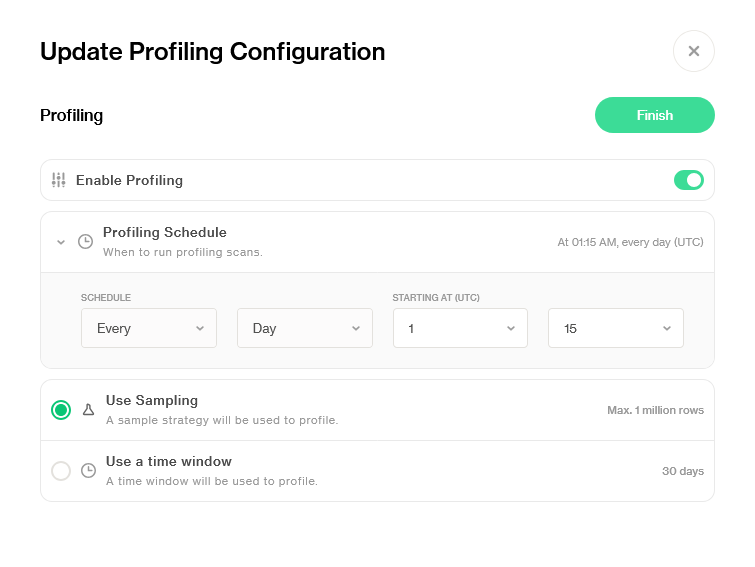
1\. Choose a **Profiling schedule**
Profiling happens every 24 hours. **Choose a UTC time** from the dropdown menu to pick a specific hour when the scan will be scheduled.
2. Choose a **Profiling strategy**
* **Use sampling:** To perform Profiling, Soda will use a **sample of up to 1 million rows** from the dataset.
* **Use a time window:** To perform Profiling, Soda will use data present in a **30-day time window**, based on the dataset time-partition column.
{% hint style="info" %}
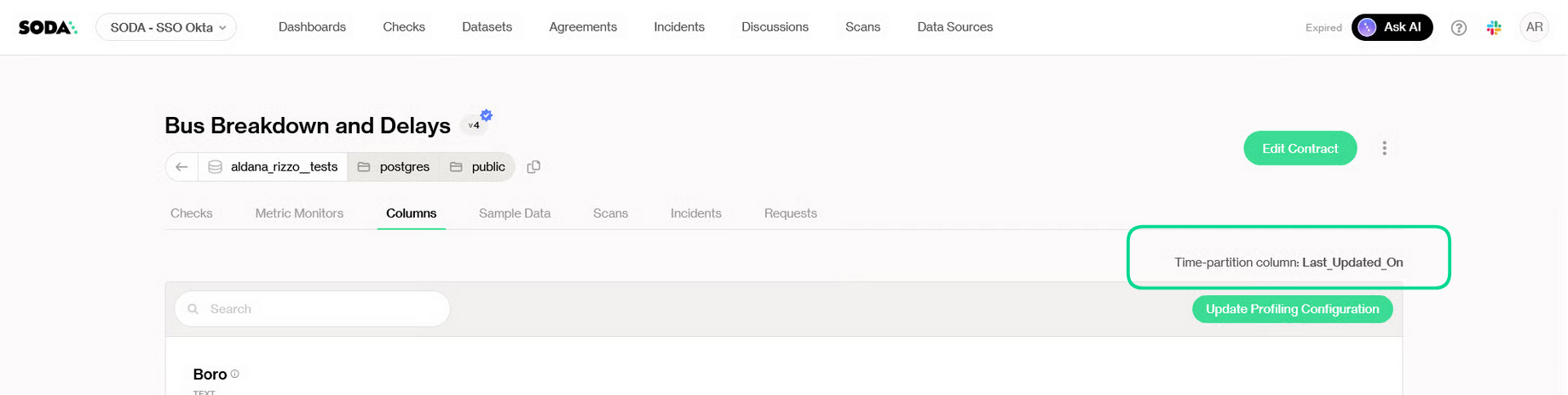
The **time-partition column** is specified **above the columns table**, on the **Columns** tab of any given dataset.
{% endhint %}
In the Bus Breakdown and Delays dataset, the time-partition column is Last_Updated_On
3. Click on **Finish**
Now, Profiling will be scheduled.
### Disable Profiling
#### Disable column profiling at the organization level
If you wish to disable column profiling at the organization level, you must possess **Admin privileges** in your Soda Cloud account. Once confirmed, follow these steps:
1. Navigate to your avatar.
2. Click on **Organization settings**.
3. Uncheck the box labeled **Allow Soda to collect column profile information**.
***
### How it works
When you open Profiling for a dataset:
1. Soda runs a lightweight scan of the dataset’s metadata and a sample of the data (depending on configuration).
2. It calculates summary statistics for each column.
3. Results are displayed in the Profiling view for exploration.
#### Key considerations
* Soda can only profile columns that contain `NUMBERS` or `TEXT` type data; it cannot profile columns that contain `TIMESTAMP` data except to create a freshness check for the anomaly dashboard.
* Soda performs the Discover datasets and Profile datasets actions independently, relative to each other. If you define `exclude` or `include` rules in the Discover tab, the Profile configuration does not inherit the Discover rules. For example, if, for Discover, you exclude all datasets that begin with `staging_`, then configure Profile to include all datasets, Soda discovers and profiles all datasets.
***
## Next Steps
After reviewing profiling results, you can:
* Create **tests** based on profiling insights (e.g., "column should not have nulls").
* Set up **monitors** to track data quality over time.
* Export profiling information to support documentation and governance processes.
***
{% hint style="info" %}
You are **not logged in to Soda** and are viewing the default public documentation. Learn more about [Licensing & documentation access](/soda-documentation/reference/documentation-access-and-licensing.md).
{% endhint %}
---
# Agent Instructions
This documentation is published with GitBook. GitBook is the documentation platform designed so that both humans and AI agents can read, navigate, and reason over technical content effectively. Learn more at gitbook.com.
## Querying This Documentation
If you need additional information that is not directly available in this page, you can query the documentation by asking a question.
Perform an HTTP GET request on the following URL with the `ask` and `goal` query parameters:
```
GET https://docs.soda.io/soda-documentation/data-observability/profiling.md?ask=&goal=
```
`ask` is the immediate question: it should be specific, self-contained, and written in natural language.
`goal` is what the user is ultimately trying to achieve, the reason they need the answer. Sharing it helps GitBook give you a better, more relevant answer. A goal is most helpful when it describes the outcome the user wants rather than restating the question. For example, with `ask=how do I create an API token`, a goal like `automate deployments from our CI pipeline` lets GitBook tailor the answer to that use case.
The response will contain a direct answer to the question and relevant excerpts and sources from the documentation.
Use this mechanism when the answer is not explicitly present in the current page, you need clarification or additional context, or you want to retrieve related documentation sections.