> For the complete documentation index, see [llms.txt](https://docs.soda.io/llms.txt). Markdown versions of documentation pages are available by appending `.md` to page URLs; this page is available as [Markdown](https://docs.soda.io/soda-documentation/soda-v3/use-case-guides/quick-start-prod.md).
# Test data quality in an Airflow data pipeline
Follow this guide to set up and run scheduled Soda scans for data quality in your Airflow data pipeline.
Use this guide as an example for how to set up and use Soda to test the quality of your data in an Airflow pipeline. Automatically catch data quality issues after ingestion or transformation to prevent negative downstream impact.
> Not quite ready for this big gulp of Soda? 🥤Try [taking a sip](/soda-documentation/soda-v3/quick-start-sip.md), first.
## About this guide
The instructions below offer Data Engineers an example of how to execute SodaCL checks for data quality on data in an [Apache Airflow](https://airflow.apache.org/) pipeline.
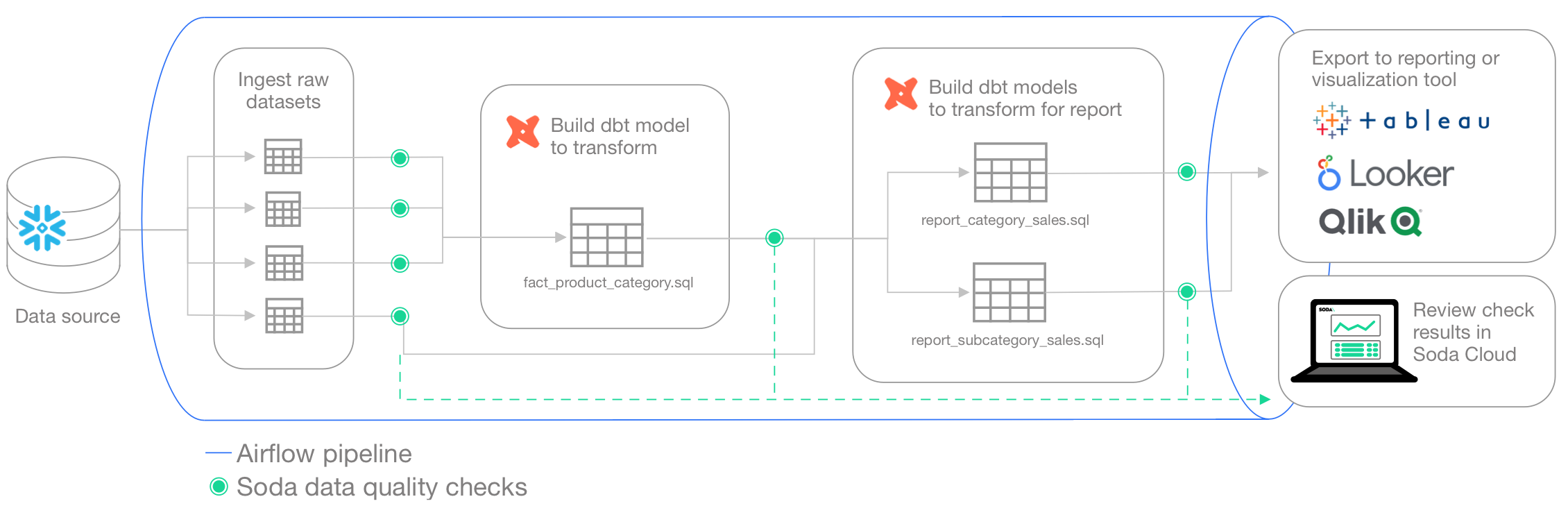
For context, this guide presents an example of a Data Engineer at a small firm who was tasked with building a simple products report of sales by category for [AdventureWorks data](https://github.com/aldibit/soda-docs/blob/main/assets/adventureworks_schema.png). This Engineer uses [dbt](https://www.getdbt.com/) to build a simple model transformation to gather data, then builds more models to transform and push gathered information to a reporting and visualization tool. The Engineer uses Airflow for scheduling and monitoring workflows, including data ingestion and transformation events.
The Engineer's goal in this example is to make sure that after such events, and before pushing information into a reporting tool, they run scans to check the quality of the data. Where the scan results indicate an issue with data quality, Soda notifies the Engineer so that they can potentially stop the pipeline and investigate and address any issues before the issue causes problems in the report.
Access the [sodadata/sip-of-soda/test-data-in-pipeline](https://github.com/sodadata/sip-of-soda/tree/main/test-in-pipeline/soda) folder to review the dbt models and Soda checks files that the Data Engineer uses.
Borrow from this guide to connect to your own data source, set up scan points in your pipeline, and execute your own relevant tests for data quality.
## Install Soda from the command-line
With Python 3.8, 3.9, or 3.10 installed, the Engineer creates a virtual environment in Terminal, then installs the Soda package for PostgreSQL using the following command.
```shell
pip install -i https://pypi.cloud.soda.io soda-postgres
```
> Refer to [complete install instructions](/soda-documentation/soda-v3/quick-start-sip/install.md) for all supported data sources, if you wish.
## Connect Soda to a data source and Soda Cloud account
To connect to a data source such as Snowflake, PostgreSQL, Amazon Athena, or BigQuery, you use a `configuration.yml` file which stores access details for your data source.
This guide also includes instructions for how to connect to a Soda Cloud account using API keys that you create and add to the same `configuration.yml` file. Available for free as a 45-day trial, a Soda Cloud account gives you access to visualized scan results, tracks trends in data quality over time, enables you to set alert notifications, and much more.
1. In the directory in which they work with their dbt models, the Data Engineer creates a `soda` directory to contain the Soda configuration and check YAML files.
2. In the new directory, they create a new file called `configuration.yml`.
3. In the `configuration.yml` file, they add the data source connection configuration for the PostgreSQL data source that contains the AdventureWorks data. The example below is the connection configuration for a PostgreSQL data source. Access the [example file](https://github.com/sodadata/sip-of-soda/blob/main/test-in-pipeline/soda/configuration.example.yml). See a complete list of supported [data sources](/soda-documentation/soda-v3/data-source-reference.md).
```yaml
data_source soda-demo:
type: postgres
host: localhost
username: postgres
password: secret
database: postgres
schema: public
```
4. In a browser, they navigate to [cloud.soda.io/signup](https://cloud.soda.io/signup?utm_source=docs) to create a free, 45-day trial Soda account.
5. They navigate to **avatar** > **Profile**, then navigate to the **API Keys** tab and click the plus icon to generate new API keys.
* They copy the syntax for the `soda_cloud` configuration, including the values **API Key ID** and **API Key Secret**, and paste it into the `configuration.yml`.
* They are careful *not* to nest the `soda_cloud` configuration in the `data_source` configuration.
6. They save the `configuration.yml` file and close the API modal in the Soda account.
7. In Terminal, they run the following command to test Soda's connection to the data source.
```shell
soda test-connection -d adventureworks -c configuration.yml
```
## Write checks for data quality
A check is a test that Soda executes when it scans a dataset in your data source. The `checks.yml` file stores the checks you write using the Soda Checks Language (SodaCL). You can create multiple `checks.yml` files to organize your data quality checks and run all, or some of them, at scan time.
In this example, the Data Engineer creates multiple checks after ingestion, after initial transformation, and before pushing the information to a visualization or reporting tool.
### Transform checks
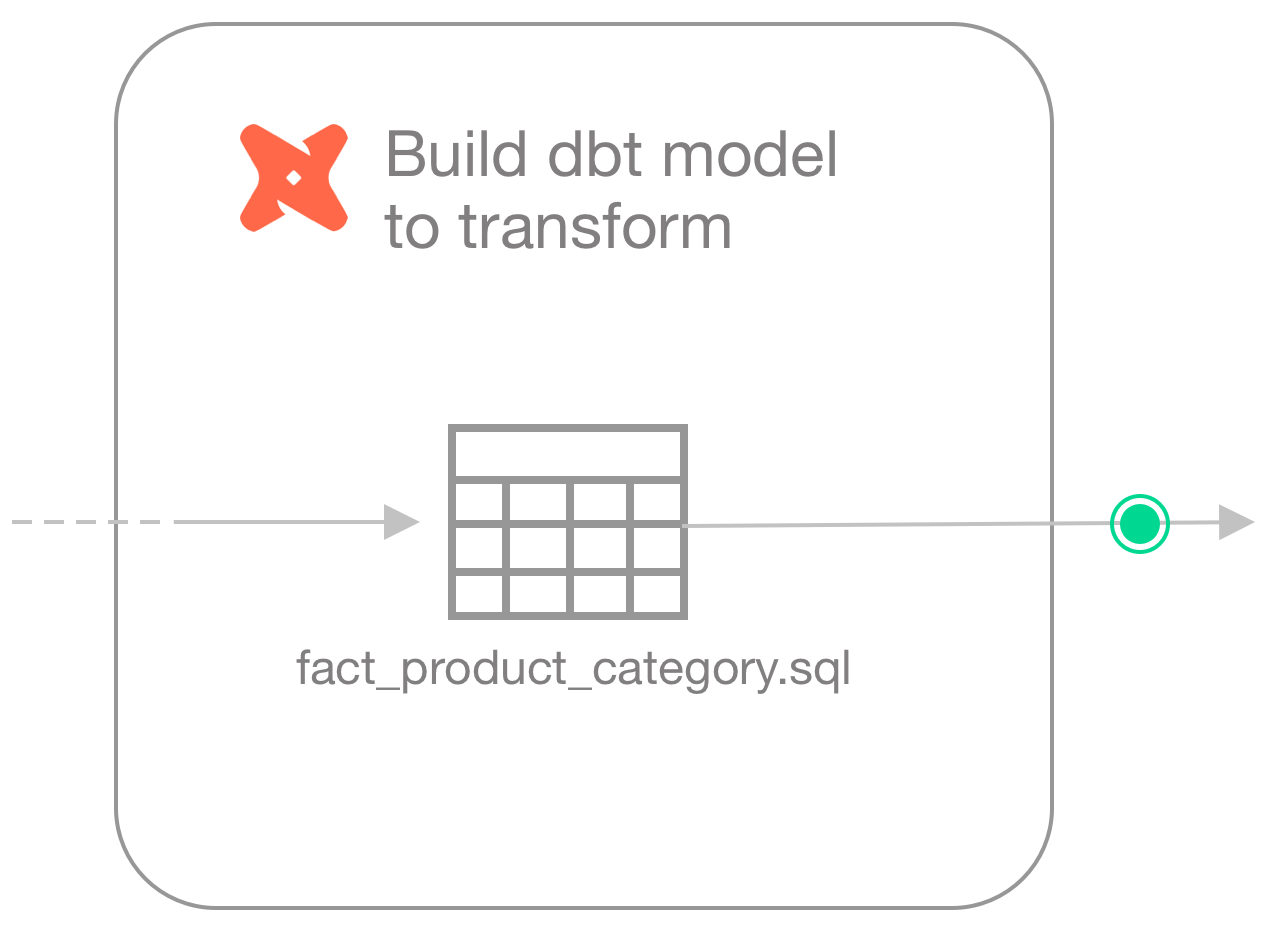
After building a simple dbt model transformation that creates a new fact table which gathers data about products, product categories, and subcategories ([see dbt model](https://github.com/sodadata/sip-of-soda/blob/main/test-in-pipeline/dbt%20models/transform/fact_product_category.sql)), the Engineer realizes that some of the products in the dataset do not have an assigned category or subcategory, which means those values would erroneously be excluded from the report.
To mitigate the issue and get a warning when these values are missing, they create a new checks YAML file and write the following checks to execute after the transformation produces the `fact_product_category` dataset.
[fact\_product\_category.yml](https://github.com/sodadata/sip-of-soda/blob/main/test-in-pipeline/soda/transform-checks/fact_product_category.yml)
```yaml
checks for fact_product_category:
# Check warns when any NULL values exist in the column
- missing_count(category_key):
name: All products have a category
warn: when > 0
# Check warns when any NULL values exist in the column
- missing_count(subcategory_key):
name: All products have a subcategory
warn: when > 0
# Check warns when any NULL values exist in the column
- missing_count(product_key) = 0:
name: All products have a key
```
### Ingest checks
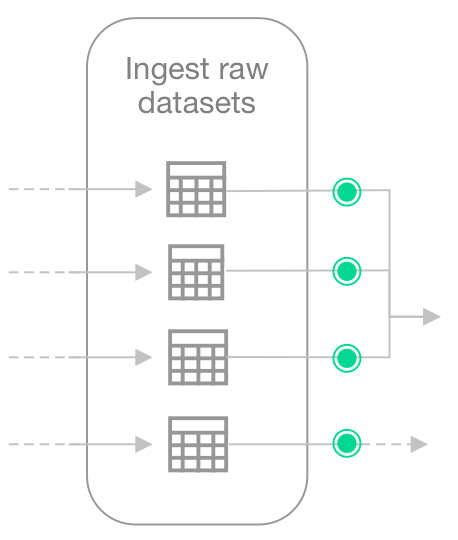
Because the Engineer does not have the ability or access to fix upstream data themselves, they create another checks YAML file write checks to apply to each dataset they use in the transformation, *after* the data is ingested, but before it is transformed.
For any checks that fail, the Engineer can notify upstream Data Engineers or Data Product Owners to address the issue of missing categories and subcategories.
[dim\_product.yml](https://github.com/sodadata/sip-of-soda/blob/main/test-in-pipeline/soda/ingest-checks/dim_product.yml)
```yaml
checks for dim_product:
# Check fails when product_key or english_product_name is missing, OR
# when the data type of those columns is other than specified
- schema:
fail:
when required column missing: [product_key, english_product_name]
when wrong column type:
product_key: integer
english_product_name: varchar
# Check fails when any NULL values exist in the column
- missing_count(product_key) = 0:
name: All products have a key
# Check fails when any NULL values exist in the column
- missing_count(english_product_name) = 0:
name: All products have a name
# Check fails when any NULL values exist in the column
- missing_count(product_subcategory_key):
name: All products have a subcategory
warn: when > 0
# Check fails when the number of products, relative to the
# previous scan, changes by 10 or more
- change for row_count < 10:
name: Products are stable
```
[dim\_product\_category.yml](https://github.com/sodadata/sip-of-soda/blob/main/test-in-pipeline/soda/ingest-checks/dim_product_category.yml)
```yaml
checks for dim_product_category:
# Check fails when product_category_key or english_product_category name
# is missing, OR
# when the data type of those columns is other than specified
- schema:
fail:
when required column missing:
[product_category_key, english_product_category_name]
when wrong column type:
product_category_key: integer
english_product_category_name: varchar
# Check fails when any NULL values exist in the column
- missing_count(product_category_key) = 0:
name: All categories have a key
# Check fails when any NULL values exist in the column
- missing_count(english_product_category_name) = 0:
name: All categories have a name
# Check fails when the number of categories, relative to the
# previous scan, changes by 5 or more
- change for row_count < 5:
name: Categories are stable
```
[dim\_product\_subcategory.yml](https://github.com/sodadata/sip-of-soda/blob/main/test-in-pipeline/soda/ingest-checks/dim_product_subcategory.yml)
```yaml
checks for dim_product_subcategory:
# Check fails when product_subcategory_key or english_product_subcategory_name
# is missing, OR
# when the data type of those columns is other than specified
- schema:
fail:
when required column missing:
[product_subcategory_key, english_product_subcategory_name]
when wrong column type:
product_subcategory_key: integer
english_product_subcategory_name: varchar
# Check fails when any NULL values exist in the column
- missing_count(product_subcategory_key) = 0:
name: All subcategories have a key
# Check fails when any NULL values exist in the column
- missing_count(english_product_subcategory_name) = 0:
name: All subcategories have a name
# Check fails when the number of categories, relative to the
# previous scan, changes by 5 or more
- change for row_count < 5:
name: Subcategories are stable
```
[fact\_internet\_sales.yml](https://github.com/sodadata/sip-of-soda/blob/main/test-in-pipeline/soda/ingest-checks/fact_internet_sales.yml)
```yaml
checks for fact_internet_sales:
# Check fails when product_key, order_quantity, or sales_amount
# is missing, OR
# when the data type of those columns is other than specified
- schema:
fail:
when required column missing:
[product_key, order_quantity, sales_amount]
when wrong column type:
product_key: integer
order_quantity: smallint
sales_amount: money
# Check fails when any NULL values exist in the column
- missing_count(product_key) = 0:
name: All sales have a product associated
# Check fails when any order contains no items
- min(order_quantity) > 0:
name: All sales have a non-zero order quantity
# Check fails when the amount of any sales order is zero
- failed rows:
name: All sales have a non-zero order amount
fail query: |
SELECT sales_order_number, sales_amount::NUMERIC
FROM fact_internet_sales
WHERE sales_amount::NUMERIC <= 0
# Check warns when there are fewer than 5 new internet sales
# relative to the previous scan resuls
# Check fails when there are more than 500 new internet sales
# relative to the previous scan resuls
- change for row_count:
warn: when < 5
fail: when > 500
name: Sales are within expected range
# Check fails when the average of the column is abnormal
# relative to previous measurements for average sales amount
# sales_amount is cast from data type MONEY to enable calculation
- anomaly detection for avg(sales_amount::NUMERIC)
```
## Reports checks
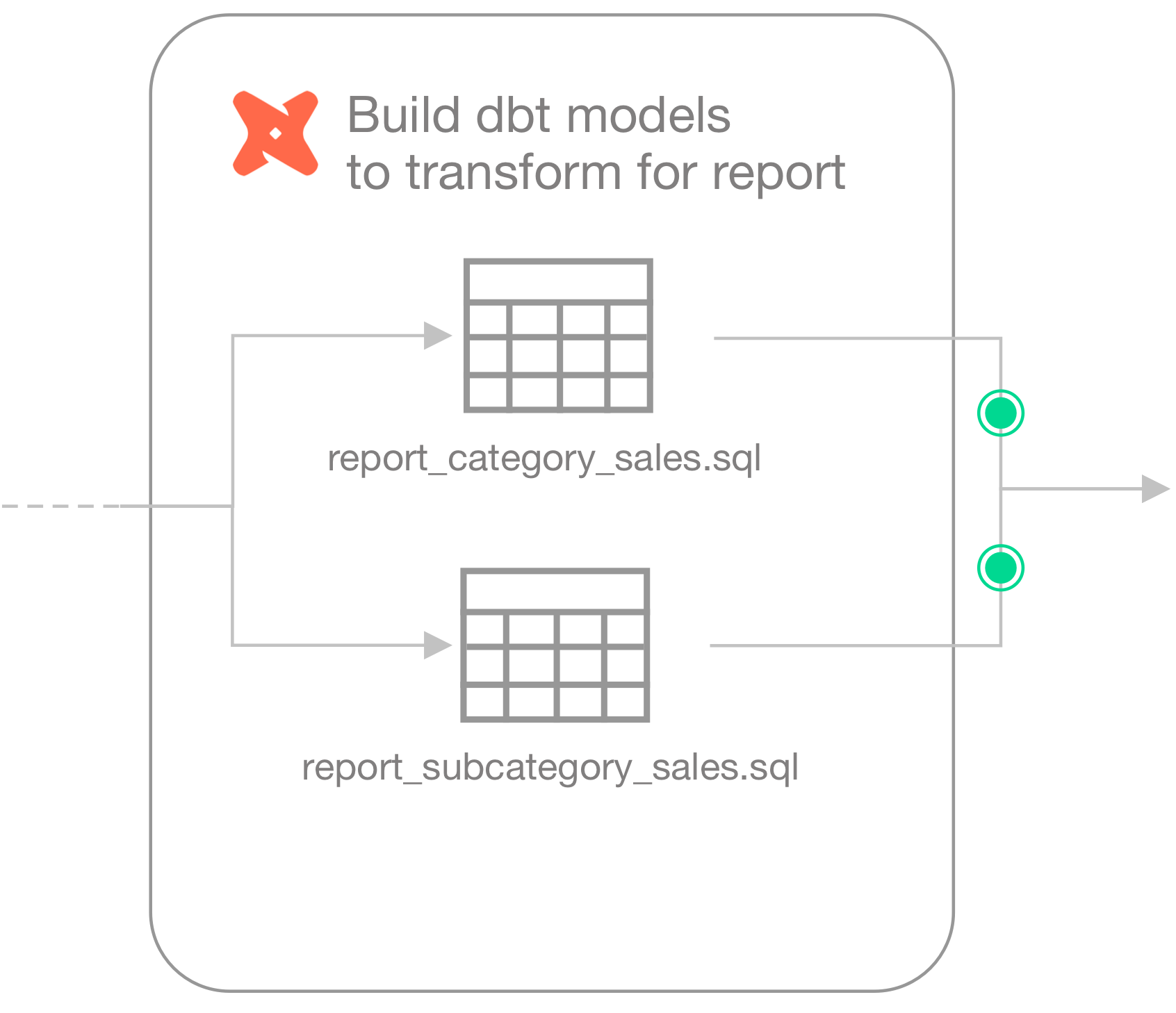
Finally, the Engineer builds category and subcategory sales report models [sales report models](https://github.com/sodadata/sip-of-soda/tree/main/test-in-pipeline/dbt%20models/report) using dbt.
The checks files they create to run on the new transform models contain similiar user-defined checks. Ultimately, the Engineer wants data quality checks to fail if the sales of uncategorized products rises above normal (0.85%), and if the sum of sales orders in the model that prepares the report differs greatly from the sum of raw sales order number.
[report\_category\_sales.yml](https://github.com/sodadata/sip-of-soda/blob/main/test-in-pipeline/soda/reports-checks/report_category_sales.yml)
```yaml
checks for report_category_sales:
# Check fails if the percentage of sales of products with no
# catgory exceeds 0.90%
- uncategorized_sales_percent < 0.9:
uncategorized_sales_percent query: >
select ROUND(CAST((sales_total * 100) / (select sum(sales_total) from report_category_sales) AS numeric), 2) as uncategorized_sales_percent from report_category_sales where category_key is NULL
name: Most sales are categorized
# Check fails if the sum of sales produced by the model is different
# than the sum of sales in the fact_internet_sales dataset
- sales_diff = 0:
name: Category sales total matches
sales_diff query: >
SELECT CAST((SELECT SUM(fact_internet_sales.sales_amount) FROM fact_internet_sales)
- (SELECT SUM(report_category_sales.sales_total) FROM report_category_sales) as numeric) AS sales_diff
```
[report\_subcategory\_sales.yml](https://github.com/sodadata/sip-of-soda/blob/main/test-in-pipeline/soda/reports-checks/report_subcategory_sales.yml)
```yaml
checks for report_subcategory_sales:
# Check fails if the percentage of sales of products with no
# subcategory exceeds 0.90%
- uncategorized_sales_percent < 0.9:
uncategorized_sales_percent query: >
select ROUND(CAST((sales_total * 100) / (select sum(sales_total) from report_subcategory_sales) AS numeric), 2) as uncategorized_sales_percent from report_subcategory_sales where category_key is NULL OR subcategory_key is NULL
name: Most sales are categorized
# Check fails if the sum of sales produced by the model is different
# than the sum of sales in the fact_internet_sales dataset
- sales_diff = 0:
name: Subcategory sales total matches
sales_diff query: >
SELECT CAST((SELECT SUM(fact_internet_sales.sales_amount) FROM fact_internet_sales)
- (SELECT SUM(report_subcategory_sales.sales_total) FROM report_subcategory_sales) as numeric) AS sales_diff
```
## Create a DAG and run the workflow
The Engineer creates an Airflow DAG and [runs the workflow locally](https://airflow.apache.org/docs/apache-airflow/2.2.3/start/local.html). Note that the value for `scan-name` must be unique to every programmatic scan you define. In other words, it cannot be the same as a programmatic scan in another pipeline.\
[Access the DAG](https://github.com/sodadata/sip-of-soda/blob/main/test-in-pipeline/airflow/model_sales_category.py) in the repo.
```python
from airflow import DAG
from airflow.models.variable import Variable
from airflow.operators.bash import BashOperator
from airflow.operators.python import PythonVirtualenvOperator
from airflow.operators.dummy import DummyOperator
from airflow.utils.dates import days_ago
from datetime import timedelta
default_args = {
"owner": "soda",
"retries": 1,
"retry_delay": timedelta(minutes=5),
}
PROJECT_ROOT = ""
def run_soda_scan(project_root, scan_name, checks_subpath = None):
from soda.scan import Scan
print("Running Soda Scan ...")
config_file = f"{project_root}/soda/configuration.yml"
checks_path = f"{project_root}/soda/checks"
if checks_subpath:
checks_path += f"/{checks_subpath}"
data_source = "soda_demo"
scan = Scan()
scan.set_verbose()
scan.add_configuration_yaml_file(config_file)
scan.set_data_source_name(data_source)
scan.add_sodacl_yaml_files(checks_path)
scan.set_scan_definition_name(scan_name)
result = scan.execute()
print(scan.get_logs_text())
if result != 0:
raise ValueError('Soda Scan failed')
return result
with DAG(
"model_adventureworks_sales_category",
default_args=default_args,
description="A simple Soda Library scan DAG",
schedule_interval=timedelta(days=1),
start_date=days_ago(1),
):
ingest_raw_data = DummyOperator(task_id="ingest_raw_data")
checks_ingest = PythonVirtualenvOperator(
task_id="checks_ingest",
python_callable=run_soda_scan,
requirements=[ "-i https://pypi.cloud.soda.io", "soda-postgres", "soda-scientific"],
system_site_packages=False,
op_kwargs={
"project_root": PROJECT_ROOT,
"scan_name": "model_adventureworks_sales_category_ingest",
"checks_subpath": "ingest/dim_product_category.yml"
},
)
dbt_transform = BashOperator(
task_id="dbt_transform",
bash_command=f"dbt run --project-dir {PROJECT_ROOT}/dbt --select transform",
)
checks_transform = PythonVirtualenvOperator(
task_id="checks_transform",
python_callable=run_soda_scan,
requirements=["-i https://pypi.cloud.soda.io", "soda-postgres", "soda-scientific"],
system_site_packages=False,
op_kwargs={
"project_root": PROJECT_ROOT,
"scan_name": "model_adventureworks_sales_category_transform",
"checks_subpath": "transform"
},
)
dbt_report = BashOperator(
task_id="dbt_report",
bash_command=f"dbt run --project-dir {PROJECT_ROOT}/dbt --select report",
)
checks_report = PythonVirtualenvOperator(
task_id="checks_report",
python_callable=run_soda_scan,
requirements=["-i https://pypi.cloud.soda.io", "soda-postgres", "soda-scientific"],
system_site_packages=False,
op_kwargs={
"project_root": PROJECT_ROOT,
"scan_name": "model_adventureworks_sales_category_report",
"checks_subpath": "report"
},
)
publish_data = DummyOperator(task_id="publish_data")
ingest_raw_data >> checks_ingest >> dbt_transform >> checks_transform >> dbt_report >> checks_report >> publish_data
```
### Run Soda scans manually
Without using an Airflow DAG, the Engineer can use Soda locally to run scans for data quality using the checks YAML files they created.
1. They use the `soda scan` command to run the ingest checks on the raw data, pointing Soda to the checks YAML files in the `ingest-checks` folder.
```shell
soda scan -d soda_demo -c soda/configuration.yml soda/ingest-checks/
```
2. If the ingest check results pass, they run dbt to create the new `fact_product_category` dataset.
```shell
dbt run --project-dir dbt --select transform
```
3. Accordingly, they run a scan on the new dataset, pointing Soda to the checks YAML file in the `transform-checks` folder.
```shell
soda scan -d soda_demo -c soda/configuration.yml soda/transform-checks/
```
4. If the transform check results pass, they run dbt to create the reports.
```shell
dbt run --project-dir dbt --select report
```
5. Lastely, they run a scan on the reports data, pointing Soda to the checks YAML file in the `reports-checks` folder.
```shell
soda scan -d soda_demo -c soda/configuration.yml soda/resports-checks/
```
6. If the reports check results pass, the data is reliable enough to push to the reporting or visualization tool for consumers.
> Learn more about [running Soda scans](/soda-documentation/soda-v3/run-a-scan.md).
## View results and tag datasets
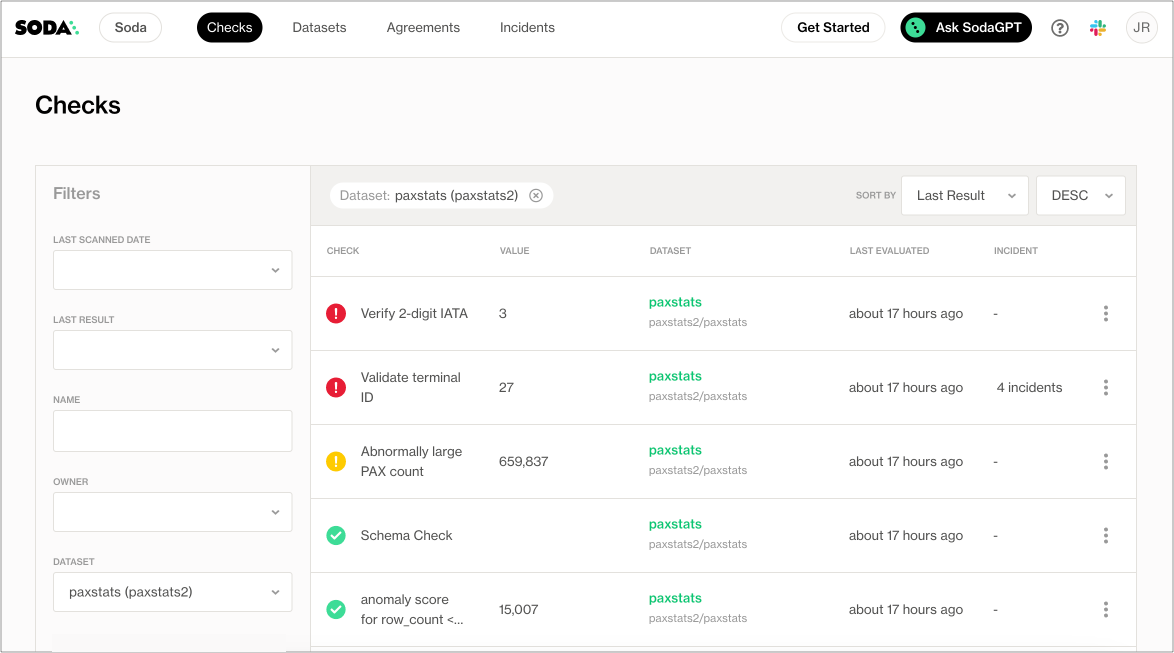
1. In their Soda Cloud account, the Engineer clicks **Checks** to access the **Checks** dashboard. The checks from the scan that Soda performed during the scan appear in the table where they can click each line item to learn more about the results, as in the example below.\
2. To more easily retrieve Soda scan results by dbt model, the Engineer navigates to **Datasets**, then clicks the stacked dots at the right of the `dim_product` dataset and selects **Edit Dataset**.
3. In the **Tags** field, they add a value for `fact_product_category`, the dbt model that uses this dataset, and a tag to indicate the kind of data that Soda is scanning, `raw`, `transformed` or `reporting`, then saves. They repeat these steps to add tags to all the datasets in their Soda Cloud account.
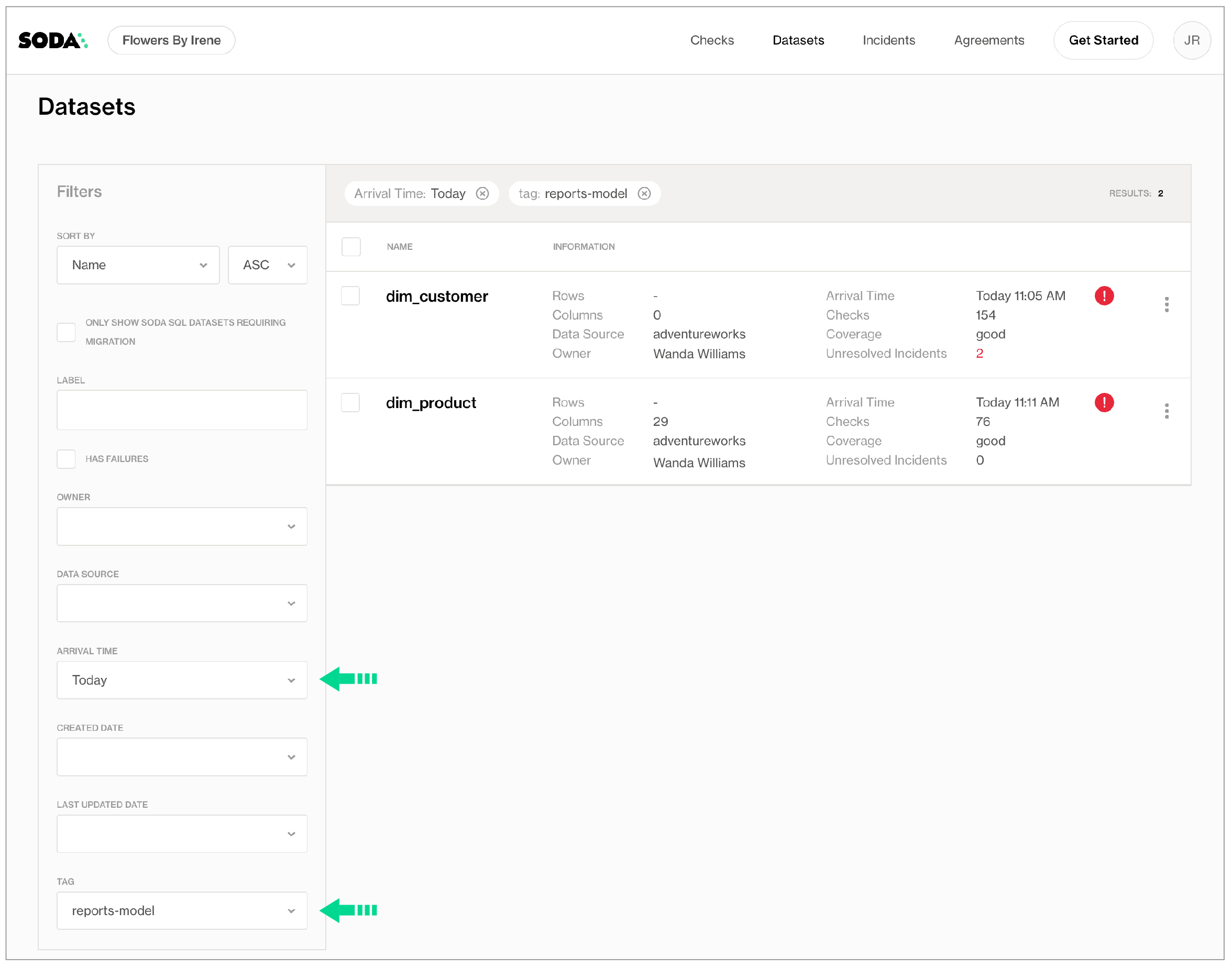
4. Navigating again to the **Datasets** page, they use the filters to display datasets according to **Tags** and **Arrival Time** to narrow the search for the most recent quality checks associated with their models which have failed or warned.\
5. After filtering the datasets according to the tags, the Engineer saves the filter setup as a **Collection** that they can revisit daily.
6. If you were in the Data Engineer's shoes, you may further wish to set up \[Slack notifications]\() for any checks that warn or fail during scans.
✨Hey, hey!✨ Now you know what it's like to add data quality checks to your production data pipeline. Huzzah!
## Go further
* [Get organized](/soda-documentation/soda-v3/collaborate.md) in Soda!
* [Request a demo](https://www.soda.io/schedule-a-demo). Hey, what can Soda do for you?
> Join the [Soda community on Slack](https://community.soda.io/slack).
---
# Agent Instructions
This documentation is published with GitBook. GitBook is the documentation platform designed so that both humans and AI agents can read, navigate, and reason over technical content effectively. Learn more at gitbook.com.
## Querying This Documentation
If you need additional information that is not directly available in this page, you can query the documentation by asking a question.
Perform an HTTP GET request on the following URL with the `ask` and `goal` query parameters:
```
GET https://docs.soda.io/soda-documentation/soda-v3/use-case-guides/quick-start-prod.md?ask=&goal=
```
`ask` is the immediate question: it should be specific, self-contained, and written in natural language.
`goal` is what the user is ultimately trying to achieve, the reason they need the answer. Sharing it helps GitBook give you a better, more relevant answer. A goal is most helpful when it describes the outcome the user wants rather than restating the question. For example, with `ask=how do I create an API token`, a goal like `automate deployments from our CI pipeline` lets GitBook tailor the answer to that use case.
The response will contain a direct answer to the question and relevant excerpts and sources from the documentation.
Use this mechanism when the answer is not explicitly present in the current page, you need clarification or additional context, or you want to retrieve related documentation sections.