> For the complete documentation index, see [llms.txt](https://docs.soda.io/llms.txt). Markdown versions of documentation pages are available by appending `.md` to page URLs; this page is available as [Markdown](https://docs.soda.io/soda-documentation/soda-v3/use-case-guides/quick-start-secrets.md).
# Integrate an External Secrets Manager with a Soda Runner
Follow this guide to set up an integration with an External Secrets Manager for a Soda Runner to use to securely retrieve frequently-rotated passwords.
Use this guide to set up a Soda Runner to securely retrieve frequently-rotated and/or encrypted data source login credentials.
Rather than managing sensitive login credentials for data sources passed via the Helm chart value `soda.env`, you can set up a Soda Runner to integrate with external secrets managers such as Hashicorp Vault, AWS Secrets Manager, or Azure Key Vault, so that it can securely access up-to-date, externally-stored login credentials for data sources.
## About this guide
This exercise points to a GitHub repository from which you can set up a locally-run, example Kubernetes cluster to illustrate what an integration between a Soda Runner and an external secrets manager looks like.
When you complete the exercise, you will have examples of the things you need for a Soda Runner to access an external secrets manager:
* **External Secrets Operator (ESO)** which is a Kubernetes operator that facilitates a connection between the Soda Runner and your secrets manager; see [external-secrets.io](https://external-secrets.io/latest/).
* a **ClusterSecretStore** resource which provides a central gateway with instructions on how to access your secret backend
* an **ExternalSecret** resource which instructs the cluster on which values to fetch, and references the ClusterSecretStore
Follow the instructions below to use the Terraform files in the repository to:
* set up and configure a local Kubernetes cluster
* deploy External Secrets Operator
* configure both a ClusterSecretStore and ExternalSecrets to access username and password examples in a Hashicorp Vault
* set up an example PostgreSQL data source containing NYC bus breakdowns and delays data
* deploy a Soda Runner configured to use the external secrets manager to access login credentials for a data source
* create a Soda Cloud account and set up a new data source that accesses the data in the PostgreSQL data source via the Soda Runner and the external secrets manager
## Prerequisites
For this exercise, you must have installed the following tools:
* [Terraform](https://developer.hashicorp.com/terraform/downloads) to build a locally-run example environment
* One container runtime that provides containers to use as local Kubernetes cluster nodes, either:
* [Docker Desktop](https://docs.docker.com/desktop/), for users who prefer to use a UI
* [Docker engine](https://docs.docker.com/engine/install/), for users who prefer to use the command-line\
OR
* [Podman Desktop](https://podman-desktop.io/docs/Installation), for users who prefer to use a UI
* [Podman engine](https://podman.io/docs/installation), for users who prefer to use the command-line
* (Optional) [kind](https://kind.sigs.k8s.io/docs/user/quick-start/#installation) to create and run a Kubernetes cluster locally
* (Optional) [kubectl](https://kubernetes.io/docs/tasks/tools/#kubectl) to execute commands against the Kubernetes cluster
## Set up
1. Clone the [`github.com/sodadata/soda-runner-use-cases`](https://github.com/sodadata/soda-runner-use-cases) repository locally.
2. Navigate to the `setup` directory in the repository.
```
cd soda-runner-external-secrets/setup
```
3. Use the Terraform commands below to:
* create a local Kubernetes cluster,
* setup a Hashicorp Vault,
* deploy External Secrets Operator,
* setup a Kubernetes UI dashboard called Headlamp
* create a PostgreSQL data source containing a NYC bus breakdowns and delays dataset
```shell
terraform init
terraform apply -auto-approve
```
Output (last few lines):
```shell
...
Apply complete! Resources: 13 added, 0 changed, 0 destroyed.
Outputs:
base_port = 30200
cluster_admin_token =
cluster_name = "soda-runner-external-secrets"
dashboard_access = "http://127.0.0.1:30202"
soda_runner_namespace = "soda-runner"
vault_access = "http://127.0.0.1:30200"
vault_init_access = "http://127.0.0.1:30201"
vault_root_token =
```
## Configure
1. Navigate to the `configure` directory in the repository.
```
cd ..
cd configure
```
2. Use the Terraform commands below to:
* configure a Hashicorp Vault,
* configure the Vault provider of the ESO,
* create a Kubernetes secret with a value for `appRoleSecretId` to access the Hashicorp Vault,
* create an `ExternalSecret`,
* create a `ClusterSecretstore`,
* populate some secret values into Vault
```shell
terraform init
terraform apply -auto-approve
```
Output (last few lines):
```shell
...
Apply complete! Resources: 20 added, 0 changed, 0 destroyed.
Outputs:
dashboard_access = "http://127.0.0.1:30202"
dashboard_token =
vault_access = "http://127.0.0.1:30200"
vault_admin_password =
vault_admin_username = "admin"
vault_read_only_password =
vault_read_only_role_id = "3e94ee54-1799-936e-9cec-5c5a19a5eeeb"
vault_read_only_role_secret_id =
vault_read_only_token =
vault_read_only_username = "soda"
```
## Access the Hashicorp Vault
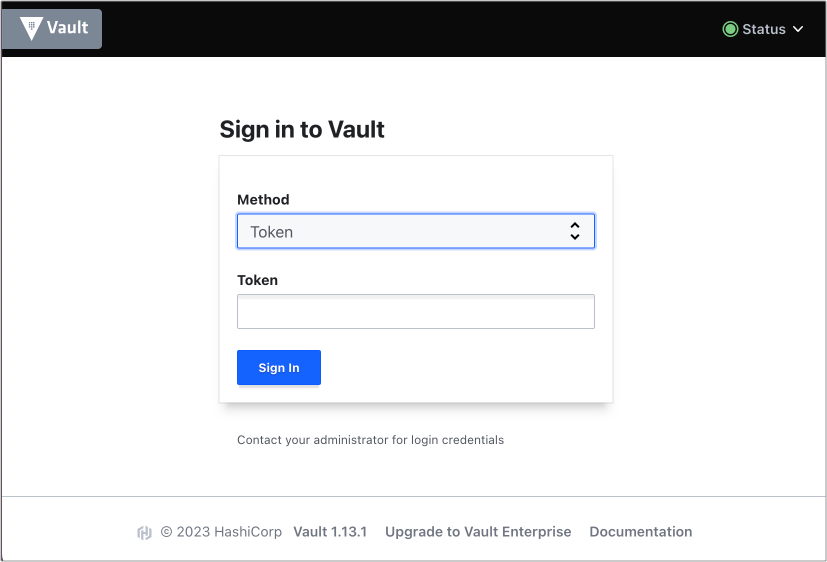
1. The configuration output produces a URL value for `vault_access` which, by default, is . Click the link to access the Hashicorp Vault login page in your browser.
2. To log in, change the Method to `Username`, then use the `vault_admin_username` to populate the first field. To extract the value for `vault_admin_password` for the second field, use the following command:
```
terraform output -raw vault_admin_password
```
Hint: To copy the password directly to the clipboard the command, use one of the following commands:
```
# MacOS
terraform output -raw vault_admin_password | pbcopy
```
```
# Linux
terraform output -raw vault_admin_password | xclip -selection clipboard
```
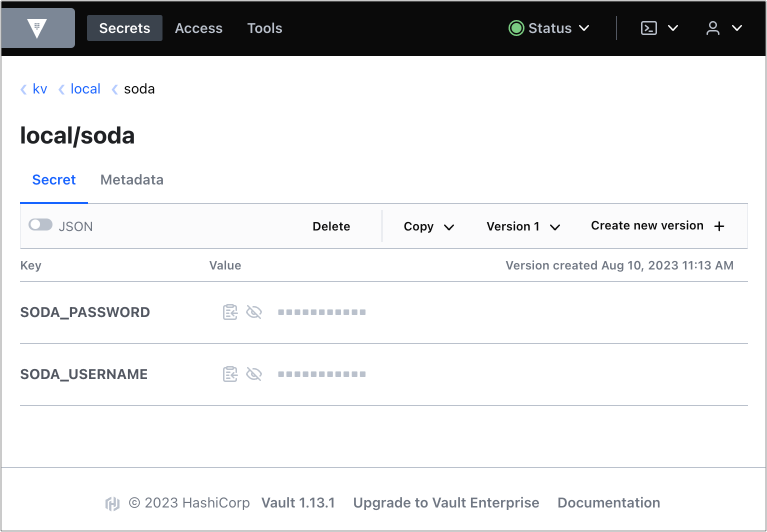
3. Now logged in, from the list of Secret Engines, navigate to `kv/local/soda` to see the example username and password secrets in the vault. If you wish, you can set new secrets that the Soda Runner can use.\
## Deploy a Soda Runner and pass login credentials
1. Access [Deploy a Soda Runner](/soda-documentation/soda-v3/quick-start-sip/deploy.md#create-a-soda-cloud-account) and follow the instructions to create a free, 45-day trial Soda Cloud account and an API key id, and an API key secret for the Soda Runner.
2. Prepare a values YAML file to deploy a Soda Runner in your cluster, as per the following example.
```yaml
soda:
apikey:
id: "value-from-step1"
secret: "value-from-step1"
runner:
name: "my-soda-runner-external-secrets"
scanlauncher:
existingSecrets:
# from spec.target.name in the ExternalSecret file
- soda-runner-secrets
idle:
enabled: true
replicas: 1
cloud:
# Use https://cloud.us.soda.io for US region
# Use https://cloud.soda.io for EU region
endpoint: "https://cloud.soda.io"
```
3. Deploy the Soda Runner using the following command:
```shell
helm install soda-runner soda-runner/soda-runner \
--values values.yml \
--namespace soda-runner
```
## Create the example data source in Soda Cloud
To use your newly-deployed Soda Runner, you start by creating a new data source in your Soda Cloud account, then you can create a Soda Agreement to write checks for data quality.
1. In your Soda Cloud account, navigate to your **avatar** > **Scans & Data**. Click **New Data Source**, then follow the guided steps to create a new data source. Refer to [Add a new data source](/soda-documentation/soda-v3/quick-start-sip/deploy.md#add-a-new-data-source) for full instructions for setting up a data source.
2. In step 2 of the flow, use the following data source connection configuration. This connects to the example data source you created during [Set up](#set-up).
```yaml
data_source nyc_bus_breakdowns_and_delays:
type: postgres
connection:
host: sodademonyc-postgresql
port: "5432"
username: ${POSTGRES_USERNAME}
password: ${POSTGRES_PASSWORD}
database: nyc
schema: public
```
3. Complete the guided workflow to **Save & Run** a scan of the data source to validate that Soda Cloud can access the data in the example data source via the Soda Runner. It uses the external secrets manager configuration you set up to fetch, then pass the username and password to the data source.
4. Follow the instructions to [Define SodaCL checks](/soda-documentation/soda-v3/soda-cl-overview.md#define-sodacl-checks) using no-code checks in Soda Cloud, then run scans for data quality.
## About the ClusterSecretStore
The `ClusterSecretStore` is a YAML-configured set of instructions for accessing the external secrets manager which, in this case, is a Hashicorp Vault using a KV Secrets Engine V2. Note that some values in the example are generated; values in your own file vary.
```
apiVersion: external-secrets.io/v1beta1
kind: ClusterSecretStore
metadata:
name: vault-app-role
spec:
provider:
vault:
auth:
appRole:
path: approle
roleId: 3e94ee54-1799-936e-9cec-5c5a19a5eeeb
secretRef:
key: appRoleSecretId
name: external-secrets-vault-app-role-secret-id
namespace: external-secrets
path: kv
server: http://vault.vault.svc.cluster.local:8200
version: v2
```
## About the ExternalSecret
The `ExternalSecret` is a separate YAML-based set of instructions for which secrets to fetch. The example below references the `ClusterSecretStore` above, which facilitates access to the Hashicorp Vault. The Soda Runner uses the `ExternalSecret` to retrieve data source credential values.
```
apiVersion: external-secrets.io/v1beta1
kind: ExternalSecret
metadata:
name: soda-runner
namespace: soda-runner
spec:
data:
- remoteRef:
key: local/soda
property: POSTGRES_USERNAME
secretKey: POSTGRES_USERNAME
- remoteRef:
key: local/soda
property: POSTGRES_PASSWORD
secretKey: POSTGRES_PASSWORD
refreshInterval: 1m
secretStoreRef:
kind: ClusterSecretStore
name: vault-app-role
target:
name: soda-runner-secrets
template:
data:
soda-runner.conf: |
POSTGRES_USERNAME={{ .POSTGRES_USERNAME }}
POSTGRES_PASSWORD={{ .POSTGRES_PASSWORD }}
engineVersion: v2
```
The `target template` configuration in the `ExernalSecret` creates a file called `soda-runner.conf` into which it adds the username and password values in the [dotenv format](https://saurabh-kumar.com/python-dotenv/#file-format) that the Soda Runner expects.
## Go further
* Access standard instructions to [integrate with a secrets manager](/soda-documentation/soda-v3/quick-start-sip/extras.md#integrate-with-a-secrets-manager).
* [Get organized](/soda-documentation/soda-v3/collaborate.md) in Soda!
* [Request a demo](https://www.soda.io/schedule-a-demo). Hey, what can Soda do for you?
> Need help? Join the [Soda community on Slack](https://community.soda.io/slack).
---
# Agent Instructions
This documentation is published with GitBook. GitBook is the documentation platform designed so that both humans and AI agents can read, navigate, and reason over technical content effectively. Learn more at gitbook.com.
## Querying This Documentation
If you need additional information that is not directly available in this page, you can query the documentation by asking a question.
Perform an HTTP GET request on the following URL with the `ask` and `goal` query parameters:
```
GET https://docs.soda.io/soda-documentation/soda-v3/use-case-guides/quick-start-secrets.md?ask=&goal=
```
`ask` is the immediate question: it should be specific, self-contained, and written in natural language.
`goal` is what the user is ultimately trying to achieve, the reason they need the answer. Sharing it helps GitBook give you a better, more relevant answer. A goal is most helpful when it describes the outcome the user wants rather than restating the question. For example, with `ask=how do I create an API token`, a goal like `automate deployments from our CI pipeline` lets GitBook tailor the answer to that use case.
The response will contain a direct answer to the question and relevant excerpts and sources from the documentation.
Use this mechanism when the answer is not explicitly present in the current page, you need clarification or additional context, or you want to retrieve related documentation sections.