> For the complete documentation index, see [llms.txt](https://docs.soda.io/llms.txt). Markdown versions of documentation pages are available by appending `.md` to page URLs; this page is available as [Markdown](https://docs.soda.io/soda-documentation/soda-v3/quick-start-sip/upgrade.md).
# Upgrade, redeploy, or uninstall Soda
Learn how to upgrade or uninstall Soda Library, or redploy a Soda Runner.
{% hint style="warning" %}
The Soda environment has been updated since this tutorial.
> Refer to [v4 documentation](/soda-documentation/quickstart.md) for updated tutorials.
> {% endhint %}
***
## Migrate a data source from a self-hosted to a Soda-hosted runner
If you already use a self-hosted Soda Runner deployed in a Kubernetes cluster to connect to your data source(s), you have the option of migrating a connected data source to a Soda-hosted runner. Though you must reconfigure your data source connection to the new Soda runner, your checks, check history, and scan definition remain intact.
* Be aware that Soda-hosted runners are only compatible with the following data sources: BigQuery, Databricks SQL, MS SQL Server, MySQL, PostgreSQL, Redshift, Snowflake.
* 🔴 When you migrate to a Soda-hosted runner, Soda Cloud *resets* all the connection configuration details for your data source. Be sure to capture all existing data source connection details before migrating so you can re-enter the details for the data source connection.
1. As a user with permission to do so in Soda Cloud, navigate to **your avatar** > **Organization Settings**. In the **Organization tab**, click the checkbox to **Enable Soda-hosted Runner**.
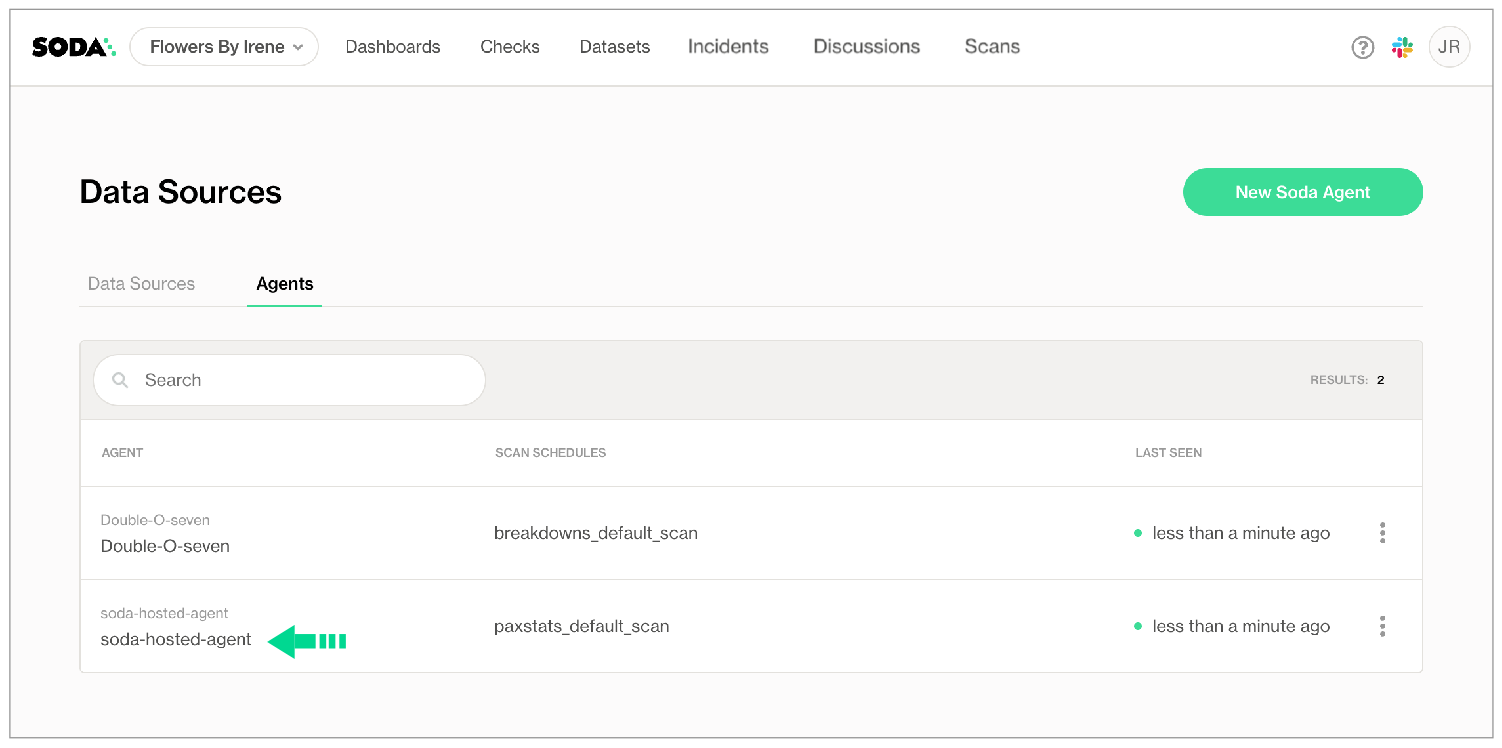
2. Navigate to **your avatar** > **Data Sources**, then access the **Runners** tab. Notice your out-of-the-box Soda-hosted runner that is up and running.
3. Navigate to the **Data Sources** tab, then click to select the data source you wish to migrate to the Soda-hosted runner.
4. In the **2. Connect the Data Source** tab, copy+paste the contents of the editing panel to a temporary, secure, local place in your system. Switching runners resets all connection configuration parameters, so be sure to record existing parameter settings before proceeding.
5. In the **1. Attributes** tab, use the dropdown for **Default Scan Runner** to select `soda-hosted-runner`.
6. Return to the **2. Connect the Data Source** tab, then, using the configuration values you recorded in step 3, use the dropdowns to re-enter the values, then **Test Data Source**.
7. When the test completes successfully, **Save** your changes to the data source.
## Redeploy a self-hosted Soda Runner
The **Soda Runner** is a tool that empowers Soda Cloud users to securely access data sources to scan for data quality. Create a Kubernetes cluster in a cloud services provider environment, then use Helm to deploy a sefl-hosted Soda Runner in the cluster. [Read more](/soda-documentation/soda-v3/learning-resources/basics.md).
When you delete the Soda Runner Helm chart from your cluster, you also delete all the runner resources on your cluster. However, if you wish to redeploy the previously-registered runner (use the same name), you need to specify the runner ID in your override values in your values YAML file.
1. In Soda Cloud, navigate to **your avatar** > **Runners**.
2. Click to select the runner you wish to redeploy, then copy the runner ID of the previously-registered runner from the URL.\
\
For example, in the following URL, the runner ID is the long UUID at the end. `https://cloud.soda.io/runners/842feab3-snip-87eb-06d2813a72c1`.\
\
Alternatively, if you use the base64 CLI tool, you can run the following command to obtain the runner ID.
```shell
kubectl get secret/soda-runner-id -n soda-runner --template={{.data.SODA_RUNNER_ID}} | base64 --decode
```
3. Open your `values.yml` file, then add the `id` key:value pair under `runner`, using the runner ID you copied from the URL as the value.
```yaml
soda:
apikey:
id: "***"
secret: "***"
runner:
id: "842feab3-snip-87eb-06d2813a72c1"
name: "myuniquerunner"
```
4. To redeploy the runner, you need to provide the values for the API keys the runner uses to connect to Soda Cloud in the values YAML file. Access the values by running the following command, replacing the `soda-runner` values with your own details, then paste the values into your values YAML file.
```shell
helm get values -n soda-runner soda-runner
```
Alternatively, if you use the base64 CLI tool, you can run the following commands to obtain the API key and API secret, respectively.
```shell
kubectl get secret/soda-runner-apikey -n soda-runner --template={{.data.SODA_API_KEY_ID}} | base64 --decode
```
```shell
kubectl get secret/soda-runner-apikey -n soda-runner --template={{.data.SODA_API_KEY_SECRET}} | base64 --decode
```
5. In the same directory in which the `values.yml` file exists, use the following command to install the Soda Runner helm chart.
```shell
helm install soda-runner soda-runner/soda-runner \
--values values.yml \
--namespace soda-runner
```
6. Validate the Soda Runner deployment by running the following command:
```shell
kubectl describe pods
```
## Upgrade a self-hosted Soda Runner
The **Soda Runner** is a Helm chart that you deploy on a Kubernetes cluster and connect to your Soda Cloud account using API keys.
To take advantage of new or improved features and functionality in the Soda Runner, including new features in the Soda Library, you can upgrade your runner when a new version becomes available in [ArtifactHub.io](https://artifacthub.io/packages/helm/soda-runner/soda-runner).
Note that there is no downtime associated with the exercise of upgrading a self-hosted Soda Runner. Because Soda does not define the `.spec.strategy` in the deployment manifest of the Soda Runner Helm chart, Kubernetes uses the default `RollingUpdate` to upgrade; refer to [Kubernetes documentation ](https://kubernetes.io/docs/concepts/workloads/controllers/deployment/#strategy).
1. If you regularly access multiple clusters, you must ensure that are first accessing the cluster which contains your deployed Soda Runner. Use the following command to determine which cluster you are accessing.
```shell
kubectl config get-contexts
```
If you must switch contexts to access a different cluster, copy the name of cluster you wish to use, then run the following command.
```
kubectl config use-context
```
2. To upgrade the runner, you must know the values for:
* namespace - the namespace you created, and into which you deployed the Soda Runner
* release - the name of the instance of a helm chart that is running in your Kubernetes cluster
* API keys - the values Soda Cloud created which you used to run the runner application in the cluster\
Access the first two values by running the following command.
```shell
helm list
```
Output:
```shell
NAME NAMESPACE REVISION UPDATED STATUS CHART APP VERSION
soda-runner soda-runner 5 2023-01-20 11:55:49.387634 -0800 PST deployed soda-runner-0.8.26 Soda_Library_1.0.0
```
3. Access the API key values by running the following command, replacing the placeholder values with your own details.
```shell
helm get values -n
```
From the output above, the command to use is:
```shell
helm get values -n soda-runner soda-runner
```
4. Use the following command to search ArtifactHub for the most recent version of the Soda Runner Helm chart.
```shell
helm search hub soda-runner
```
5. Use the following command to upgrade the Helm repository.
```shell
helm repo update
```
6. Upgrade the Soda Runner Helm chart. The value for the chart argument can be a chart reference such as `example/runner`, a path to a chart directory, a packaged chart, or a URL. To upgrade the runner, Soda uses a chart reference: `soda-runner/soda-runner`.
```shell
helm upgrade
--set soda.apikey.id=*** \
--set soda.apikey.secret=****
```
From the output above, the command to use is
```shell
helm upgrade soda-runner soda-runner/soda-runner \
--set soda.apikey.id=*** \
--set soda.apikey.secret=****
```
OR, if you use a values YAML file,
```shell
helm upgrade soda-runner soda-runner/soda-runner \
--values values-local.yml --namespace soda-runner
```
### Upgrade to Soda Runner 1.0.0 or greater
Soda Runner 1.0.0 includes several key changes to the way the Soda Runner works. If you already use a Soda Runner, carefully consider the changes that Soda Runner 1.0.0 introduces and make appropriate changes to your configured parameters.
Soda Runner 1.0.0 favors manged or self-managed node groups over AWS Fargate, AKS Virtual Nodes, or GKE Autopilot profiles. Though this version of the runner still works with those profiles, the scan performance is slower because the profiles provision new nodes for each scan. To migrate your runner to a managed node group:
1. Add a managed node group to your Kubernetes cluster.
2. Check your cloud-services provider’s recommendations for node size and adapt it for your needs based on volume of scans you anticipate. Best practice dictates that you set your cluster to have at least 2 CPU and 2GB of RAM, which, in general is sufficient to run up to six scans in parallel.
3. [Upgrade to Soda Runner 1.0.0](/soda-documentation/soda-v3/quick-start-sip/upgrade.md#upgrade-a-self-hosted-soda-runner), configuring the helm chart to *not* use Fargate, Virtual Nodes, or GKE Autopilot by:
* removing the `provider.eks.fargate.enabled` property, or setting the value to `false`
* removing the `provider.aks.virtualNodes.enabled` property, or setting the value to `false`
* removing the `provider.gke.autopilot.enabled` property, or setting the value to `false`
* removing the `soda.runner.target` property
4. Remove the Fargate profiles, and drain existing workloads from virtual nodes in the namespace in which you deployed the Soda Runner so that the runner uses the node group to execute scans, not the profiles.
### Upgrading from 1.1.x to 1.2.x
Starting from version 1.2.0 all images required for the Soda Runner are distributed using a Soda-hosted image registry.
For more information, see [Broken mention](broken://spaces/A2PmHkO5cBgeRPdiPPOG/pages/0Cs2lWTZr1mIVYrDs9Y0).
#### Set up authentication for the Soda image registry
**Using your exising Soda API key and secret**
By default we'll use your existing Soda API key and secret values to perform the authentication to the Soda image registry.
Ensure these values are still present in your `values.yaml` , no further action is required.
```yaml
soda:
# These values will also be used to authenticate to the Soda image registry
apikey:
id: existing-key-id
secret: existing-key-secret
```
**Using a separate Soda API key and secret**
You might also opt to use a new, separate Soda API key and secret to perform the authentication to the Soda image registry.
In this case, ensure the `imageCredentials.apikey.id` and `imageCredentials.apikey.secret` values are set to these new values:
```yaml
soda:
apikey:
id: existing-key-id
secret: existing-key-secet
imageCredentials:
apikey:
id: my-new-key-id
secret: my-new-key-secret
```
#### Specify existing `imagePullSecrets`
If you're providing your own `imagePullSecrets` on the cluster, e.g. when you're pulling images from your own mirroring image registry, you must modify your existing values file.
The `imagePullSecrets` property that was present in versions `1.1.x` has been renamed to the more standard `existingImagePullSecrets` .
If applicable to you, please perform the following rename in your values file:
```yaml
soda:
apikey:
id: ***
secret: ***
# This is no longer supported
# imagePullSecrets
# - name: my-existing-secret
# Instead, use this!
existingImagePullSecrets
- name: my-existing-secret
```
For more information on setting up image mirroring, see [Broken mention](broken://spaces/A2PmHkO5cBgeRPdiPPOG/pages/0Cs2lWTZr1mIVYrDs9Y0#mirroring-images)
#### Update the `region`
If you are a customer using the US instance of Soda Cloud, you'll have to configure your Runner setup accordingly. Otherwise you can ignore this section.
In version `1.2.0` we're introducing a `soda.cloud.region` property, that will be used to determine which registry and Soda Cloud endpoint to use. Possible values are `eu` and `us`. When the `soda.cloud.region` property is not set explicitly, it defaults to the value of `eu`.
If applicable to you, please perform the following changes in your values file:
```yaml
soda:
apikey:
id: ***
secret: ***
cloud:
# This also sets the correct endpoint under the covers.
region: "us"
# This can be removed now, as the region property sets this up correctly.
# endpoint: https://cloud.us.soda.io
```
For more information about using the US region, see [Broken mention](broken://spaces/A2PmHkO5cBgeRPdiPPOG/pages/0Cs2lWTZr1mIVYrDs9Y0#using-the-us-image-registry).
#### Rename `scanlauncher` to `scanLauncher`
The `scanlauncher` section in the values file has been renamed to `scanLauncher`.\
Please ensure the correct name is used in your values file if you have any configuration values there:
```yaml
soda:
apikey:
id: ***
secret: ***
# Rename this ...
# scanLauncher:
# to become
scanLauncher:
existingSecrets:
- soda-runner-secrets
```
## Upgrade Soda Library
To upgrade your existing Soda Library tool to the latest version, use the following command, replacing `redshift` with the install package that matches the type of data source you are using.
```shell
pip install -i https://pypi.cloud.soda.io soda-redshift -U
```
## Uninstall Soda Library
1. (Optional) From the command-line, run the following command to determine which Soda packages exist in your environment.
```shell
pip freeze | grep soda
```
2. (Optional) Run the following command to uninstall a specific Soda package from your environment.
```shell
pip uninstall soda-postgres
```
3. Run the following command to uninstall all Soda packages from your environment, completely.
```shell
pip freeze | grep soda | xargs pip uninstall -y
```
## Migrate from Soda Core
Soda Core, the free, open-source Python library and CLI tool upon which Soda Library is built, continues to exist as an OSS project in [GitHub](https://github.com/sodadata/soda-core). To migrate from an existing Soda Core installation to Soda Library, simply uninstall the old and install the new from the command-line.
1. Uninstall your existing Soda Core packages using the following command.
```shell
pip freeze | grep soda | xargs pip uninstall -y
```
2. Install a Soda Library package that corresponds to your data source. Your new package automatically comes with a 45-day free trial. Our Soda team will contact you with licensing options after the trial period.
```shell
pip install -i https://pypi.cloud.soda.io soda-postgres
```
3. If you had connected Soda Core to Soda Cloud, you do not need to change anything for Soda Library to work with your Soda Cloud account.\
If you had not connected Soda Core to Soda Cloud, you need to connect Soda Library to Soda Cloud. Soda Library requires API keys to validate licensing or trial status and run scans for data quality. See [Configure Soda](/soda-documentation/soda-v3/quick-start-sip/install.md#configure-soda) for instructions.
4. You *do not need* to adjust your existing `configuration.yml` or `checks.yml` files which will continue to work as before.
## Go further
* Learn more about the ways you can use Soda in [Use case guides](/soda-documentation/soda-v3/use-case-guides.md).
* Write [custom SQL checks](/soda-documentation/soda-v3/sodacl-reference/user-defined.md) for your own use cases.
> Need help? Join the [Soda community on Slack](https://community.soda.io/slack).
---
# Agent Instructions
This documentation is published with GitBook. GitBook is the documentation platform designed so that both humans and AI agents can read, navigate, and reason over technical content effectively. Learn more at gitbook.com.
## Querying This Documentation
If you need additional information that is not directly available in this page, you can query the documentation by asking a question.
Perform an HTTP GET request on the following URL with the `ask` and `goal` query parameters:
```
GET https://docs.soda.io/soda-documentation/soda-v3/quick-start-sip/upgrade.md?ask=&goal=
```
`ask` is the immediate question: it should be specific, self-contained, and written in natural language.
`goal` is what the user is ultimately trying to achieve, the reason they need the answer. Sharing it helps GitBook give you a better, more relevant answer. A goal is most helpful when it describes the outcome the user wants rather than restating the question. For example, with `ask=how do I create an API token`, a goal like `automate deployments from our CI pipeline` lets GitBook tailor the answer to that use case.
The response will contain a direct answer to the question and relevant excerpts and sources from the documentation.
Use this mechanism when the answer is not explicitly present in the current page, you need clarification or additional context, or you want to retrieve related documentation sections.