> For the complete documentation index, see [llms.txt](https://docs.soda.io/llms.txt). Markdown versions of documentation pages are available by appending `.md` to page URLs; this page is available as [Markdown](https://docs.soda.io/soda-documentation/soda-v3/integrate-soda/integrate-servicenow.md).
# Integrate Soda with ServiceNow
Configure a webhook to connect Soda to your ServiceNow account.
Configure a [webhook](/soda-documentation/soda-v3/integrate-soda/integrate-webhooks.md) in Soda Cloud to connect to your ServiceNow account.
In ServiceNow, you can create a Scripted REST API that enables you to prepare a resource to work as an incoming webhook. Use the **ServiceNow Resource Path** in the URL field in the Soda Cloud integration setup.
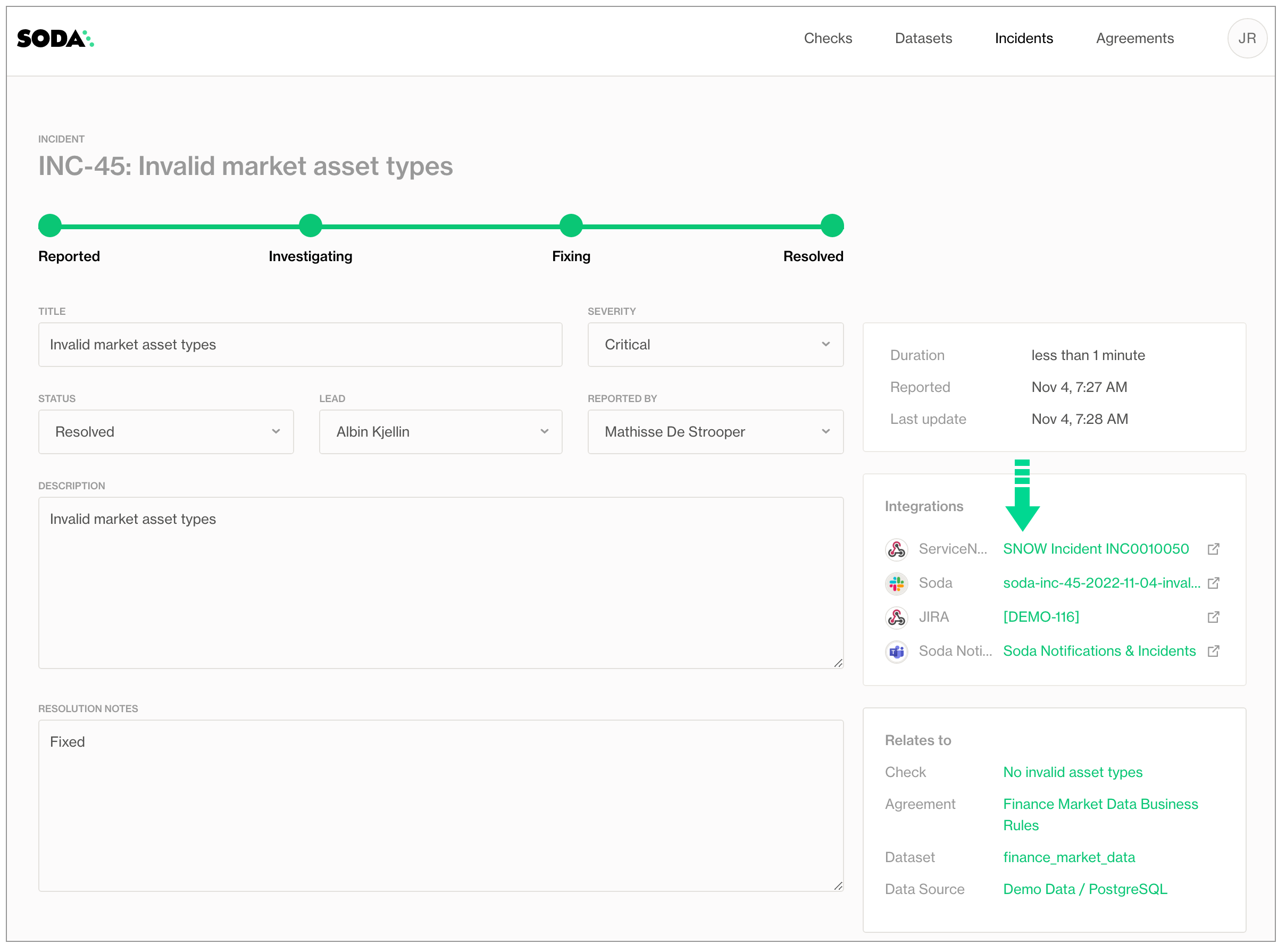
This example offers guidance on how to set up a Scripted REST API Resource to generate an external link which Soda Cloud displays in the **Incident Details**; see image below. When you change the status of a Soda Cloud incident, the webhook also updates the status of the SNOW issue that corresponds with the incident.
Refer to [Event payloads](/soda-documentation/soda-v3/integrate-soda/integrate-webhooks.md#event-payloads) for details information.
The following steps offer a brief overview of how to set up a ServiceNow Scripted REST API Resource to integrate with a Soda Cloud webhook. Reference the ServiceNow documentation for details:
* [Create a Scripted REST API](https://docs.servicenow.com/en-US/bundle/tokyo-application-development/page/integrate/custom-web-services/task/t_CreateAScriptedRESTService.html) and [Create a Scripted REST API Resource](https://docs.servicenow.com/bundle/tokyo-application-development/page/integrate/custom-web-services/task/t_CreateAScriptedRESTAPIResource.html)
* [ServiceNow Developer: Creating Scripted REST APIs](https://developer.servicenow.com/dev.do#!/learn/courses/quebec/app_store_learnv2_rest_quebec_rest_integrations/app_store_learnv2_rest_quebec_scripted_rest_apis/app_store_learnv2_rest_quebec_creating_scripted_rest_apis)
1. In ServiceNow, start by navigating to the **All** menu, then use the filter to search for and select **Scripted REST APIs**.
2. Click **New** to create a new scripted REST API. Provide a name and API ID, then click **Submit** to save.
3. In the Scipted Rest APIs list, find and open your newly-created API, then, in the **Resources** tab, click **New** to create a new resource.
4. Provide a **Name** for your resource, then select POST as the **HTTP method**.
5. In the **Script** field, define a script that creates new tickets when a Soda Cloud incident is opened, and updates existing tickets when a Soda Cloud incident status is updated. Use the example below for reference. You may also need to define Security settings according to your organizations authentication rules.
6. Click **Submit**, then copy the value of the **Resource path** to use in the URL field in the Soda Cloud integration setup.
```javascript
(function process(/*RESTAPIRequest*/ request, /*RESTAPIResponse*/ response) {
var businessServiceId = '28***';
var snowInstanceId = 'dev***';
var requestBody = request.body;
var requestData = requestBody.data;
gs.info(requestData.event);
if (requestData.event == 'incidentCreated'){
gs.log("*** Incident Created ***");
var grIncident = new GlideRecord('incident');
grIncident.initialize();
grIncident.short_description = requestData.incident.description;
grIncident.description = requestData.incident.sodaCloudUrl;
grIncident.correlation_id = requestData.incident.id;
if(requestData.incident.severity == 'critical'){
grIncident.impact = 1;
}else if(requestData.incident.severity == 'major'){
grIncident.impact = 2;
}else if(requestData.incident.severity == 'minor'){
grIncident.impact = 3;
}
grIncident.business_service = businessServiceId;
grIncident.insert();
var incidentNumber = grIncident.number;
var sysid = grIncident.sys_id;
var callBackURL = requestData.incidentLinkCallbackUrl;
var req, rsp;
req = new sn_ws.RESTMessageV2();
req.setEndpoint(callBackURL.toString());
req.setHttpMethod("post");
var sodaUpdate = '{"url":"https://'+ snowInstanceId +'.service-now.com/incident.do?sys_id='+sysid + '", "text":"SNOW Incident '+incidentNumber+'"}';
req.setRequestBody(sodaUpdate.toString());
resp = req.execute();
gs.log(resp.getBody());
}else if(requestData.event == 'incidentUpdated'){
gs.log("*** Incident Updated ***");
var target = new GlideRecord('incident');
target.addQuery('correlation_id', requestData.incident.id);
target.query();
target.next();
if(requestData.incident.status == 'resolved'){
//Change this according to how SNOW is used.
target.state = 6;
target.close_notes = requestData.incident.resolutionNotes;
}else{
//Change this according to how SNOW is used.
target.state = 4;
}
target.update();
}
})(request, response);
```
## Go further
* As a business user, learn more about [writing no-code checks](/soda-documentation/soda-v3/soda-cl-overview.md#define-sodacl-checks) in Soda Cloud.
* Set [notification rules](/soda-documentation/soda-v3/collaborate/notif-rules.md) that apply to multiple checks in your account.
* Learn more about creating, tracking, and resolving data quality [Incidents](broken://pages/3c55b8f0530b65cf8f53b1775f1bb9823fd04116).
* Access a list of [all integrations](https://www.soda.io/integrations) that Soda Cloud supports.
> Need help? Join the [Soda community on Slack](https://community.soda.io/slack).
---
# Agent Instructions
This documentation is published with GitBook. GitBook is the documentation platform designed so that both humans and AI agents can read, navigate, and reason over technical content effectively. Learn more at gitbook.com.
## Querying This Documentation
If you need additional information that is not directly available in this page, you can query the documentation by asking a question.
Perform an HTTP GET request on the following URL with the `ask` and `goal` query parameters:
```
GET https://docs.soda.io/soda-documentation/soda-v3/integrate-soda/integrate-servicenow.md?ask=&goal=
```
`ask` is the immediate question: it should be specific, self-contained, and written in natural language.
`goal` is what the user is ultimately trying to achieve, the reason they need the answer. Sharing it helps GitBook give you a better, more relevant answer. A goal is most helpful when it describes the outcome the user wants rather than restating the question. For example, with `ask=how do I create an API token`, a goal like `automate deployments from our CI pipeline` lets GitBook tailor the answer to that use case.
The response will contain a direct answer to the question and relevant excerpts and sources from the documentation.
Use this mechanism when the answer is not explicitly present in the current page, you need clarification or additional context, or you want to retrieve related documentation sections.