> For the complete documentation index, see [llms.txt](https://docs.soda.io/llms.txt). Markdown versions of documentation pages are available by appending `.md` to page URLs; this page is available as [Markdown](https://docs.soda.io/soda-documentation/soda-v3/integrate-soda/integrate-alation.md).
# Integrate Soda with Alation
Integrate Soda with Alation to access details about the quality of your data from right within your data catalog.
Integrate Soda with Alation to access details about the quality of your data from within the data catalog.
* Run data quality checks using Soda and visualize quality metrics and rules within the context of a data source, dataset, or column in Alation.
* Use Soda Cloud to flag poor-quality data in lineage diagrams and during live querying.
* Give your Alation users the confidence of knowing that the data they are using is sound.
* 🎥 Watch a [5-minute overview](https://vimeo.com/563765014) showcasing the integration of Soda and Alation.
## Prerequisites
* You have completed at least one Soda scan to validate that the data source’s datasets appear in Soda Cloud as expected.
* You have an Alation account with the privileges necessary to allow you to add a data source, create custom fields, and customize templates.
* You have a git repository in which to store the integration project files.
## Set up the integration
🎥 Watch a 5-minute video that demonstrates how to integrate Soda and Alation.
{% embed url="" %}
1. Sign into your Soda Cloud account and confirm that you see the datasets you expect to see in the data source you wish to test for quality.
2. To connect your Soda Cloud account to your Alation Service Account, create an `o the example below. Refer to [Generate API keys]() to obtain the values for your Soda API keys.`
```yaml
ALATION_HOST=yourcompany.alationcatalog.com
ALATION_USER=
ALATION_PASSWORD=
SODA_HOST=cloud.soda.io
SODA_API_KEY_ID=
SODA_API_KEY_SECRET=
```
3. To sync a data source and schema in the Alation catalog to a data source in Soda Cloud, you must map it from Soda Cloud to Alation. Create a `.datasource-mapping.yml` file in your integration project and populate it with mapping data according to the following example. The table below describes where to retrieve the values for each field.
```yaml
- name: Cars
soda:
datasource_id: 2d33bf0a-9a1c-4c4b-b148-b5af318761b3
datasource_name: adventureworks
# optional dataset_mapping soda: catalog
dataset_mapping:
Cars_data: Cars
catalog:
type: "alation"
datasource_id: "31"
datasource_container_name: "soda"
datasource_container_id: "1"
- name: Soda Demo
soda:
datasource_id: 8505cbbd-d8b3-48a4-bad4-cfb0bec4c02f
catalog:
type: "alation"
datasource_id: "37"
datasource_container_name: "public"
datasource_container_id: "2"
```
| Field | Retrieve value from |
| ------------------------------------------------------------------------ | ------------------------------------------------------------------------------------------------------------------------------------------------------------------------------------------------------------------------------------------------- |
| `name` | A name you choose as an identifier for an integration between Soda Cloud and a data catalog. |
|
soda: datasource\_id
| The data source information panel in Soda Cloud. |
|
soda: datasource\_name
| The data source information panel in Soda Cloud. |
|
soda: dataset\_mapping
|
(Optional) When you run the integration, Soda automatically maps all of the datasets between data sources. However, if the names of the datasets differ in the tools you can use this property to manually map datasets between tools.
|
|
catalog: type:
| The name of the cataloging software; in this case, “alation”. |
|
catalog: datasource\_id
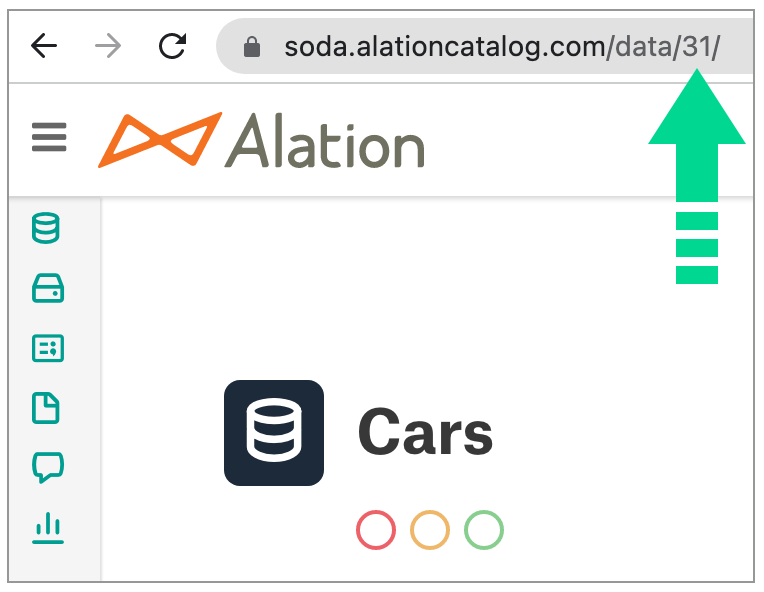
| Retrieve this value from the URL on the data source page in the Alation catalog; see image below. |
|
catalog: datasource\_container\_name
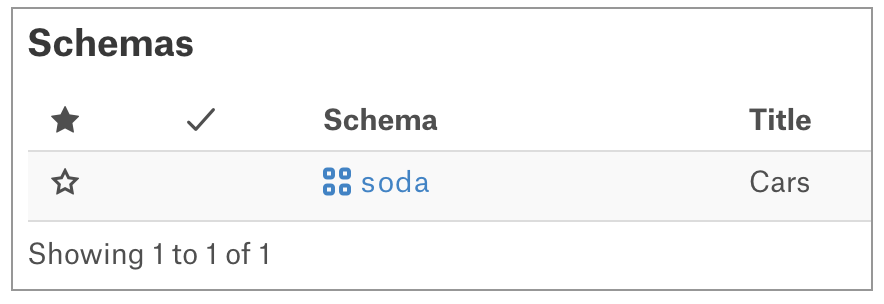
| The schema of the data source; retrieve this value from the data source page in the Alation catalog under the subheading **Schemas**. See image below. |
|
catalog: datasource\_container\_id
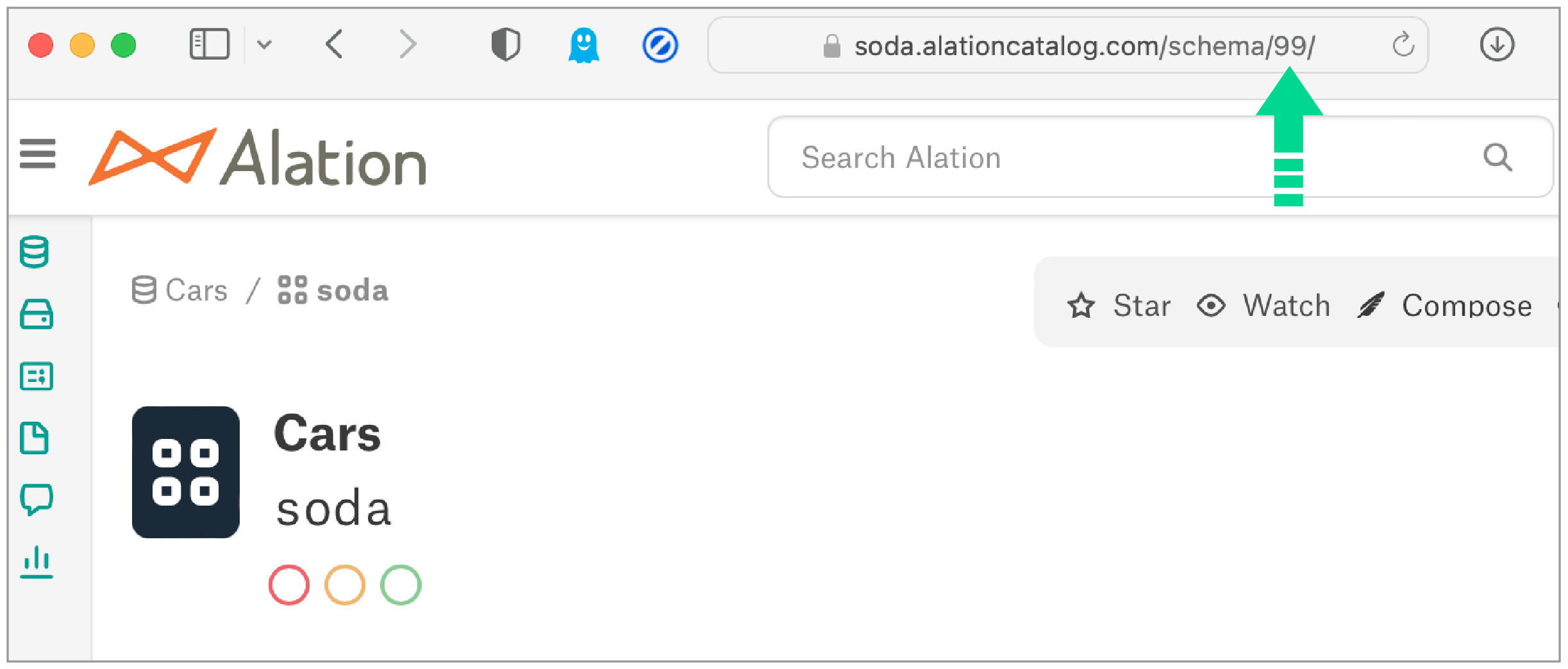
| The ID of the `datasource_container_name` (the schema of the data source); retrieve this value from the schema page in the Alation catalog. See image below |
Retrieve the Alation `datasource_id` from the URL
Retrieve the Alation `datasource_container_name` (schema) from the data source page
Retrieve the Alation `datasource_container_id` for the `datasource_container_name` from the URL in the **Schema** page.
## Enable API access to Alation with SSO
If your Alation account employs single sign-on (SSO) access, you must [Create an API service account](https://developer.alation.com/dev/docs/creating-an-api-service-account) for Soda to integrate with Alation.
If your Alation account does not use SSO, skip this step and proceed to [Customize the catalog](#customize-the-catalog).
## Customize the catalog
1. Create custom fields in Alation that reference information that Soda Cloud pushes to the catalog. These are the fields the catalog users will see that will display Soda Cloud data quality details.\
In your Alation account, navigate to **Settings** > **Catalog Admin** > **Customize Catalog**. In the **Custom Fields** tab, create the following fields:
* Under the **Pickers** heading, create a field for “Has DQ” with Options “True” and “False”. The Alation API is case sensitive so be sure to use these exact values.
* Under the **Dates** heading, create a field for “Profile - Last Run”.
* Under the **Rich Texts** heading, create the following fields:
* “Soda DQ Overview”
* “Soda Data Quality Rules”
* “Data Quality Metrics”
2. Add each new custom field to a **Custom Template** in Alation. In **Customize Catalog**, in the **Custom Templates** tab, select the **Table** template, then click **Insert…** to add a custom field to the template:
* “Soda DQ Overview”
3. In the **Table** template, click **Insert…** to add a **Grouping of Custom Fields**. Label the grouping “Data Quality Info”, then **Insert…** two custom fields:
* “Has DQ”
* “Profile - Last Run”
4. In the **Column** template, click **Insert…** to add a custom field to the template:
* “Has DQ”
5. In the **Column** template, click **Insert…** to add a **Grouping of Custom Fields**. Label the grouping “Soda Data Profile Information”, then **Insert…** two custom fields:
* Data Quality Metrics
* Soda Data Quality Rules
## Run the integration
Contact directly to acquire the assets and instructions to run the integration and view Soda Cloud details in your Alation catalog.
## Use the integration
Access Soda Cloud to [create no-code checks](/soda-documentation/soda-v3/soda-cl-overview.md#define-sodacl-checks) or [create agreements](/soda-documentation/soda-v3/soda-cl-overview.md#define-sodacl-checks) that execute checks against datasets in your data source each time you [run a Soda scan manually](/soda-documentation/soda-v3/run-a-scan.md#run-a-scan), or [orchestrate a scan](/soda-documentation/soda-v3/run-a-scan/orchestrate-scans.md) using a data pipeline tool such as Airflow. Soda Cloud pushes data quality scan results to the corresponding data source in Alation so that users can review data quality information from within the catalog.
In Alation, beyond reviewing data quality information for the data source, users can access the **Joins** and **Lineage** tabs of individual datasets to examine details and investigate the source of any data quality issues.
### Open in Soda
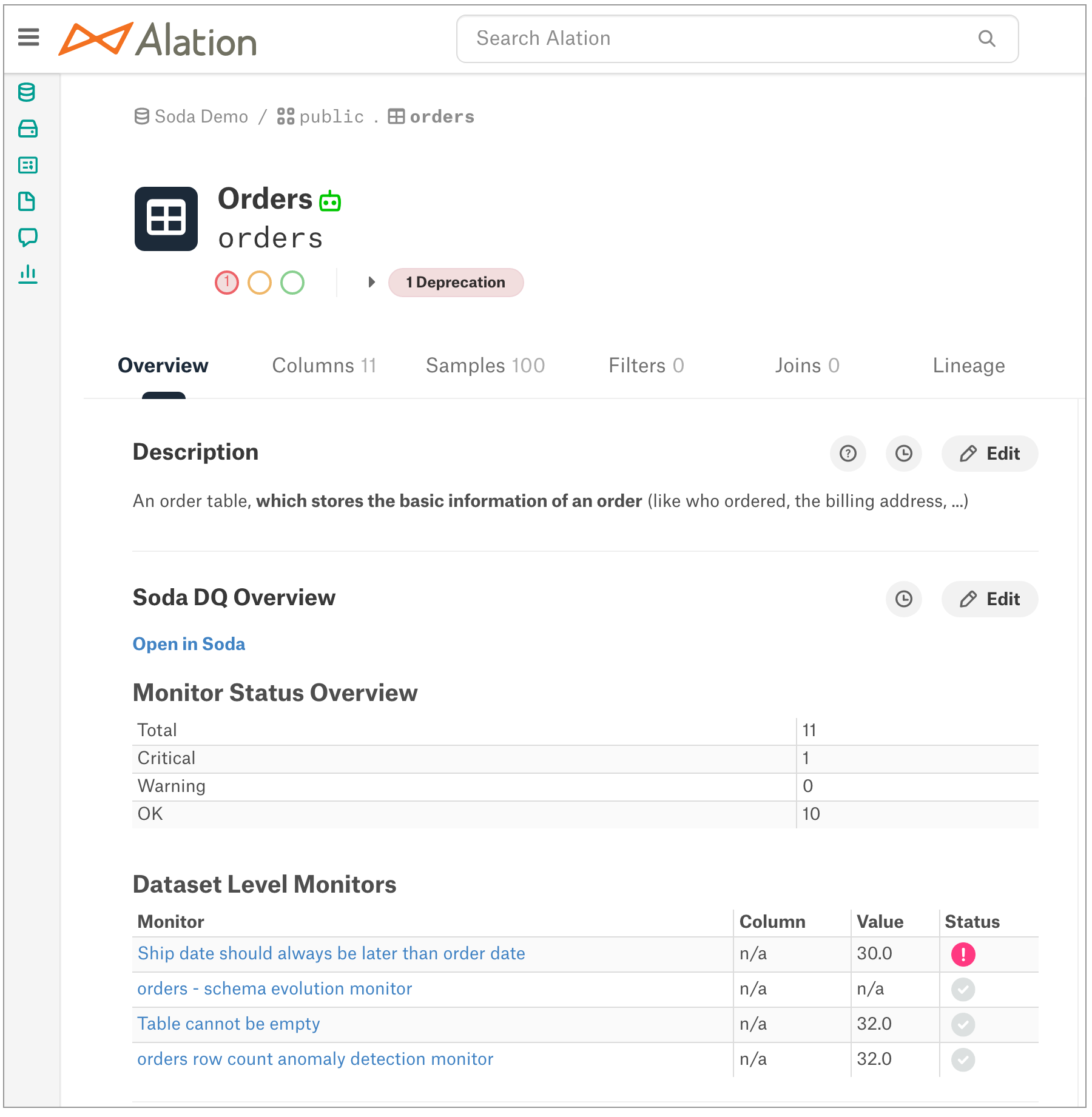
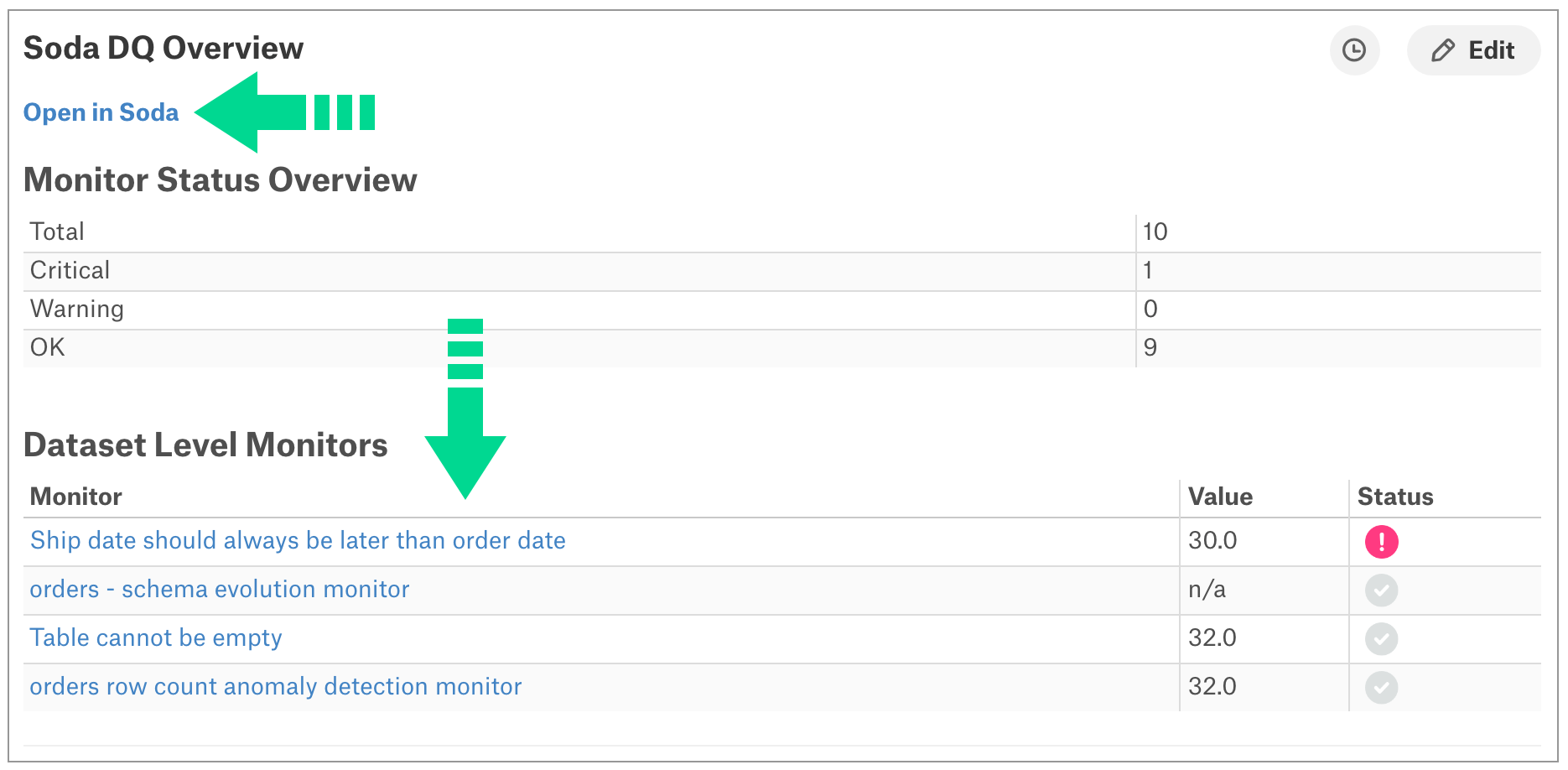
In a dataset page in Alation, in the **Overview** tab, users have the opportunity to click links to directly access Soda Cloud to scrutinize data quality details; see image below.
* Under the **Soda DQ Overview** heading in Alation, click **Open in Soda** to access the dataset page in Soda Cloud.
* Under the **Dataset Level Monitors** heading in Alation, click the title of any monitor to access the check info page in Soda Cloud.
## Go further
* Access a list of [all integrations](/soda-documentation/soda-v3/integrate-soda.md) that Soda Cloud supports.
> Need help? Join the [Soda community on Slack](https://community.soda.io/slack).
---
# Agent Instructions
This documentation is published with GitBook. GitBook is the documentation platform designed so that both humans and AI agents can read, navigate, and reason over technical content effectively. Learn more at gitbook.com.
## Querying This Documentation
If you need additional information that is not directly available in this page, you can query the documentation by asking a question.
Perform an HTTP GET request on the following URL with the `ask` and `goal` query parameters:
```
GET https://docs.soda.io/soda-documentation/soda-v3/integrate-soda/integrate-alation.md?ask=&goal=
```
`ask` is the immediate question: it should be specific, self-contained, and written in natural language.
`goal` is what the user is ultimately trying to achieve, the reason they need the answer. Sharing it helps GitBook give you a better, more relevant answer. A goal is most helpful when it describes the outcome the user wants rather than restating the question. For example, with `ask=how do I create an API token`, a goal like `automate deployments from our CI pipeline` lets GitBook tailor the answer to that use case.
The response will contain a direct answer to the question and relevant excerpts and sources from the documentation.
Use this mechanism when the answer is not explicitly present in the current page, you need clarification or additional context, or you want to retrieve related documentation sections.