> For the complete documentation index, see [llms.txt](https://docs.soda.io/llms.txt). Markdown versions of documentation pages are available by appending `.md` to page URLs; this page is available as [Markdown](https://docs.soda.io/soda-documentation/find/data-observability/metric-monitoring-dashboard.md).
# Metric monitoring
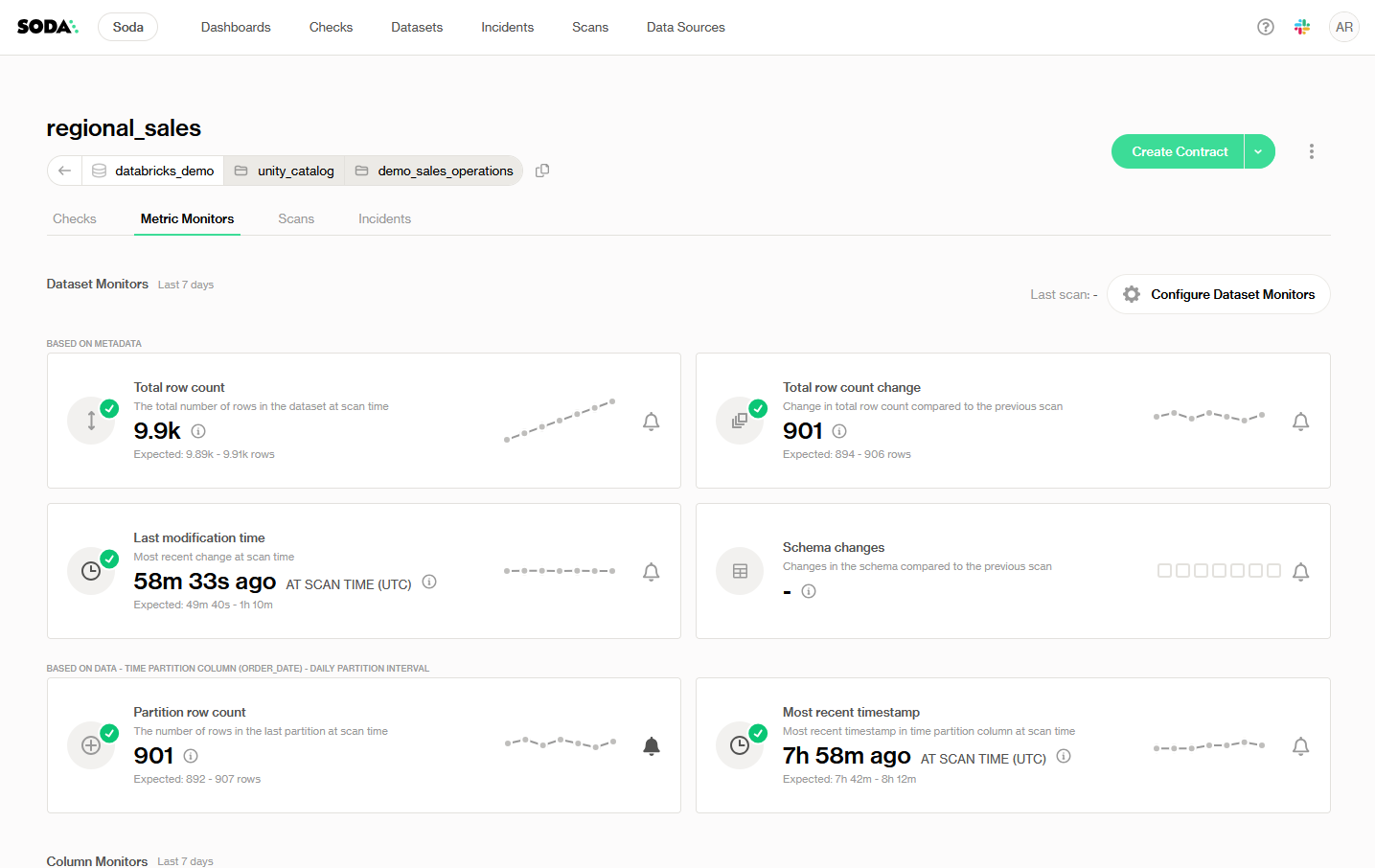
As soon as a data source is connected, the metric monitoring dashboard is available and will have **historical information**. Soda establishes a **statistical baseline** for each metric and continually compares new scan results against that baseline, **flagging anomalies** according to the sensitivity, exclusions, and threshold strategy you’ve configured.
## What are Metric Monitors?
**Metric monitors** are the foundation of data observability in Soda. Monitors track data quality metrics over time and leverage historical values for analysis. Soda automatically collects these metrics and examines how they evolve over time through a [proprietary anomaly detection algorithm](/soda-documentation/find/data-observability.md#high-precision-alerts-with-fewer-false-positives) to identify when metrics deviate from expected patterns and trigger alerts. These deviations are surfaced and recorded in the **Metric Monitors** tab for each dataset.
### Monitors vs metrics: what's the difference?
The main difference between monitors and metrics is that **monitors are configurable, while metrics are not**.
Monitors build on top of metrics by wrapping their static measurement in a configurable context. Each monitor is customizable, so the user can select **scan time**, **scan frequency**, **thresholds**, and **metric** to be used.
Metrics, on the other hand, are only a part of the monitor. They are built-in, static definitions of data properties; it is not possible to alter how a metric is computed at its source, but it is possible to select which metric to track through a **metric monitor**.
## Types of monitors
A metric monitor tracks one data quality metric over time. Soda learns a baseline from the metric's history and flags new values that deviate from it.
Soda has four types of metric monitors. They differ in what they measure and how much setup they need.
| Monitor | Tracks | Setup | Example |
| ----------------------------------------------------------------------------------------------------------------- | -------------------------------------------------- | ----------------------------------------------------------------------------------- | ---------------------------------------------------- |
| [Dataset monitors](/soda-documentation/find/data-observability/metric-monitoring-dashboard/dataset-monitors.md) | A high-level metric for a whole table or partition | None for metadata-based monitors. Data-based monitors need a time partition column. | Row count drops, schema changes, data stops arriving |
| [Column monitors](/soda-documentation/find/data-observability/metric-monitoring-dashboard/column-monitors.md) | A statistical metric for one column | Pick the columns and metrics to monitor | Spike in missing values, shift in an average |
| [Group By monitors](/soda-documentation/find/data-observability/metric-monitoring-dashboard/group-by-monitors.md) | A column metric, broken down per category | Pick the metric and the column(s) to group by | Missing values per region |
| [Custom monitors](/soda-documentation/find/data-observability/metric-monitoring-dashboard/custom-monitors.md) | A metric you define with your own SQL query | Write the SQL query. Enterprise only. | A ratio computed across several tables |
Start with dataset monitors to cover many datasets with no setup. Add column, Group By, and custom monitors on the datasets and columns that matter most.
All active monitors for a dataset appear on its **Metric Monitors** tab: dataset monitors at the top, column and Group By monitors at the bottom.
## Configure Opt-in Alerts
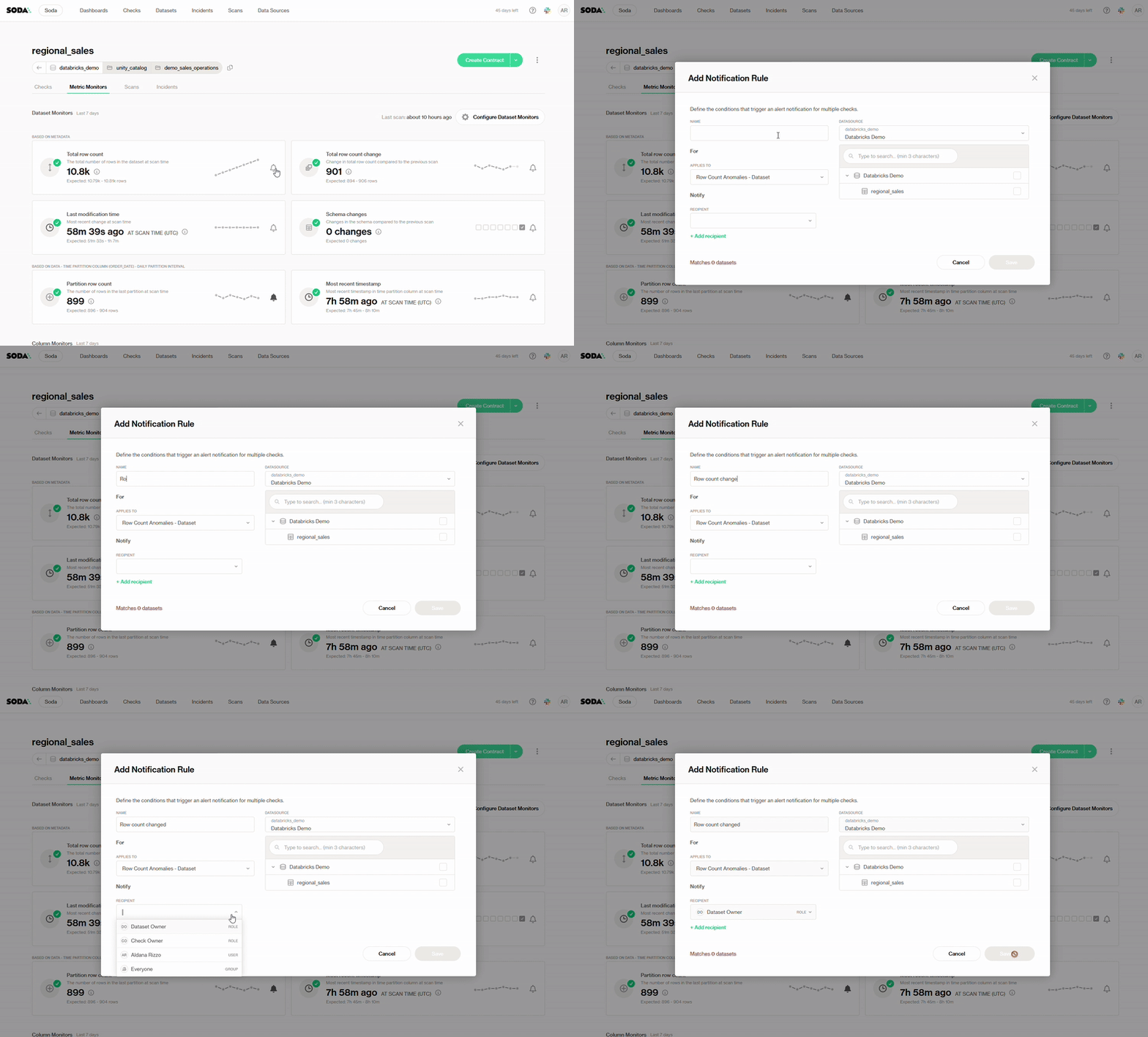
You can turn any metric monitor into a proactive alert by clicking its **bell icon** on the Metric Monitors dashboard and selecting **Add Notification Rule**. This brings up the **Add Notification Rule panel**:
1. **Name**\
Enter a descriptive title for your rule (e.g. “Row-Count Alerts – Prod Sales”).
2. **Data source**\
Choose the warehouse or connection to scope your rule.\
Then, search for and check the specific tables (or columns) this rule should cover. The “Matches X datasets” badge updates in real time so you know exactly what you’ll be alerting on.
3. **Applies to**\
Pick which check type you want to alert on.
4. **Recipients**\
Select one or more notification targets:
* Email addresses
* Slack channels
* Other integrations
This dialog lets you reuse a single rule for multiple datasets or checks, ensuring your team only gets the notifications they care about.
***
{% hint style="info" %}
You are **not logged in to Soda** and are viewing the default public documentation. Learn more about [Licensing & documentation access](/soda-documentation/govern/security-licensing-and-compliance/documentation-access-and-licensing.md).
{% endhint %}
---
# Agent Instructions
This documentation is published with GitBook. GitBook is the documentation platform designed so that both humans and AI agents can read, navigate, and reason over technical content effectively. Learn more at gitbook.com.
## Querying This Documentation
If you need additional information that is not directly available in this page, you can query the documentation by asking a question.
Perform an HTTP GET request on the following URL with the `ask` and `goal` query parameters:
```
GET https://docs.soda.io/soda-documentation/find/data-observability/metric-monitoring-dashboard.md?ask=&goal=
```
`ask` is the immediate question: it should be specific, self-contained, and written in natural language.
`goal` is what the user is ultimately trying to achieve, the reason they need the answer. Sharing it helps GitBook give you a better, more relevant answer. A goal is most helpful when it describes the outcome the user wants rather than restating the question. For example, with `ask=how do I create an API token`, a goal like `automate deployments from our CI pipeline` lets GitBook tailor the answer to that use case.
The response will contain a direct answer to the question and relevant excerpts and sources from the documentation.
Use this mechanism when the answer is not explicitly present in the current page, you need clarification or additional context, or you want to retrieve related documentation sections.