> For the complete documentation index, see [llms.txt](https://docs.soda.io/llms.txt). Markdown versions of documentation pages are available by appending `.md` to page URLs; this page is available as [Markdown](https://docs.soda.io/onboard-data-sources-and-datasets/onboard-datasets-on-soda-cloud/additional-settings.md).
# Additional settings
## Test a contract on a sample
{% hint style="warning" %}
Currently, **this feature is only supported in Snowflake data sources**.
{% endhint %}
When testing a data contract, Soda allows you to **run contract validation on a sample of your dataset** instead of the full data. This feature helps you quickly and cost-efficiently verify that your contract runs correctly before executing full scans.
Running a test contract on a sample enables you to:
* Validate that your contract **syntax**, **checks**, and **filters** work as expected.
* **Reduce data warehouse compute cost** while verifying new or updated contracts.
* **Iterate faster** on contract definitions in development environments.
Results from sampled runs reflect only a subset of your data and **may not represent its actual quality**. Use full verification once your contract logic is validated.
### Enable sampling for test contracts
This feature can be enabled at the **data source level**, applying to **all datasets** that use that connection.
{% hint style="warning" %}
You need the "**Manage data sources**" global permission to add a new data source. Learn more about [Global and Dataset Roles](/organization-and-admin-settings/global-and-dataset-roles.md).
{% endhint %}
To enable this feature:
1. Go to **Data sources**.
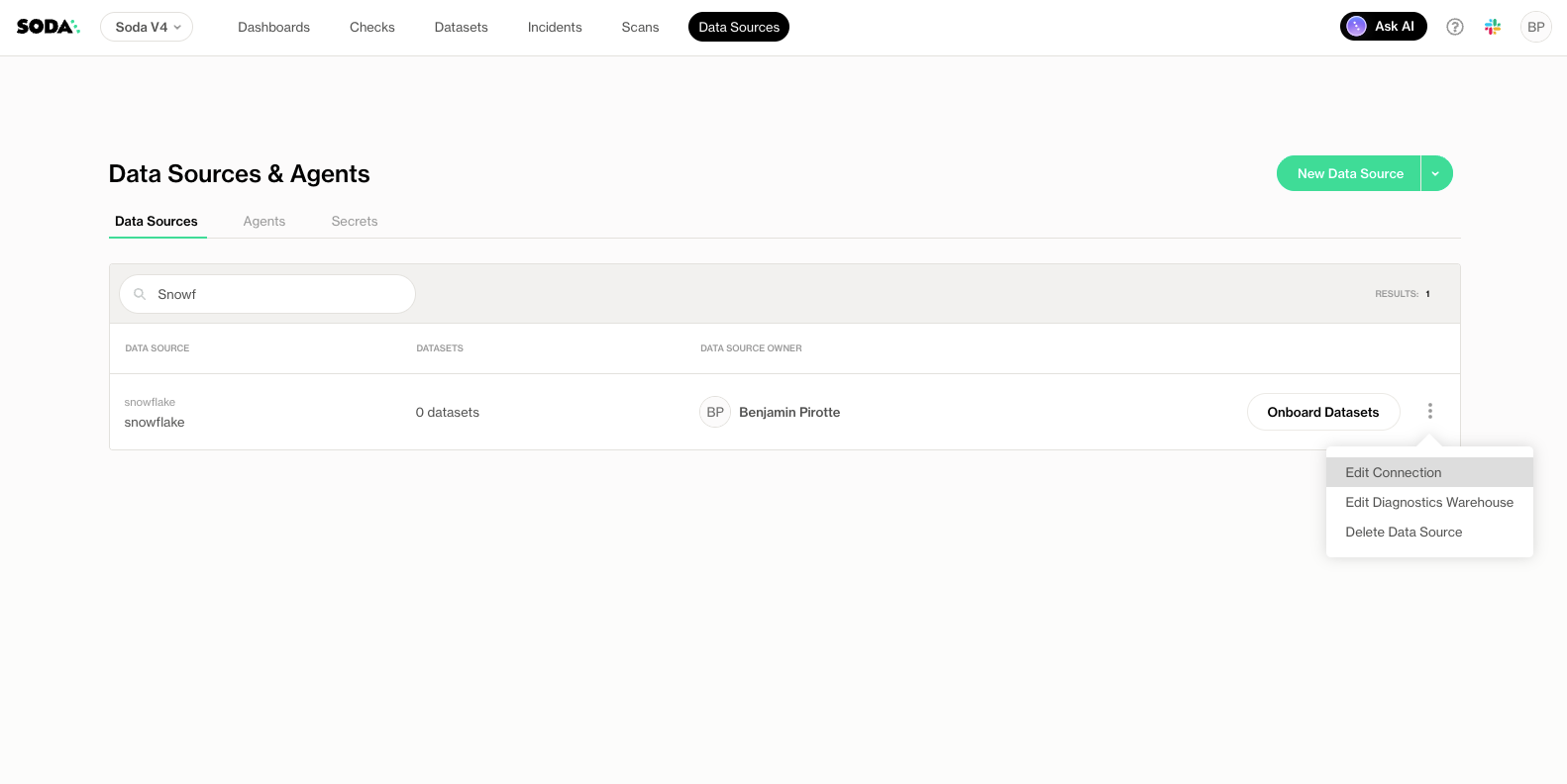
2. Click **Edit connection** for a data source.
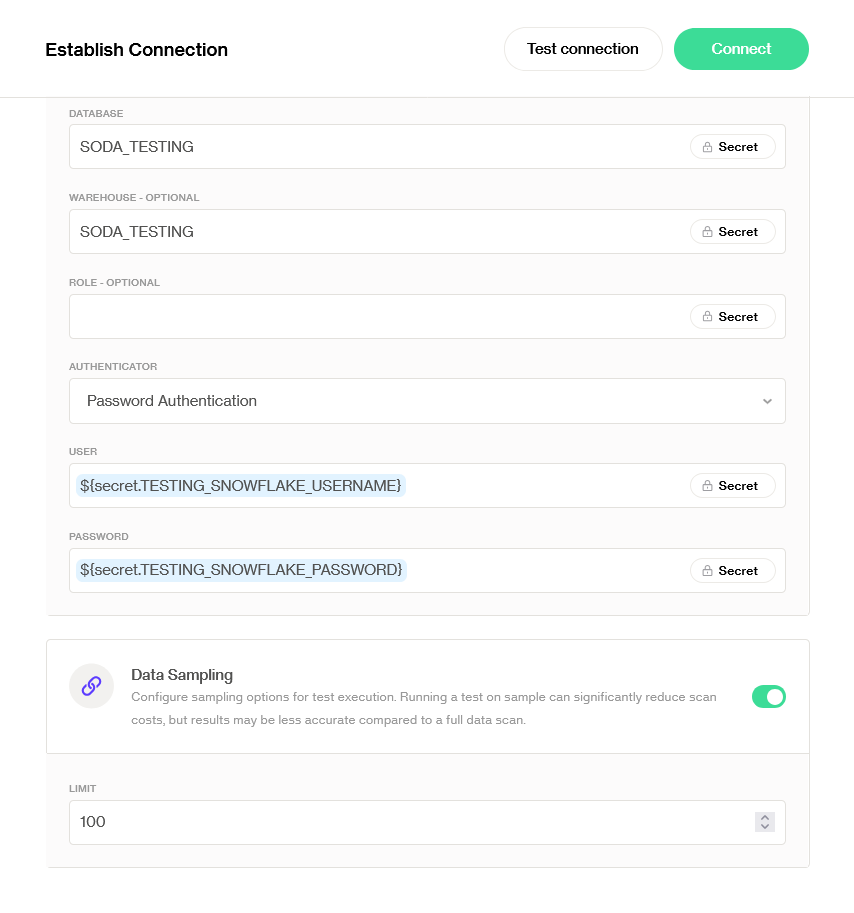
3. Under the **Connection Details** section, toggle **Data Sampling**.
4. Specify your **sample size** on the **Limit** field.
5. :octagon-check: Click **Connect**.
***
## Optimize computing with multiple warehouses
{% hint style="warning" %}
Currently available in **preview**. This feature is **only supported in Snowflake data sources**.
{% endhint %}
When connecting to Snowflake, you must provide a **warehouse** as part of the data source configuration. By default, this single warehouse is used for **all operations**, including discovery, metric monitoring, profiling, data contract executions, and the diagnostics warehouse.
The **Configure warehouses per dataset** feature gives you greater control and flexibility by allowing you to **define specific warehouses for individual datasets**. This helps you **optimize cost, manage compute workloads, and allocate resources efficiently** across your data operations.
{% hint style="info" %}
This feature is available **only when using Soda Runner**. When using **Soda Core**, the warehouse can be specified directly in the **connection YAML** instead.
{% endhint %}
### Enable the use of multiple warehouses
{% hint style="warning" %}
You need the **“Manage data sources”** global permission to enable or modify this feature. Learn more about [Global and Dataset Roles](/organization-and-admin-settings/global-and-dataset-roles.md).
{% endhint %}
1. Go to **Data sources** in Soda Cloud.
2. Click **Edit connection** for your **Snowflake** data source.
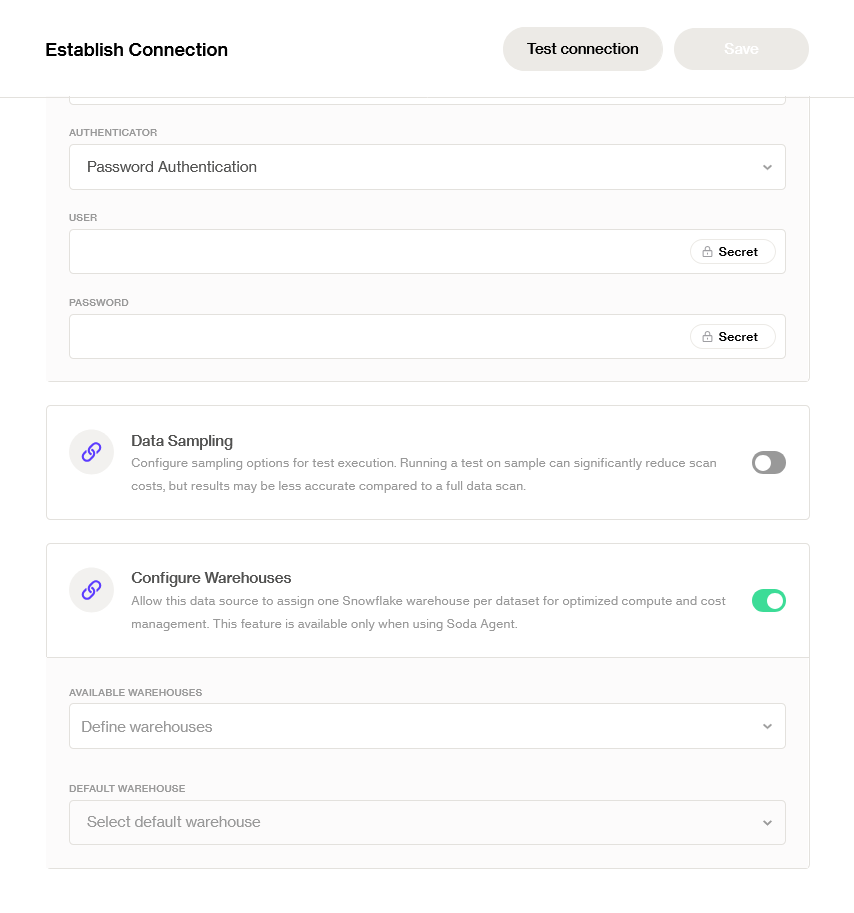
3. Toggle on **Configure Warehouses**.
4. Specify the **list of allowed warehouses** that can be used by this connection.
5. Choose a **default warehouse** to use for all datasets unless otherwise specified.
6. :octagon-check: Click **Save** on the top right to save your configuration.
### Default warehouse behavior
Once enabled:
* The **warehouse** specified in the data source connection is used for **discovery**.
* The **default warehouse** (defined under **Configure Warehouses**) is used for:
* Metric monitoring
* Profiling
* Data contract executions
* Diagnostics Warehouse operations
* A different warehouse can be configured at the **dataset level**, overriding the default.
### Specify a warehouse at the dataset level
{% hint style="warning" %}
You need the **“Configure dataset”** permission to edit dataset-level configurations. Learn more about [Global and Dataset Roles](/organization-and-admin-settings/global-and-dataset-roles.md).
{% endhint %}
1. Go to a dataset in Soda Cloud.
2. Click **Edit dataset**.
3. Under the **Snowflake** section, select the **warehouse** to use for this dataset.
---
# Agent Instructions
This documentation is published with GitBook. GitBook is the documentation platform designed so that both humans and AI agents can read, navigate, and reason over technical content effectively. Learn more at gitbook.com.
## Querying This Documentation
If you need additional information that is not directly available in this page, you can query the documentation dynamically by asking a question.
Perform an HTTP GET request on the current page URL with the `ask` query parameter, and the optional `goal` query parameter:
```
GET https://docs.soda.io/onboard-data-sources-and-datasets/onboard-datasets-on-soda-cloud/additional-settings.md?ask=&goal=
```
`ask` is the immediate question: it should be specific, self-contained, and written in natural language.
`goal` is optional and describes the broader end goal you are ultimately trying to accomplish on behalf of the user. GitBook uses it to tailor the answer towards what is most useful for that goal.
The response will contain a direct answer to the question and relevant excerpts and sources from the documentation.
Use this mechanism when the answer is not explicitly present in the current page, you need clarification or additional context, or you want to retrieve related documentation sections.