> For the complete documentation index, see [llms.txt](https://docs.soda.io/llms.txt). Markdown versions of documentation pages are available by appending `.md` to page URLs; this page is available as [Markdown](https://docs.soda.io/soda-documentation/integrations/sigma.md).
# Sigma
Learn how to integrate Sigma with Soda.
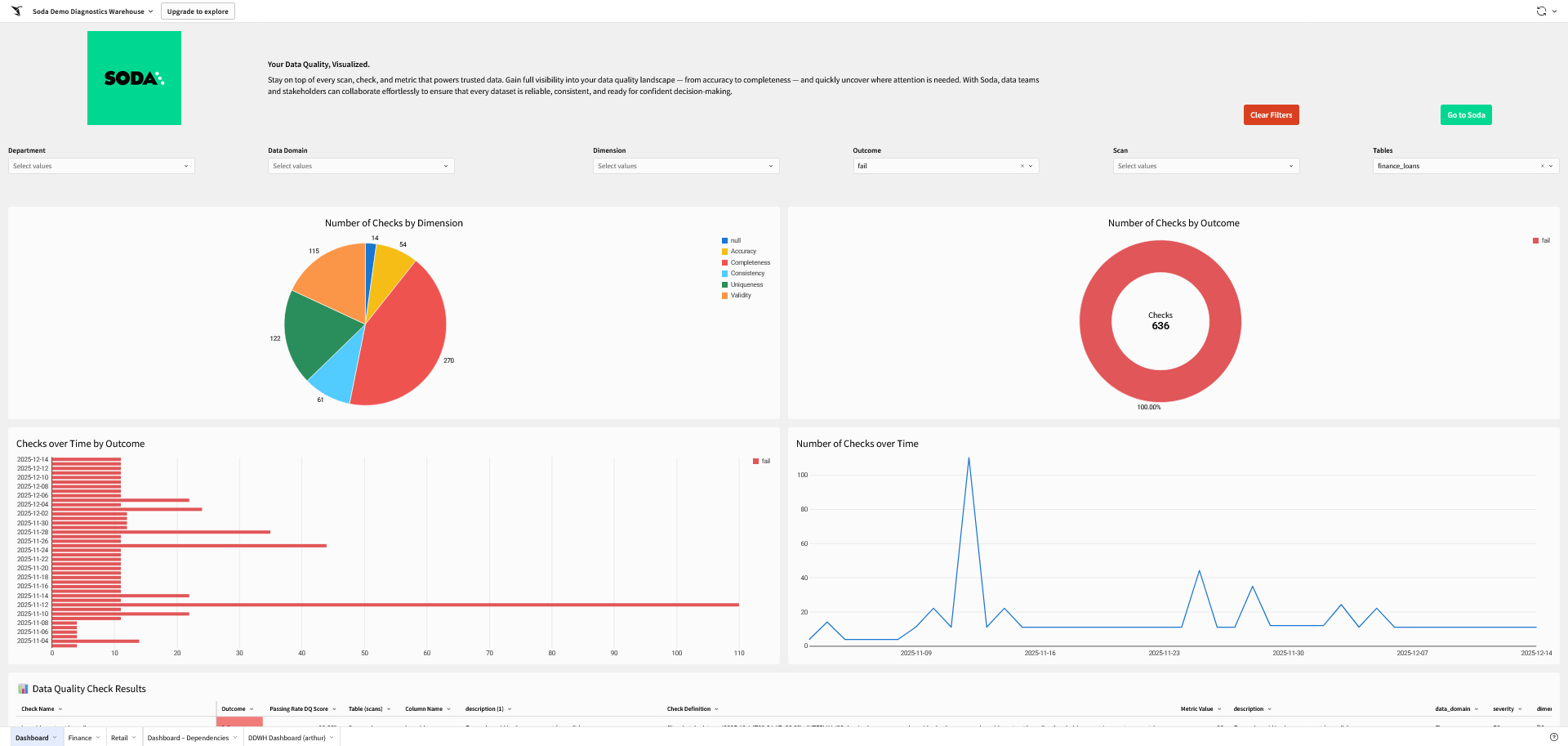
Connect Soda Cloud to Sigma to build live reporting dashboards on top of your data quality results. You can create dashboards that visualize Soda check results, track failed rows over time, and report on the overall health of your data assets.
The integration works by exposing Soda data, such as check results, scan time, or failed rows. Once Sigma is connected to Soda or a Soda data source, such as a Diagnostics Warehouse, you can build and share dashboards directly in Sigma without any additional export or scripting steps.
You can use the Soda Cloud API to extract check and dataset results programmatically and write them to a data warehouse of your choice, which Sigma can then query.
### Prerequisites
* **Python 3.8+**
* **Pip 21.0+**
* **A Sigma account** with permission to create workbooks and connect data sources
* **A Soda Cloud account** with at least one data source configured and scans running
* Permission in Soda Cloud to access dataset metadata; see [Global and Dataset Roles](/soda-documentation/organization-and-admin-settings/global-and-dataset-roles.md)
* Soda Cloud API keys. See [Broken mention](broken://pages/H6Piqnv5lUFCAv1Cvm75)
***
## Soda Cloud Reporting API dashboard
### Set up a Python script
{% stepper %}
{% step %}
Install the required dependencies:
```bash
pip install pandas requests
pip install "snowflake-connector-python[pandas]"
```
{% endstep %}
{% step %}
In a new Python script, configure your Soda Cloud connection. Use `cloud.us.soda.io` for US accounts and `cloud.soda.io` for EU accounts.
> See [Generate API keys](broken://pages/H6Piqnv5lUFCAv1Cvm75) for instructions on obtaining your keys.
```python
soda_cloud_url = 'https://cloud.us.soda.io'
soda_apikey = 'xxx' # API key ID from Soda Cloud
soda_apikey_secret = 'xxx' # API key secret from Soda Cloud
```
{% endstep %}
{% step %}
Define the Snowflake table names in which to store the metadata. Use uppercase names to meet Snowflake's case sensitivity requirements.
```python
datasets_table = 'DATASETS_REPORT'
checks_table = 'CHECKS_REPORT'
```
{% endstep %}
{% step %}
Configure your Snowflake connection:
```python
snowflake_details = snowflake.connector.connect(
user=user,
password=password,
account=account,
warehouse=warehouse,
database=database,
schema=schema,
)
```
{% endstep %}
{% endstepper %}
### Capture and store metadata
{% stepper %}
{% step %}
Make a GET request to the Soda Cloud API to retrieve dataset information. The script exits with an error if the request is unauthorised.
```python
response_datasets = requests.get(
soda_cloud_url + '/api/v1/datasets?page=0',
auth=(soda_apikey, soda_apikey_secret)
)
if response_datasets.status_code in (401, 403):
print("Unauthorized or Forbidden. Check your API keys and permissions.")
sys.exit()
```
{% endstep %}
{% step %}
Once the connection is confirmed, iterate over all pages of results and load them into a Pandas DataFrame. The script handles API rate limiting automatically. On HTTP 429, it pauses 30 seconds and retries the same page.
```python
if response_datasets.status_code == 200:
dataset_pages = response_datasets.json().get('totalPages')
i = 0
while i < dataset_pages:
dq_datasets = requests.get(
soda_cloud_url + '/api/v1/datasets?page=' + str(i),
auth=(soda_apikey, soda_apikey_secret))
if dq_datasets.status_code == 200:
datasets.extend(dq_datasets.json().get("content"))
i += 1
elif dq_datasets.status_code == 429:
print("Rate limit reached. Pausing 30 seconds.")
time.sleep(30)
df_datasets = pd.DataFrame(datasets)
```
{% endstep %}
{% step %}
Following the same pattern, extract all check information from the Checks endpoint. This retrieves each check's name, dataset, last evaluation time, result (pass/warn/fail), owner, and any custom attributes.
```python
response_checks = requests.get(
soda_cloud_url + '/api/v1/checks?size=100',
auth=(soda_apikey, soda_apikey_secret))
if response_checks.status_code == 200:
check_pages = response_checks.json().get('totalPages')
i = 0
while i < check_pages:
dq_checks = requests.get(
soda_cloud_url + '/api/v1/checks?size=100&page=' + str(i),
auth=(soda_apikey, soda_apikey_secret))
if dq_checks.status_code == 200:
checks.extend(dq_checks.json().get("content"))
i += 1
elif dq_checks.status_code == 429:
time.sleep(30)
df_checks = pd.DataFrame(checks)
```
Any custom Soda attributes defined on your checks are automatically expanded into individual columns. If the target tables already exist in Snowflake, the script detects new attribute columns and adds them with `ALTER TABLE` without overwriting existing data.
{% endstep %}
{% step %}
Write both DataFrames to your data source:
```python
write_pandas(snowflake_details, df_checks, checks_table, auto_create_table=True)
write_pandas(snowflake_details, df_datasets, datasets_table, auto_create_table=True)
```
{% endstep %}
{% step %}
To track changes over time, schedule the script to run regularly and store results in incremental tables.
{% endstep %}
{% endstepper %}
### Build a dashboard in Sigma
{% stepper %}
{% step %}
Follow Sigma's documentation to [**connect to your data source**](https://help.sigmacomputing.com/docs/connect-to-data-sources), pointing to the database and schema where your `CHECKS_REPORT` and `DATASETS_REPORT` tables are stored.
{% endstep %}
{% step %}
Access the metadata either by [modelling data from the database tables](https://help.sigmacomputing.com/docs/create-models) directly, or by [creating a dataset using custom SQL](https://help.sigmacomputing.com/docs/create-a-dataset-from-sql#create-a-dataset-by-writing-custom-sql).
{% endstep %}
{% step %}
Create a new workbook in Sigma and add your visualisations.
{% endstep %}
{% endstepper %}
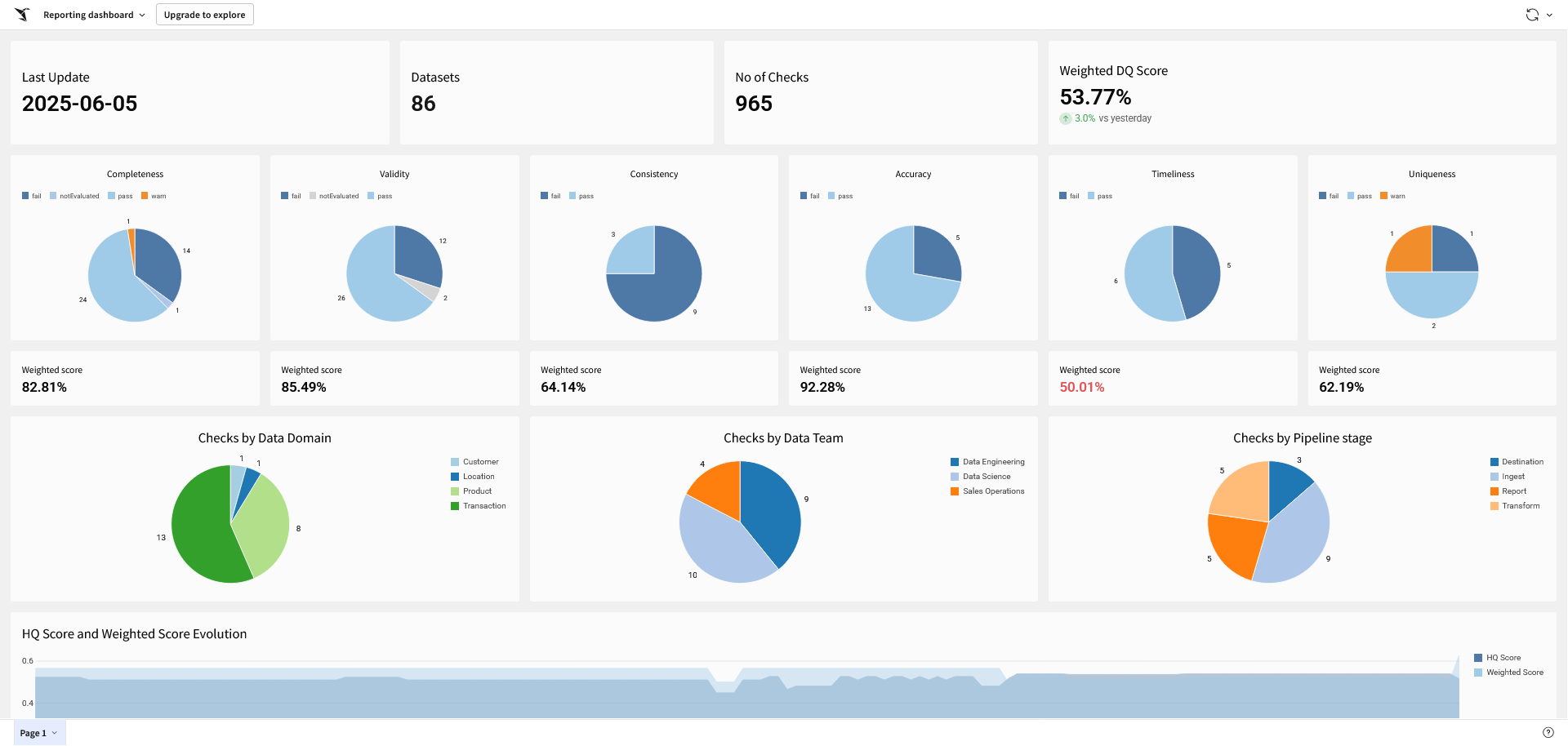
A typical data quality dashboard might include:
* **KPI tiles** — total datasets monitored, total checks executed, number of failing checks
* **Weighted data quality score** — using the `Weight` check attribute to calculate a custom health score, trended over time
* **Breakdowns by check attribute** — such as Data Quality Dimension (Completeness, Validity, Consistency, Accuracy, Timeliness, Uniqueness), Data Domain, Data Team, or Pipeline Stage
Sigma dashboard on top of Soda Cloud Reporting API results
{% hint style="info" %} :lightbulb: **Check attributes** such as Data Quality Dimension, Data Domain, Data Team, and Pipeline Stage are particularly useful for filtering and segmenting results in your dashboard. The `Weight` attribute lets you assign a numerical importance level to each check, enabling a custom data health score.
See [check and dataset attributes](/soda-documentation/manage-issues/check-and-dataset-attributes.md) for more.
{% endhint %}
***
{% hint style="info" %}
You are **not logged in to Soda** and are viewing the default public documentation. Learn more about [Licensing & documentation access](/soda-documentation/reference/documentation-access-and-licensing.md).
{% endhint %}
---
# Agent Instructions
This documentation is published with GitBook. GitBook is the documentation platform designed so that both humans and AI agents can read, navigate, and reason over technical content effectively. Learn more at gitbook.com.
## Querying This Documentation
If you need additional information that is not directly available in this page, you can query the documentation by asking a question.
Perform an HTTP GET request on the following URL with the `ask` and `goal` query parameters:
```
GET https://docs.soda.io/soda-documentation/integrations/sigma.md?ask=&goal=
```
`ask` is the immediate question: it should be specific, self-contained, and written in natural language.
`goal` is what the user is ultimately trying to achieve, the reason they need the answer. Sharing it helps GitBook give you a better, more relevant answer. A goal is most helpful when it describes the outcome the user wants rather than restating the question. For example, with `ask=how do I create an API token`, a goal like `automate deployments from our CI pipeline` lets GitBook tailor the answer to that use case.
The response will contain a direct answer to the question and relevant excerpts and sources from the documentation.
Use this mechanism when the answer is not explicitly present in the current page, you need clarification or additional context, or you want to retrieve related documentation sections.