> For the complete documentation index, see [llms.txt](https://docs.soda.io/llms.txt). Markdown versions of documentation pages are available by appending `.md` to page URLs; this page is available as [Markdown](https://docs.soda.io/soda-documentation/integrations/ms-teams.md).
# MS Teams
Configure Soda Cloud to connect your account to MS Teams so that you can:
* Send [notifications](/soda-documentation/manage-issues/notifications.md) for failed or warning check results to MS Teams channel.
* Start conversations to track and resolve [data quality incidents](/soda-documentation/manage-issues/incidents.md) with MS Teams.
## Configure an MS Teams integration
{% hint style="warning" %}
Only users with the **Manage Organization Settings** global role can define webhook integrations.
Learn more about [global and dataset roles](/soda-documentation/organization-and-admin-settings/global-and-dataset-roles.md).
{% endhint %}
1. As a user with permission to do so, log in to your Soda Cloud account, navigate to **your avatar** > **Organization Settings**, then select the **Integrations** tab.
2. In the **Add Integration** dialog box, select **Microsoft Teams**.
3. In the first step of the guided integration workflow, follow the instructions to navigate to your MS Teams account to create a Workflow; see Microsoft’s documentation for [Creating a workflow from a channel in Teams](https://support.microsoft.com/en-us/office/creating-a-workflow-from-a-channel-in-teams-242eb8f2-f328-45be-b81f-9817b51a5f0e). Use the Workflow template to "**Send webhook alerts to a channel**".
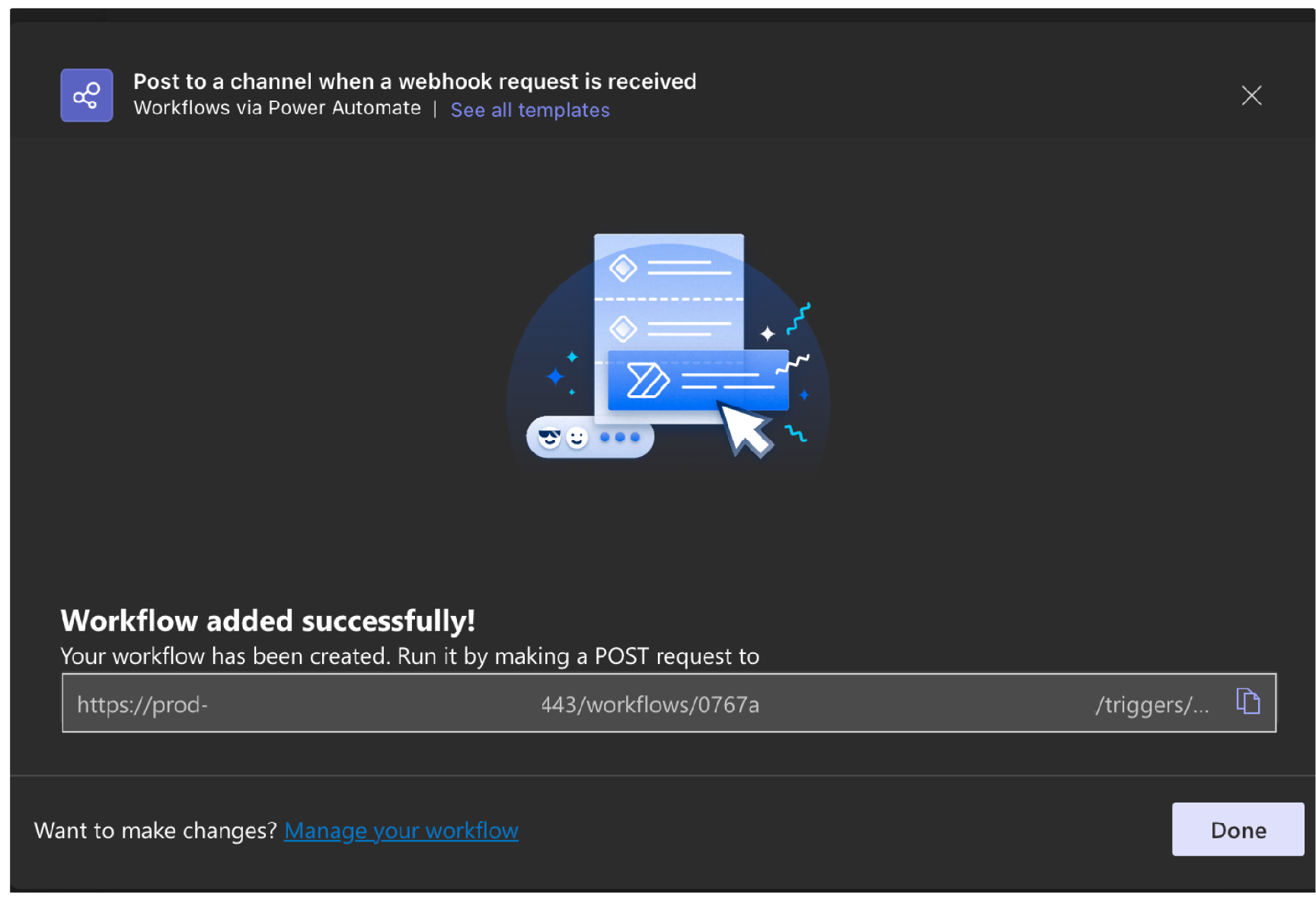
4. In the last step of the guided Workflow creation, copy the URL created after successfully adding the workflow.
5. Returning to Soda Cloud with the URL for Workflow, continue to follow the guided steps to complete the integration. Reference the following tables for guidance on the values to input in the guided steps.
**Configuration** tab: Provide the following information
| Field or Label | Guidance |
| -------------- | --------------------------------------------------------- |
| Name | Provide a unique name for your integration in Soda Cloud. |
| URL | Input the Workflow URL you obtained from MS Teams. |
**Scope** tab: select the Soda features (alert notifications and/or incidents) that can access the Slack integration.
| Field or Label | Guidance |
| -------------------------------------------------------------------------------------- | ------------------------------------------------------------------------------------------------------------------------------------------------------------------------------------- |
| Enable to send notifications to Microsoft Teams when a check result triggers an alert. | Check to allow users to select MS Teams as a destination for alert notifications when check results warn or fail. [Notifications](/soda-documentation/manage-issues/notifications.md) |
| Use Microsoft Teams to track and resolve incidents in Soda Cloud. | Check to automatically send incident information to an MS Teams channel. |
| Channel URL | Provide a channel identifier to which Soda Cloud sends all incident events. |
### About integration scopes
#### Integration for alert notifications
Use the **Alert Notification** scope to enable Soda Cloud to send alert notifications to an MS Teams channel to notify your team of warn and fail check results. With such an integration, Soda Cloud enables users to select MS Teams as the destination for an alert notification of an individual check or checks that form a part of an agreement, or multiple checks. To send notifications that apply to multiple checks, see [Notifications](/soda-documentation/manage-issues/notifications.md).
#### Integration for Soda Cloud incident
Use the **Incident** scope to notify your team when a new incident has been created in Soda Cloud. With such a scope, Soda Cloud displays an external link to the MS Teams channel in the **Incident Details**. Soda Cloud sends all incident events to only one channel in MS Teams. As such, you must provide a separate link in the **Channel URL** field in the **Define Scope** tab. For example, `https://teams.microsoft.com/mychannel`. To obtain the channel link in MS Teams, right-click on the channel name in the overview sidebar. Refer to [Incidents](/soda-documentation/manage-issues/incidents.md) for more details about using incidents in Soda Cloud.
## Troubleshoot :octagon-xmark: **Problem:** You encounter an error that reads, “Error encountered while rendering this message.”
:octagon-check: **Solution:** A fix is [documented](https://www.anyviewer.com/kb/microsoft-teams-error-encountered-while-rendering-this-message-2996-ac.html), the short version of which is as follows:
1. Restart MS Teams.
2. Clear your cache and cookies.
3. If you have not already done so, update to the latest version of MS Teams.
***
{% hint style="info" %}
You are **not logged in to Soda** and are viewing the default public documentation. Learn more about [Licensing & documentation access](/soda-documentation/reference/documentation-access-and-licensing.md).
{% endhint %}
---
# Agent Instructions
This documentation is published with GitBook. GitBook is the documentation platform designed so that both humans and AI agents can read, navigate, and reason over technical content effectively. Learn more at gitbook.com.
## Querying This Documentation
If you need additional information that is not directly available in this page, you can query the documentation by asking a question.
Perform an HTTP GET request on the following URL with the `ask` and `goal` query parameters:
```
GET https://docs.soda.io/soda-documentation/integrations/ms-teams.md?ask=&goal=
```
`ask` is the immediate question: it should be specific, self-contained, and written in natural language.
`goal` is what the user is ultimately trying to achieve, the reason they need the answer. Sharing it helps GitBook give you a better, more relevant answer. A goal is most helpful when it describes the outcome the user wants rather than restating the question. For example, with `ask=how do I create an API token`, a goal like `automate deployments from our CI pipeline` lets GitBook tailor the answer to that use case.
The response will contain a direct answer to the question and relevant excerpts and sources from the documentation.
Use this mechanism when the answer is not explicitly present in the current page, you need clarification or additional context, or you want to retrieve related documentation sections.