# Column monitors

## What is a Column Monitor?

A **column monitor** in Soda tracks a specific statistical metric for a given column over time. It helps detect unusual patterns or unexpected changes in column behavior, such as spikes in missing values or shifts in averages.

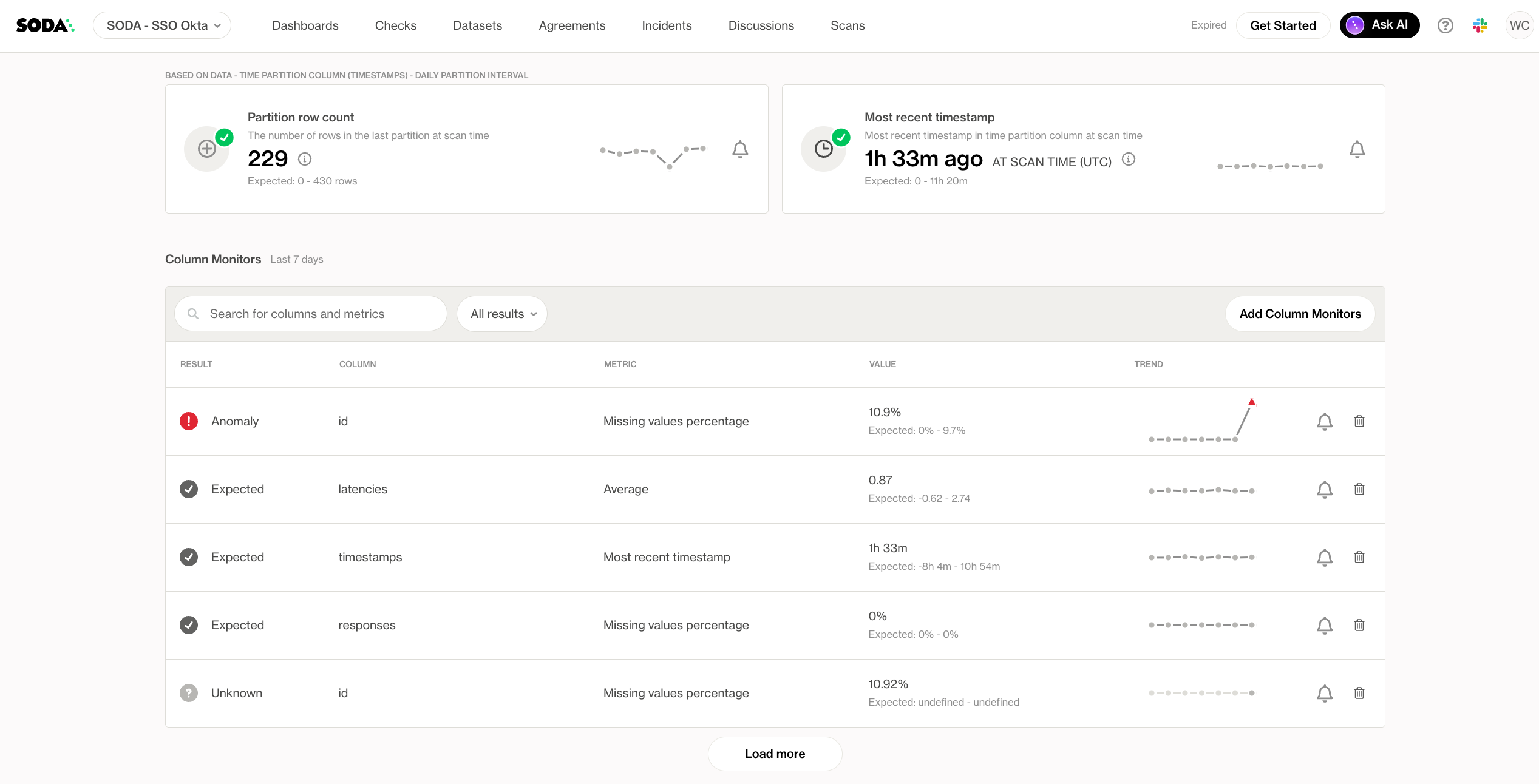
You can find column monitors by opening the **Metric Monitors** tab on any dataset and scrolling to the bottom of the page. This section lists all active column monitors in a structured, searchable view. The list can be sorted by recency or by the number of detected anomalies, allowing you to quickly focus on the most relevant issues.

Unlike dataset-level monitors, which can be applied at the data source level, column monitors are configured at the dataset level and are tailored to specific use cases. It is recommended to add column monitors only to columns where changes are likely to reflect actual data quality issues. Adding too many monitors may increase false positives and create unnecessary noise.

For column monitors to work, a **time partition column** must be defined. Soda uses this column to divide the data into time-based partitions, typically by day, and calculates the selected metrics within each partition. The column must be a timestamp and should reflect when records arrive in the database to ensure accurate and meaningful results.

<figure><img src="/files/giclAwOEbN1PTyob96dq" alt=""><figcaption></figcaption></figure>

For each dataset, you’ll see a scrollable list that includes:

* Result of the anomaly detection: Anomaly, Expected or Unkown (not evaluated yet)
* Column name
* Metric name (e.g. "Missing values percentage", "Average")
* Column being tracked
* Latest value
* Trend sparkline

At the bottom of the list it is possible to load more monitors. From this view, every monitor can be deleted or configured with opt-in notifications.

### Types of column monitors

<table><thead><tr><th valign="top">Data type</th><th>Metric</th><th>Description</th></tr></thead><tbody><tr><td valign="top"><strong>All data types</strong></td><td>Count</td><td>Detects anomalies in the number of non-missing (non-NULL) values in a column.</td></tr><tr><td valign="top"></td><td>Duplicate percentage</td><td>Detects anomalies in the percentage of duplicate values in a column.</td></tr><tr><td valign="top"></td><td>Maximum value</td><td>Detects anomalies in the maximum (highest) value in a column.</td></tr><tr><td valign="top"></td><td>Minimum value</td><td>Detects anomalies in the minimum (lowest) value in a column.</td></tr><tr><td valign="top"></td><td>Missing values percentage</td><td>Detects anomalies in the maximum (highest) value in a column.</td></tr><tr><td valign="top"></td><td>Unique count</td><td>Detects anomalies in the number of distinct (unique) values in a column.</td></tr><tr><td valign="top"><strong>Timestamp</strong></td><td>Most recent timestamp</td><td>Detects anomalies in the most recent (latest) timestamp value in a column.</td></tr><tr><td valign="top"><strong>Numeric</strong></td><td><br>Average</td><td>Detects anomalies in the average (mean) value of a column.</td></tr><tr><td valign="top"></td><td>Standard deviation</td><td>Detects anomalies in the standard deviation of values in a column.</td></tr><tr><td valign="top"></td><td>Sum</td><td>Detects anomalies in the total (sum) of values in a column.</td></tr><tr><td valign="top"></td><td>Variance</td><td>Detects anomalies in the variance (spread) of values in a column.</td></tr><tr><td valign="top"></td><td>Q1</td><td>Detects anomalies in the 25th percentile (first quartile) value of a column.</td></tr><tr><td valign="top"></td><td>Median</td><td>Detects anomalies in the 50th percentile (median - Q2) value of a column.</td></tr><tr><td valign="top"></td><td>Q3</td><td>Detects anomalies in the 75th percentile (third quartile) value of a column.</td></tr><tr><td valign="top"><strong>Text</strong></td><td>Average length</td><td>Detects anomalies in the average character length of text values.</td></tr><tr><td valign="top"></td><td>Maximum length</td><td>Detects anomalies in the shortest character length of text values.</td></tr><tr><td valign="top"></td><td>Minimum length</td><td>Detects anomalies in the longest character length of text values.</td></tr></tbody></table>

{% hint style="info" %}
We are working on releasing more metrics and monitors.
{% endhint %}

## Add Column Monitors

Column monitors can be added one by one or in bulk. When multiple columns are selected only metrics that are applicable to all columns will be shown.

### 1. Open the Column Monitor wizard

1. In the **Metric Monitors** dashboard, click **Add Column Monitors**.

<figure><img src="/files/vLILlmALqqgS4r9WJsv8" alt=""><figcaption></figcaption></figure>

### 2. Select columns

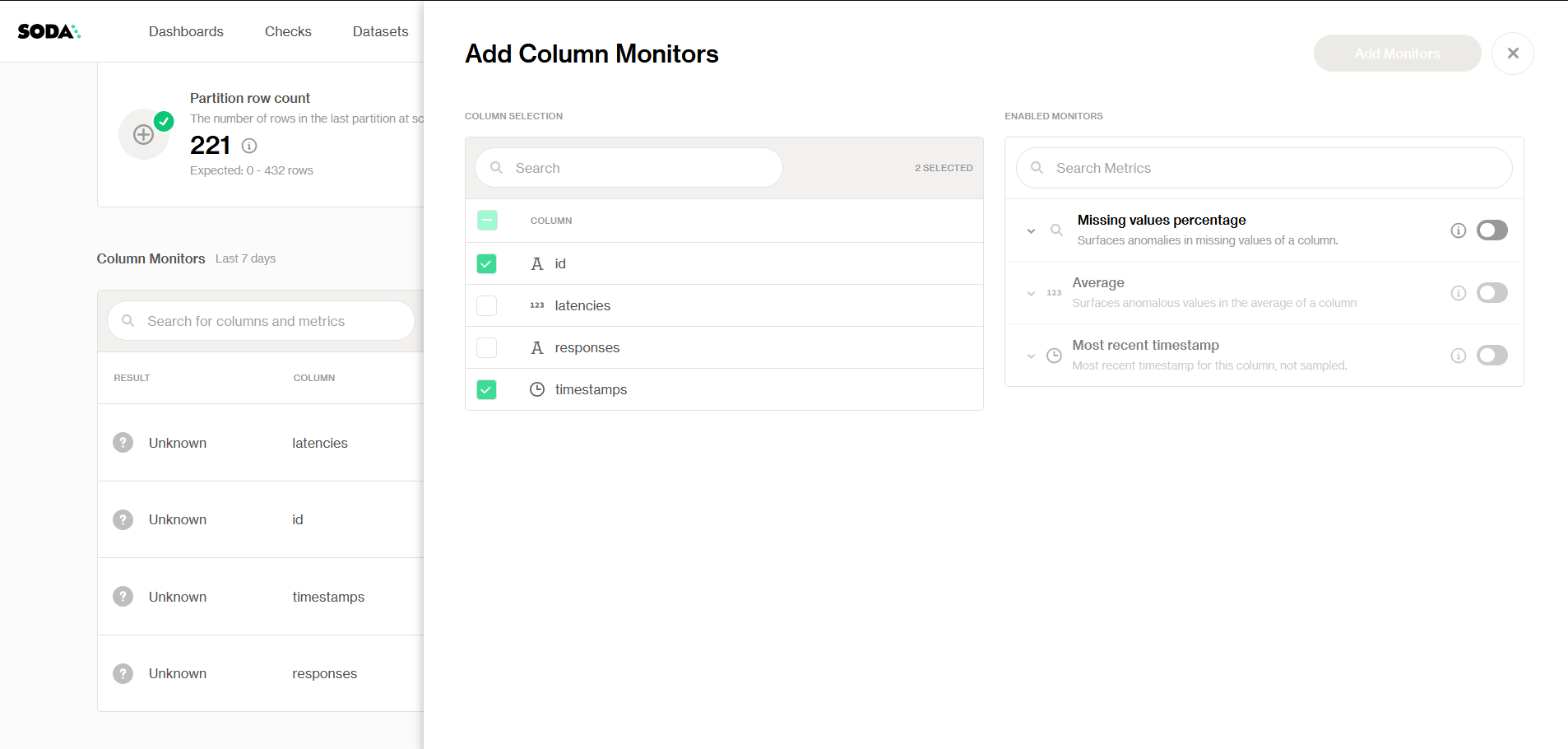
1. Search or scroll your table’s columns.
2. Check one box, or several boxes to select columns in bulk.

<figure><img src="/files/DQ4VLvPvZLb50x3hRxZU" alt=""><figcaption></figcaption></figure>

{% hint style="warning" %}
**Column monitors are typed**: metrics will appear as long as the necessary data type is available.

For example, if a column type is `str` (text based), it will not be possible to enable numeric metrics.
{% endhint %}

### **3. Choose metrics**

{% hint style="info" %}
For all column metrics:

* Data is not sampled.
* Missing values are ignored (except in [Missing values percentage](/data-observability/metric-monitoring-dashboard/column-monitors/all-data-types/missing-values-percentage.md)).
  {% endhint %}

1. Select the metrics of interest.
2. Search or expand metrics for further configuration:
   1. **Valid Range:** define **MIN** and **MAX** values the metric can take (defaults to –∞/∞ or 0–∞ for time-based metrics).
   2. **Threshold Strategy:** choose whether to alert on the **Upper range**, the **Lower range**, or both.
   3. **Exclusion Values: s**pecify literal values or ranges to ignore when marking anomalies.

<figure><img src="/files/duUwtYUmjBCAF5GtEhcp" alt=""><figcaption></figcaption></figure>

### 4. Add monitors

1. Once you’ve selected your columns and toggled the desired metrics on, click **Add Monitors**.
2. Empty monitors will be added to the list.
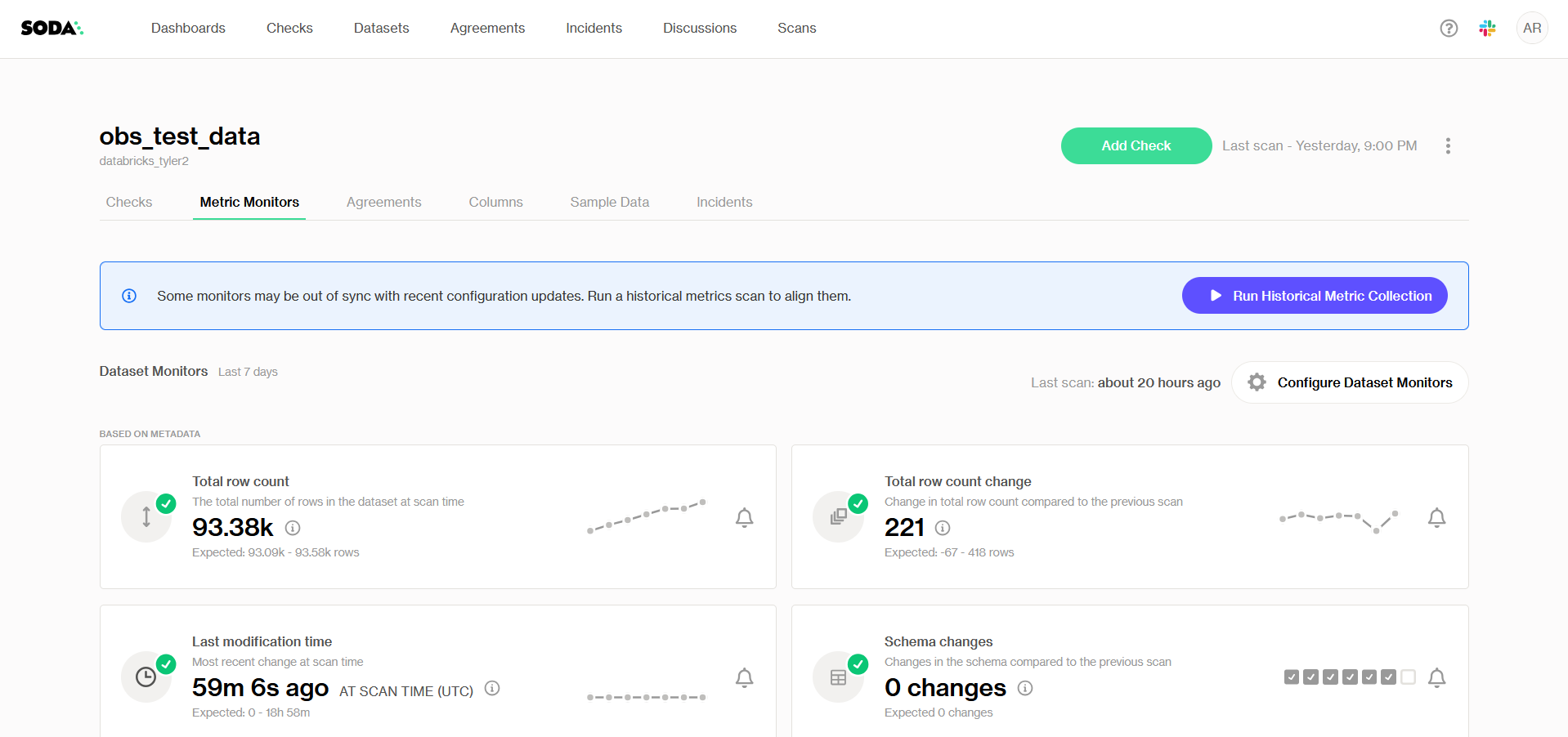
3. At the top of the page, you will be prompted to **run a Historical Metric Collection Scan**.

<figure><img src="/files/X4V9JJIJRFbFUohLrsgn" alt=""><figcaption></figcaption></figure>

{% hint style="success" %}
**Tip**: add all your column monitors first, then run the historical scan in one go. This will save time and computing costs, and ensures every monitor shares the same look-back window.
{% endhint %}

## Configure and fine-tune Column Monitors

Column Monitors can be configured when setting them up as well as while they're in production. To fine-tune the monitor to your specific needs, **go to the page for each specific metric**.

> Learn more about [How to fine-tune Metric Monitoring →](/data-observability/metric-monitor-page.md#how-to-fine-tune-metric-monitoring)

<br>

***

{% if (visitor.claims.plan === 'datasetStandard')%}
{% hint style="success" %}
You are **logged in to Soda** and seeing the **Dataset Standard license** documentation. Learn more about [Documentation access & licensing](/reference/documentation-access-and-licensing.md).
{% endhint %}
{% endif %}

{% if (visitor.claims.plan === 'enterprise')%}
{% hint style="success" %}
You are **logged in to Soda** and seeing the **Team license** documentation. Learn more about [Documentation access & licensing](/reference/documentation-access-and-licensing.md).
{% endhint %}
{% endif %}

{% if (visitor.claims.plan === 'enterpriseUserBased')%}
{% hint style="success" %}
You are **logged in to Soda** and seeing the **Enterprise license** documentation. Learn more about [Documentation access & licensing](/reference/documentation-access-and-licensing.md).
{% endhint %}
{% endif %}

{% if !(visitor.claims.plan === 'enterprise' || visitor.claims.plan === 'enterpriseUserBased' || visitor.claims.plan === 'datasetStandard')%}
{% hint style="info" %}
You are **not logged in to Soda** and are viewing the default public documentation. Learn more about [Documentation access & licensing](/reference/documentation-access-and-licensing.md).
{% endhint %}
{% endif %}


---

# Agent Instructions: Querying This Documentation

If you need additional information that is not directly available in this page, you can query the documentation dynamically by asking a question.

Perform an HTTP GET request on the current page URL with the `ask` query parameter:

```
GET https://docs.soda.io/data-observability/metric-monitoring-dashboard/column-monitors.md?ask=<question>
```

The question should be specific, self-contained, and written in natural language.
The response will contain a direct answer to the question and relevant excerpts and sources from the documentation.

Use this mechanism when the answer is not explicitly present in the current page, you need clarification or additional context, or you want to retrieve related documentation sections.